Removing the background from an image used to mean 45 minutes with the Photoshop pen tool, carefully tracing edges and hoping the hair did not look cut out with safety scissors. In 2026, AI does the entire job in about five seconds, and several genuinely capable tools do it for free. The catch is that “free” almost always comes with a limit on resolution, export count, or edge quality, so picking the right tool for your specific job matters more than picking the most famous one.
Direct answer: To remove a background from an image for free in 2026, use Adobe Express for unlimited watermark-free removals, remove.bg for the cleanest edges on hair and fur (free downloads are preview size), Pixlr for quick no-signup edits, or your phone’s built-in tools like iOS Lift Subject. Upload your photo, let the AI detect the subject, then download the result as a transparent PNG.
Key Takeaways
- Adobe Express is the best all-round free option: unlimited background removals with no watermark on the free tier.
- remove.bg produces the cleanest cutouts, especially around hair and fur, but free downloads are limited to small preview resolution.
- Pixlr works without an account and exports without a watermark, making it the fastest option for one-off edits.
- iPhone users can long-press a subject in the Photos app to lift it instantly, and Pixel owners get Magic Editor built in.
- Free almost always means a tradeoff: check resolution limits, watermark rules, and monthly caps before committing to a tool.
Best Free Background Removers at a Glance
| Tool | Best For | Free Limits | Watermark |
|---|---|---|---|
| Adobe Express | General use, beginners | Unlimited removals | No |
| remove.bg | Cleanest edges, hair and fur | Preview-size downloads (0.25 MP) | No |
| Pixlr | Quick edits, no signup | Usage limits apply | No |
| PhotoRoom | Product photos, e-commerce | Free plan with caps | On some exports |
| Canva | Social media designs | Availability varies by plan | No |
| iOS Lift Subject | iPhone quick cutouts | Unlimited | No |
| Photopea | Advanced manual control | Free with ads | No |
How Do You Remove a Background From an Image for Free?
Short answer: Upload your photo to a free AI remover like Adobe Express or Pixlr, wait a few seconds for automatic subject detection, refine the edges if the tool allows it, then download as a transparent PNG.
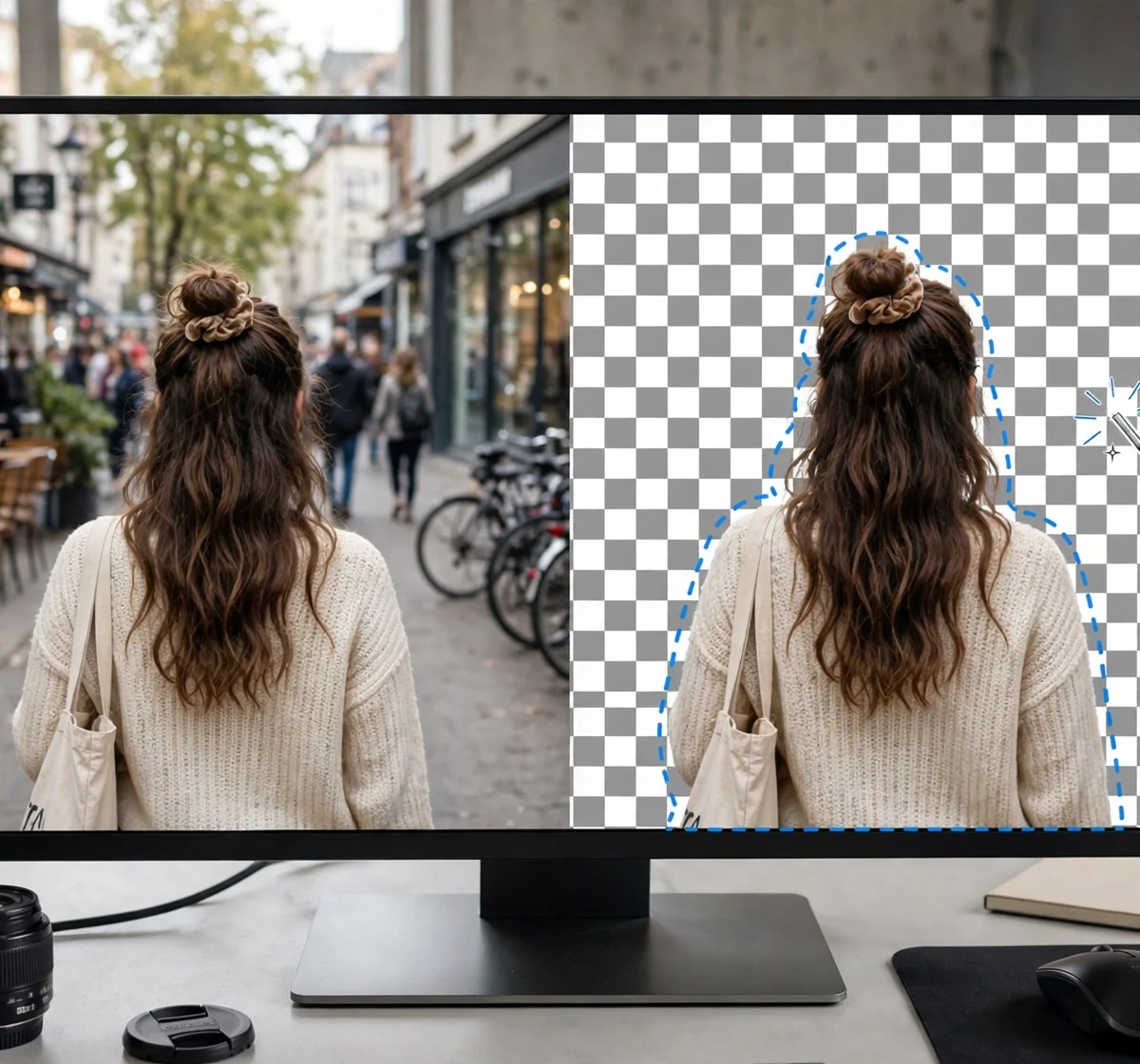
The underlying process is nearly identical across tools. The AI model segments the image into subject and background, generates a mask, and renders the subject over transparency. The differences that matter are edge quality (how cleanly hair, fur, and translucent objects are handled), output resolution, and what happens after the cutout: some tools stop there, while others let you add a new background, shadows, or text in the same editor.
For most casual jobs, a social post, a thumbnail, a simple product mockup, the free tier of any major tool is sufficient. The limitations only bite when you need high resolution for print, pixel-perfect edges for professional compositing, or hundreds of images processed in bulk. DigitalGeekSpot covers free creative tools regularly, and the pattern is consistent: match the tool to the job, not to the hype.
Which Free Tool Removes Backgrounds Best?
Short answer: Adobe Express is the best free all-rounder with unlimited watermark-free removals, remove.bg wins on edge quality, and Pixlr is fastest when you want no account.
Adobe Express includes a free background remover: upload a JPEG or PNG, the background disappears, and you download a transparent PNG. You can then add a new background or design elements in the same editor. It is the only mainstream option combining unlimited free removals with no watermark, which makes it the default recommendation for beginners and marketers.
remove.bg remains the one-trick specialist with the best edge fidelity in the business. Upload, wait about five seconds, and download. The limitation is resolution: free downloads are preview size, around 625 by 400 pixels, which is fine for web thumbnails but below the 1,000-pixel minimum many marketplaces require. Full-resolution downloads cost credits, with one free credit at signup. If your subject has tricky hair or fur and quality matters most, start here.
Pixlr offers one-click AI removal with a handoff to its fuller editor, no account required and no watermark on exports. Results arrive in three to five seconds. Edge quality on fine detail is more variable than the top two, but for straightforward subjects it is the fastest path from upload to download.
PhotoRoom is purpose-built for product photography, with e-commerce templates and marketplace-ready backgrounds. The free plan handles basic cutouts well, though advanced exports and higher resolutions sit behind paid tiers. If you sell on Etsy, Shopify, or Amazon, its templates save real time. Readers preparing product shots may also find this guide to finding duplicate PNG images useful for managing image libraries.
How Do You Remove a Background Without Any App?
Short answer: On iPhone, open the photo, long-press the subject until it lifts, then copy or share it. On Google Pixel phones, use Magic Editor in Google Photos. Both are free, instant, and watermark-free.
Phone-native tools are the most overlooked option. iOS Lift Subject works directly in the Photos app: long-press any person, pet, or object, and iOS isolates it for copying into messages, documents, or design apps. There is no upload, no account, and no quality gate beyond your original photo.
On Pixel devices, Google Photos Magic Editor includes background removal and repositioning built into the gallery. Samsung’s Gallery app offers similar object-eraser and cutout features. These OS-level tools win on convenience for quick social and messaging use, though they lack the edge refinement and export controls of dedicated editors.
For desktop users who want power without paying, Photopea deserves mention: a free, browser-based editor with Photoshop-style layers and masking that processes everything client-side, so your images never upload to a server. The learning curve is steeper, but manual refinement with its selection tools beats every one-click AI on genuinely difficult edges like glass, mesh, or motion blur.
Step by Step: Remove a Background in Adobe Express (Free)
Short answer: Go to Adobe Express, upload your image, apply the Remove Background quick action, then download as PNG with transparency.
- Open Adobe Express in your browser and sign in with a free Adobe account.
- Upload your image using the Upload option, or start from a photo already in your library. JPEG and PNG both work.
- Apply Remove Background from the quick actions panel. The AI processes the image in a few seconds.
- Check the edges at full zoom, especially around hair, hands, and translucent areas. Re-run or try a higher-contrast original if edges look rough.
- Add a new background if needed: a solid color, a photo, or a template, all inside the same editor.
- Download as PNG to preserve transparency. Choose JPG only if you have placed a new background and no longer need the alpha channel.
The same general workflow applies to Pixlr, Canva, and remove.bg: upload, auto-remove, optionally replace the background, export. Once you learn one, the others feel familiar.
What Are the Limits of Free Background Removers?
Short answer: Free tiers typically limit export resolution, cap monthly removals, add watermarks, or restrict commercial use, so verify the terms against your actual needs.
Resolution is the most common ceiling. remove.bg’s free previews at 0.25 megapixels look fine on a phone screen but fall apart in print or large banners. Watermarks are the second trap: several apps apply them on free exports, which rules them out for client work. Monthly caps matter for sellers processing catalogs, and some free plans restrict usage to personal, non-commercial projects.
Quality limits are subtler. No AI remover reliably handles transparent objects like glass or water, fine mesh, or heavy motion blur. Shadows and reflections get cut awkwardly. When the automatic result disappoints, the fix is usually a better source photo: higher resolution, stronger subject-background contrast, and even lighting produce dramatically cleaner masks. If you work with portraits often, AI headshot generators can produce clean studio-style images that need no background removal at all.
Which Tool Should You Pick for Your Specific Job?
Short answer: Adobe Express for everyday free use, remove.bg for the trickiest edges, PhotoRoom for selling products, Pixlr for speed, and your phone’s built-in tools for instant casual cutouts.
| Your Job | Pick This | Why |
|---|---|---|
| Social posts and thumbnails | Adobe Express or Pixlr | Free, fast, no watermark |
| Portraits with hair or fur | remove.bg | Best edge fidelity available |
| Online store listings | PhotoRoom | Product templates and batch tools |
| Design projects | Canva or Adobe Express | Full editor after removal |
| Quick phone cutout | iOS Lift Subject / Magic Editor | Zero setup, instant |
| Professional compositing | Photopea or Photoshop | Manual edge refinement |
| Privacy-sensitive images | Photopea or client-side tools | No upload to servers |
Frequently Asked Questions
How can I remove the background from a picture for free?
Upload your photo to a free AI tool like Adobe Express, Pixlr, or remove.bg. The AI detects the subject automatically in a few seconds, and you download the result as a transparent PNG at no cost.
Which free background remover has no watermark?
Adobe Express offers unlimited background removal with no watermark on its free tier. Pixlr and iOS Lift Subject also export without watermarks. Always check current terms, as free plans change.
Is remove.bg really free?
Partially. remove.bg is free to use, but free downloads are limited to small preview resolution (about 0.25 megapixels). Full-resolution downloads require credits, though you get one free credit when you sign up.
How do I remove a background on iPhone without an app?
Open the photo in the Photos app, long-press the subject until a glowing outline appears, then tap Copy or Share. The cutout is copied with a transparent background, ready to paste anywhere.
What file format preserves transparency?
PNG and WebP preserve transparency. JPEG does not support transparent backgrounds, so always export as PNG if you need the cutout to float over other designs.
Why does the AI cut off hair or edges badly?
Fine hair, fur, glass, and low-contrast backgrounds are the hardest cases for segmentation models. Using a higher-resolution original with strong contrast between subject and background dramatically improves results.
Can I use free background removers for commercial work?
It depends on the tool. Some free plans are limited to personal, non-commercial use. Check each tool’s terms of service before using cutouts in client projects or products you sell.
What is the best free background remover for product photos?
PhotoRoom’s free plan is purpose-built for product shots with marketplace templates, while Adobe Express is the best free general option. For Amazon listings, note that you typically need exports of at least 1,000 pixels, which may require a paid tier.
The Verdict
You do not need to pay to remove an image background in 2026. Adobe Express handles everyday jobs with unlimited watermark-free removals, remove.bg delivers the finest edges when quality is paramount, Pixlr is fastest for one-offs, and your phone already does it natively. The real skill is no longer the removal itself but knowing each tool’s limits: resolution caps, watermark rules, and commercial terms. Pick by the job, check the export before you commit, and keep a high-contrast original on hand for the tricky shots.