How to Delete Instagram Account Permanently in 2026: Step-by-Step Guide
Deleting your Instagram account permanently is straightforward once you know where the option actually lives, because Instagram has moved it more than once. The quick answer: open Instagram Settings, go to Accounts Center, then Personal details, then Account ownership and control, then Deactivation or deletion, select your account, choose Delete account, pick a reason, enter your password, and confirm. Instagram then hides your profile and gives you a 30-day grace period before everything is wiped for good. This guide covers the exact steps on mobile and desktop, what happens to your data, and the crucial backup step you should never skip.
Quick Summary: Deleting Instagram Permanently
| Topic | What Happens |
|---|---|
| Where to find the option | Settings, Accounts Center, Personal details, Account ownership and control, Deactivation or deletion |
| Final confirmation | Select Delete account, pick a reason, re-enter your password |
| 30-day grace period | Profile hidden immediately; logging in cancels the deletion and restores everything |
| After 30 days | Posts, followers, comments, likes, and DMs are permanently removed |
| Username | Typically stays reserved for a long time and is not immediately available to others |
| Backup first | Download your information via Accounts Center before deleting, this is your only chance |
| Alternative | Temporary deactivation hides your profile and is fully reversible |
Delete vs. Deactivate: Which One Do You Actually Want?
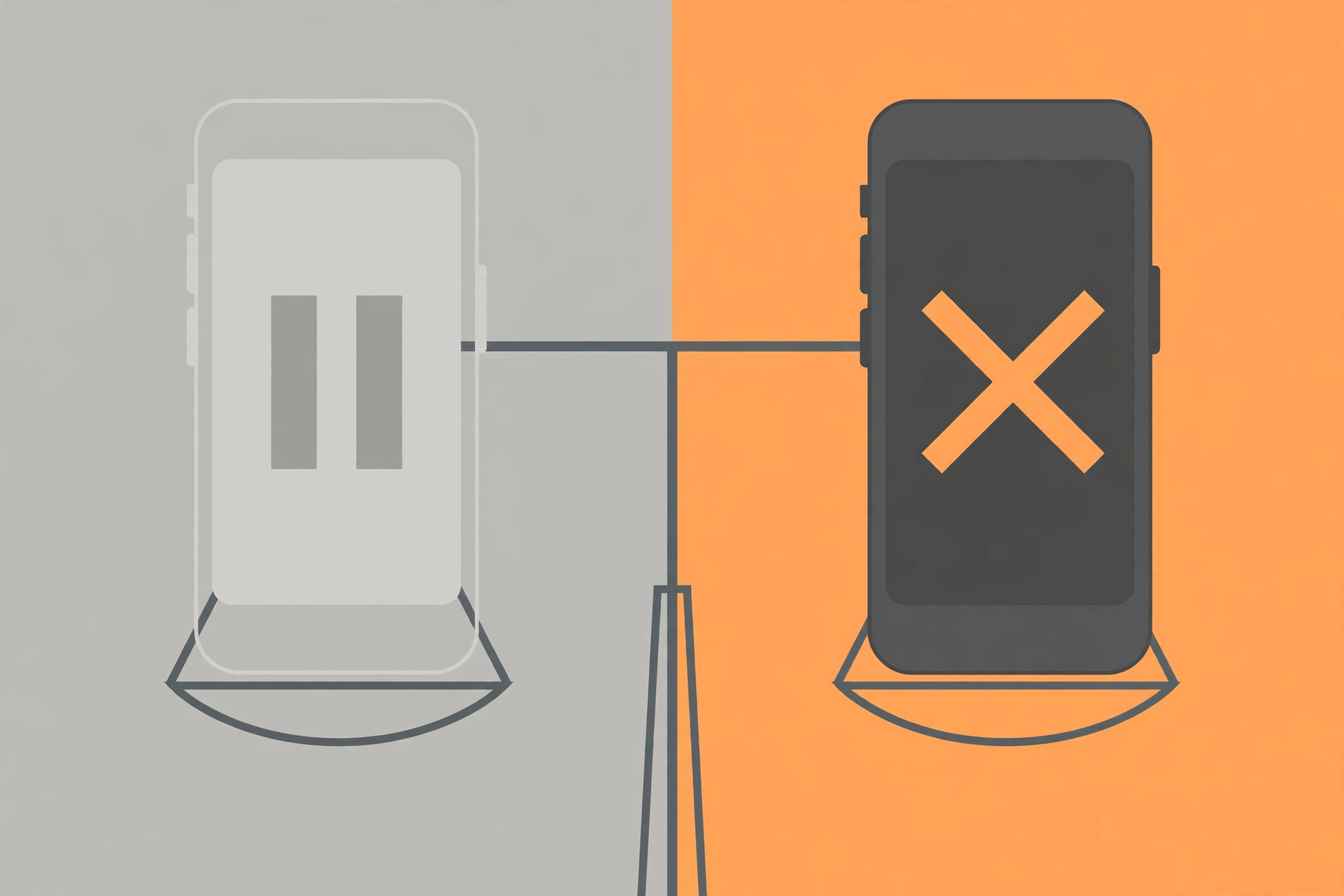
Before you start, make sure permanent deletion is what you want, because the two options lead to very different outcomes. Deactivation is temporary: your profile, photos, comments, and likes are hidden, but nothing is deleted, and logging back in restores everything exactly as it was. Deletion is permanent: after the 30-day grace window, all of your data is wiped and cannot be recovered.
Choose deactivation if you want a break, if you are unsure, or if you might return. Choose deletion only when you are certain you want the account gone forever. If you are only trying to cut back on scrolling, tightening your feed or taking a social media break is a far less drastic move. Many people who think they want to delete just need to step away for a while, which is exactly what deactivation is for.
Before You Delete: Download Your Data
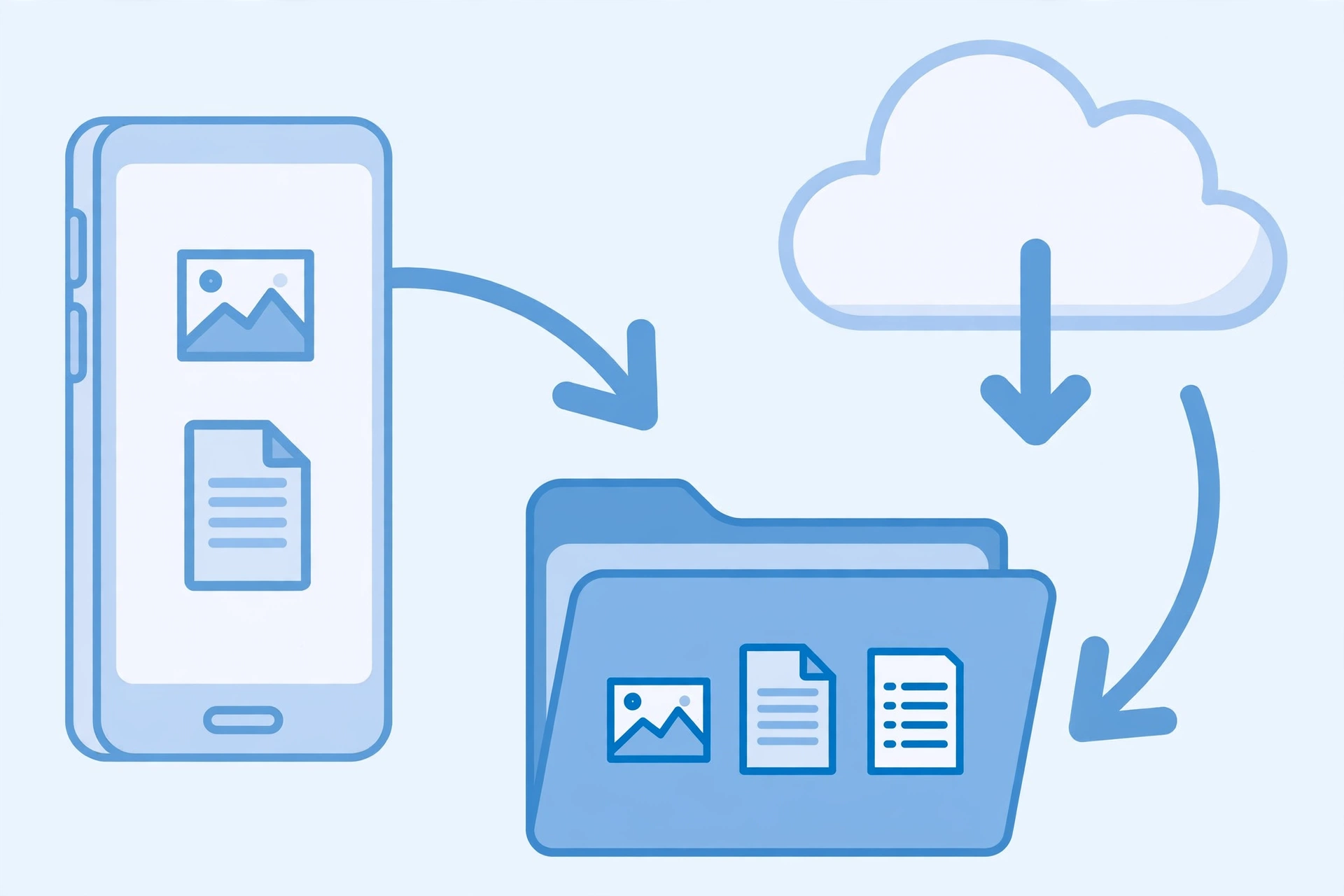
This is the step almost everyone skips and later regrets. Once an account is deleted, your photos, videos, stories, messages, and comments are gone, and Instagram cannot bring them back. Downloading your information first is your only chance to keep a copy.
- Go to Settings and privacy, then Accounts Center.
- Tap Your information and permissions, then Download your information.
- Select your Instagram account and choose what to include: posts, stories, messages, and more.
- Submit the request. Instagram emails you a download link, which can take anywhere from a few minutes to a couple of days depending on account size.
Save the ZIP file somewhere safe and check that your most important photos and videos are in it. If there are posts you especially care about, screenshot or save them individually as a quick backup too. Only proceed to deletion after you have confirmed the export is complete.
How to Delete Your Instagram Account on Mobile (iPhone and Android)
The delete option lives inside Meta’s Accounts Center, which is shared between Instagram and Facebook. The path is nearly identical on iPhone and Android:
- Open the Instagram app and log in to the account you want to delete. Tap your profile picture in the bottom right.
- Tap the menu icon (three horizontal lines) in the top right.
- Tap Settings and privacy.
- Tap Accounts Center, usually near the top of the list.
- Tap Personal details.
- Tap Account ownership and control.
- Tap Deactivation or deletion.
- Select the Instagram account you want to permanently delete. If you have multiple accounts or linked Facebook accounts, double-check you picked the right one.
- Choose Delete account (not Deactivate account) and tap Continue.
- Select a reason from the list and tap Continue.
- Re-enter your password when prompted, then tap Delete [your username] to confirm.
Your profile becomes invisible immediately. You now have 30 days to change your mind: simply log back in and the deletion request is canceled automatically, with everything restored.
How to Delete Your Instagram Account on Desktop
The web version follows the same Accounts Center path and works just as well as the app:
- Go to instagram.com and log in.
- Click More in the bottom-left menu, then Settings.
- Click Accounts Center.
- Go to Personal details, then Account ownership and control, then Deactivation or deletion.
- Select your Instagram account, choose Delete account, and click Continue.
- Pick a reason, enter your password, and confirm the deletion.
The screens look nearly identical on mobile and web, so use whichever device you are most comfortable with. If you only have access to a mobile browser, you can follow the same steps at instagram.com there.
What Happens After You Request Deletion
The 30-day grace period
Your account is not deleted the moment you confirm. Instagram places it in a hidden 30-day grace window. During this time, your profile, posts, and comments are invisible to everyone else, but nothing has been wiped yet. If you log in at any point during these 30 days, the deletion request is canceled automatically and your account comes back in full.
After 30 days without logging in, permanent deletion begins. Your profile, photos, videos, comments, likes, and followers are removed. Instagram notes that some data may be retained for a period for legal and operational reasons, but the account itself cannot be reactivated.
Your username
Your username is typically reserved for a long time after deletion and is not released immediately for someone else to claim. Do not delete an account expecting to grab the username again right away or hand it to a friend: plan on it being unavailable.
Linked accounts and DMs
If your Instagram is linked to a Facebook account in Accounts Center, deleting Instagram does not delete your Facebook account, but review your linked logins afterward to make sure nothing unexpected changes. Direct messages you sent to others may remain visible in their inboxes even after your account is gone, because deletion removes your side of the data, not copies other people hold.
Third-party apps and logins
If you used Instagram to log in to other apps or websites, those logins will stop working once the account is deleted. Switch those accounts to email or another login method before you delete.
How to Temporarily Deactivate Instead
If you want a break without the finality of deletion, deactivation is the better choice. Follow the exact same path through Accounts Center, but choose Deactivate account instead of Delete. Your profile vanishes from Instagram immediately, but all of your photos, followers, comments, and messages are preserved. Whenever you are ready to return, just log back in and everything is restored.
Deactivation is also a good middle step if you are torn. Deactivate for a month, see how you feel about being away, and then decide whether to delete. You lose nothing by trying the reversible option first.
Troubleshooting: Common Problems
- Cannot find the delete option: the wording is “Deactivation or deletion” inside Account ownership and control, not a standalone “Delete account” button. Older tutorials that describe a different path are out of date.
- Multiple accounts showing: Accounts Center lists every linked Instagram and Facebook profile. Read carefully and select the right one before confirming.
- Forgot your password: you cannot delete without it. Use the password reset on the login screen first, then start the deletion flow.
- Account was hacked: if the email on the account was changed, you must recover the account first through the “Get help signing in” options on the login page. Instagram cannot delete an account you cannot prove is yours.
- Logged in by accident during the grace period: any login cancels the deletion request. If that happens and you still want the account gone, restart the deletion flow from the beginning.
Things to Do Before You Delete: Final Checklist
- Download your full data export and confirm it contains your important content
- Save individual copies of photos and videos you care about most
- Switch any third-party logins from Instagram to email
- Unlink or note any business tools, ad accounts, or creator dashboards tied to the profile
- Tell close contacts how to reach you outside Instagram
- Decide between deletion and deactivation one final time
FAQs
Can I delete my Instagram account from the app?
Yes. The current deletion flow runs through Accounts Center, which is accessible inside the Instagram app under Settings and privacy. The path is Accounts Center, Personal details, Account ownership and control, Deactivation or deletion. You can also do it from a web browser.
How long does it take to permanently delete an Instagram account?
Your profile is hidden immediately, but full deletion happens after a 30-day grace period. Logging in during those 30 days cancels the deletion and restores the account.
Can I get my account back after deleting it?
Only within the 30-day grace period, by logging back in. After the window closes, the account and its data are permanently gone and Instagram cannot reactivate it.
Will my username be available after I delete my account?
Typically not right away. Instagram keeps deleted usernames reserved for a long time, so do not count on reclaiming it or passing it to someone else quickly.
Does deleting Instagram delete my Facebook account?
No. Instagram and Facebook accounts are deleted separately in Accounts Center. Deleting your Instagram profile does not remove your Facebook account, though you should review linked logins afterward.
What is the difference between deleting and deactivating Instagram?
Deactivation temporarily hides your profile while keeping all your data; logging back in restores it at any time. Deletion permanently removes your account and data after a 30-day grace period, with no recovery possible afterward.
Verdict: Should You Delete Your Instagram Account in 2026?
If you are certain you want to leave Instagram behind, the process is clear and the 30-day grace period gives you a genuine safety net. Download your data first, work through the checklist above, and follow the Accounts Center path. If you are even slightly unsure, choose temporary deactivation instead: it gives you the same peace and quiet with a full return path. And if the real issue is that the app eats too much of your time, consider a middle ground first. Learning how the platform works can change the experience entirely: guides like how the Instagram Reels algorithm works and how to increase Instagram engagement in 2026 show how to make Instagram work for you instead of the other way around. For more platform guides and social media strategy, visit DigitalGeekSpot.