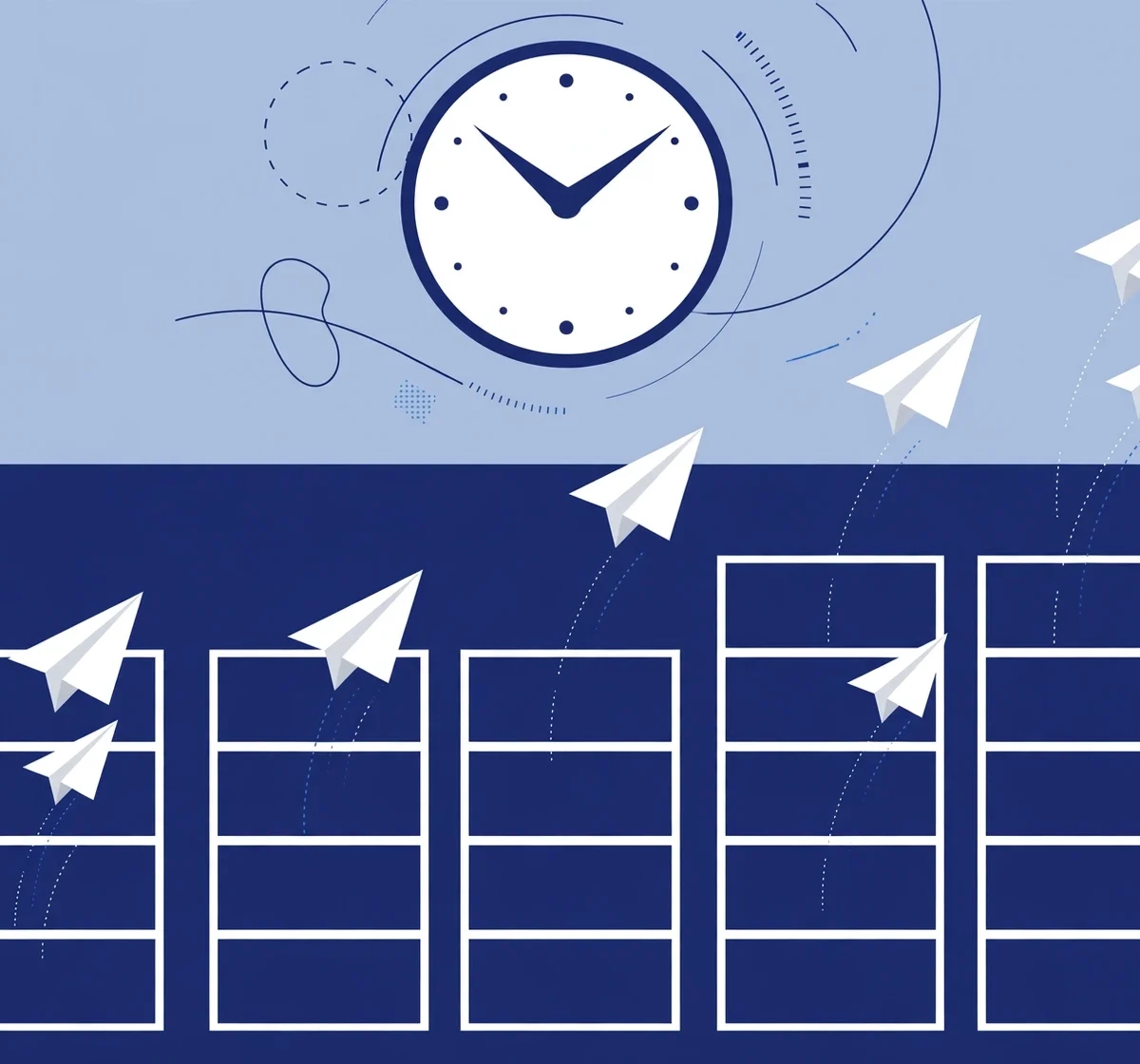
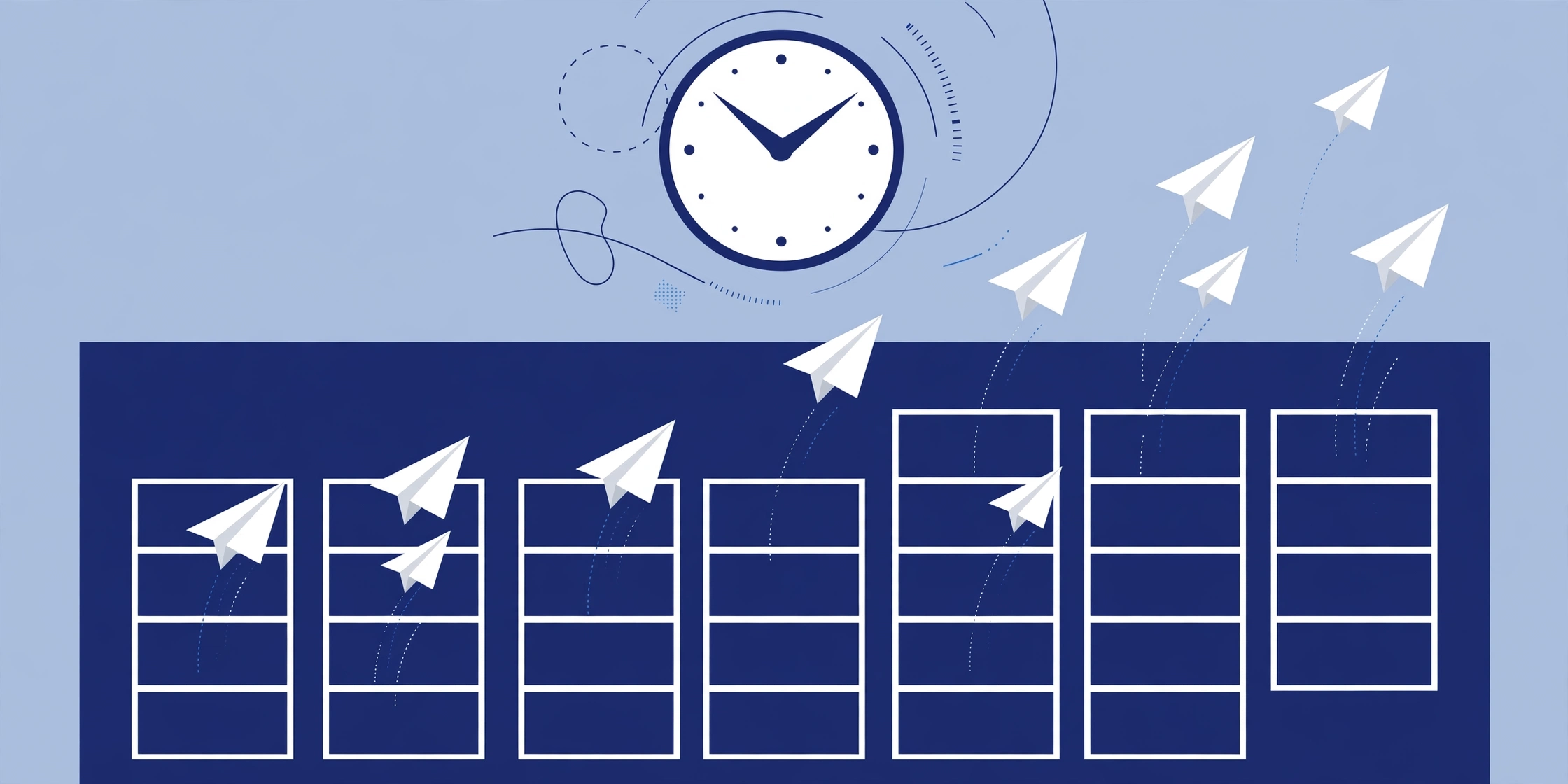
Yes, you can schedule posts on LinkedIn without any third-party tool. LinkedIn has a free scheduler built into the post composer on both desktop and mobile: click the clock icon next to the Post button, pick a date and time between 10 minutes and 3 months from now, and confirm. It works for personal profiles, company pages, articles, and newsletter editions. You only need a third-party scheduler if you want to plan further ahead, manage several networks in one calendar, or use team approval workflows.
Scheduling matters because consistency beats inspiration. When your posts go out at the same reliable times, your audience learns when to expect you and you stop relying on remembering to hit publish. This guide walks through the native LinkedIn scheduler step by step, its real limits in 2026, when a dedicated tool is worth paying for, and best practices for timing and content.
LinkedIn Scheduling Options at a Glance
Before the steps, here is a quick comparison so you can pick the right approach for how you actually post.
| Feature | LinkedIn native scheduler | Third-party scheduler |
|---|---|---|
| Cost | Free | Roughly $6 to $199 per month depending on the tool |
| How far ahead | Up to 3 months | Usually unlimited |
| Minimum lead time | About 10 minutes for profiles, about 1 hour for Pages | A few minutes |
| Edit after scheduling | Yes, content and timing | Yes |
| Post types on company pages | Polls, multi-image posts, and reshares are not supported | Often supported |
| Other networks in one calendar | No | Yes |
| Team approvals and analytics | No | Yes |
How to Schedule a LinkedIn Post Natively on Desktop
The native flow takes about ten seconds once you know where the clock icon is:
- Start a post. From the LinkedIn homepage, click Start a post at the top of your feed to open the composer.
- Write your content. Type your text (up to 3,000 characters) and add media: an image, a video, a document, or a poll. Add hashtags and mentions while you are at it.
- Click the clock icon. It sits at the bottom-right of the composer, right next to the blue Post button. Hovering over it shows the word Schedule.
- Pick a date and time. Choose any date from 10 minutes up to 3 months from now. The picker moves in 30-minute increments, but you can type an exact time. Times follow your device’s time zone, so double-check if you travel.
- Confirm. Click Next, review the preview, then click Schedule. Done. LinkedIn will publish the post on its own.
Finding, editing, or deleting a scheduled post
Open the composer, click the clock icon again, and choose View all scheduled posts. From each post’s menu you can change the scheduled time, edit the content, or delete the post entirely. You can also find scheduled posts under your profile’s Activity section, where they appear marked with a clock icon.
How to Schedule a LinkedIn Post on Mobile
The mobile flow is nearly identical:
- Tap Post in the bottom navigation bar and write your content.
- Tap the clock icon at the top-right of the share screen.
- Pick your date and time, then tap Next.
- Tap Schedule to queue the post.
If you do not see the clock icon, update the LinkedIn app to the latest version. The feature is available on both personal profiles and company pages in the current app.
How to Schedule Posts for a LinkedIn Company Page
Scheduling for a company page follows the same steps, with one extra check at the start: make sure you are posting as the page, not as yourself. Switch to your page via the account menu, or use the “Post as” dropdown in the composer to select the page. Confirm the composer shows your page name and logo, then write the post and click the clock icon as usual.
Only page admins with the right permissions can schedule posts for a company page, so sort out your admin role before you start. Keep in mind the extra limits on Pages: natively, you cannot schedule polls, multi-image posts, or reshares on a company page. If those formats are part of your plan, you will need a third-party tool or a different approach. If you manage several pages, the rules around how many Facebook pages you can create show a similar pattern of platform-imposed limits worth knowing about.
The Real Limits of LinkedIn’s Native Scheduler
Free is great, but know where the native scheduler runs out of road:
- Three-month ceiling. You cannot plan further ahead than 3 months, which rules out long-term campaign calendars.
- One post at a time. There is no bulk scheduling, so queueing a month of content means repeating the flow post by post.
- Single account only. If you run a personal profile plus one or more company pages, each needs its own scheduling session.
- No cross-network calendar. Your LinkedIn queue lives in LinkedIn only. Posting the same campaign to Instagram, X, or TikTok means separate workflows everywhere.
- Restricted formats on Pages. As noted, polls, multiple photos, and reshares cannot be scheduled natively on company pages.
- No drafts management. Scheduled posts are not organized into a real content library, and there is no approval workflow for teams.
- No performance analytics. LinkedIn shows you scheduled posts, but nothing about optimal timing or how scheduled posts perform relative to live ones.
For an occasional poster who publishes once or twice a week on a single account, none of this matters. For a marketer running multiple brands or networks, it matters a lot. DigitalGeekSpot keeps an eye on these platform limits so you can plan around them instead of discovering them mid-campaign.
When a Third-Party Scheduler Is Worth It
Consider upgrading from native scheduling when you hit any of these situations:
- You manage a personal profile and a company page, or multiple company pages.
- You post to LinkedIn plus other networks and want one calendar, one queue, and consistent cross-posting.
- You work with a team and need drafts, comments, and approval steps before anything publishes.
- You want bulk scheduling, for example uploading a CSV of a month’s posts at once.
- You need analytics on which posting times and formats actually perform.
- You regularly use the post types LinkedIn blocks natively, like polls or multi-image posts on Pages.
Popular third-party options
Well-known schedulers that support LinkedIn include Buffer (simple, affordable starting tiers), Hootsuite (full-featured, aimed at teams and enterprises), Sprout Social (strong analytics and listening), and LinkedIn-focused tools like Taplio and Supergrow that add AI-assisted writing for the LinkedIn audience. Prices span from a few dollars per channel to a few hundred per month for team plans, and most offer free trials. Our roundup of the best social media scheduling tools compares these in more detail so you can match a tool to your budget and workflow.
A word of caution
Stick to reputable schedulers that use LinkedIn’s official APIs. Shady automation tools that promise growth hacks can put your account at risk, and some violate LinkedIn’s terms. A scheduler should handle timing and publishing, not fake engagement.
Best Times to Schedule LinkedIn Posts in 2026
LinkedIn is a professional network, so its audience is most active around the workday. The widely cited sweet spots are:
- Tuesday through Thursday generally see the strongest engagement, with Wednesday often cited as the peak day.
- Morning hours, roughly 8 to 10 a.m. in your audience’s time zone catch people starting their day.
- Lunch hours, around 12 to 1 p.m. bring a second wave of scrollers.
- Early evening, 5 to 6 p.m. can work for audiences that check LinkedIn after work.
These are starting points, not laws. A founder audience behaves differently from a recruiter audience. Check your own post analytics after a few weeks and shift your schedule toward whatever times your specific followers actually engage. The goal is increasing engagement systematically, and the same test-and-adjust mindset applies on every platform.

Scheduling Best Practices for 2026
Batch your content weekly
Set aside one block per week to write and schedule the week’s posts. Batching turns posting from a daily scramble into a calm routine, and it is the single biggest benefit of scheduling.
Write for the feed, then schedule
Scheduling does not excuse weak content. Lead with a hook in the first two lines, keep paragraphs short, use line breaks, and end with a question or clear takeaway that invites comments.
Mix formats
Alternate text posts, single images, carousels (documents), polls, and short videos. Variety keeps your feed interesting and shows you which formats your audience prefers.
Stay available after publishing
The first hour after a post goes live matters for engagement. Schedule posts for times when you can reply to comments, because the algorithm rewards conversation.
Review your queue regularly
A scheduled post written two months ago can go stale fast. Review upcoming posts weekly and pull anything that references outdated news, a finished event, or a changed plan.
Do not schedule and disappear
Automation handles publishing, not relationships. Keep commenting on other people’s posts and engaging in your network every day, scheduled or not.
Frequently Asked Questions
Is LinkedIn’s post scheduler free?
Yes. The native scheduler is completely free on every account, desktop and mobile. It has been built into the post composer since 2022.
How far in advance can I schedule a LinkedIn post?
Up to 3 months ahead, with a minimum lead time of about 10 minutes for personal profiles and about 1 hour for company pages. The time picker moves in 30-minute steps but lets you type an exact time.
Can I schedule LinkedIn posts on a company page?
Yes. Switch to posting as your page, then use the same clock icon flow. Note that polls, multi-image posts, and reshares cannot be scheduled natively on Pages, and you need the right admin permissions.
Can I edit a scheduled LinkedIn post?
Yes. Click the clock icon in the composer and choose View all scheduled posts, then edit the content or change the time. You can also delete a scheduled post from the same menu.
Do scheduled posts get less reach than live posts?
There is no official statement from LinkedIn that scheduled posts are penalized, and the content itself is identical once published. What affects reach is content quality, timing, and early engagement, not whether a clock or a human pressed publish.
Which is better: LinkedIn’s scheduler or a third-party tool?
For one account posting a few times a week, the native scheduler is perfect and free. For multiple accounts, multiple networks, team workflows, bulk scheduling, or deeper analytics, a third-party tool earns its price.
Related Articles
- Best Social Media Scheduling Tools
- How Many Facebook Pages Can You Create
- How to Increase Instagram Engagement in 2026
The Verdict
Scheduling posts on LinkedIn in 2026 is simple: the free native scheduler, one click on the clock icon, covers the needs of most individuals and small businesses. Learn its limits (3 months ahead, one account at a time, some formats blocked on Pages) and graduate to a third-party tool only when your workflow genuinely outgrows it. Pair scheduling with good content, sensible timing, and real engagement after publishing, and you will turn a sporadic LinkedIn presence into a consistent one.