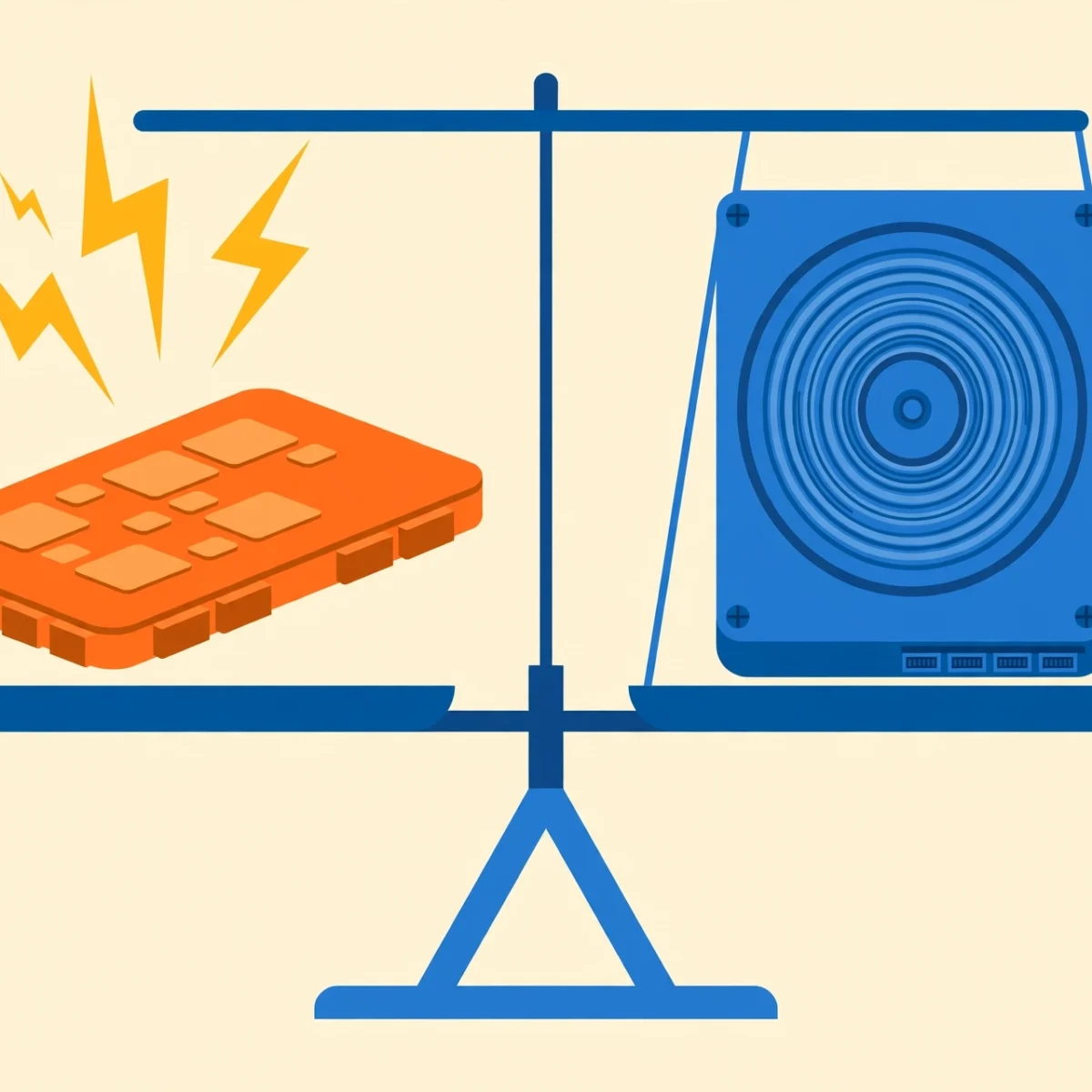
Choosing between storage drives comes down to one question: SSD vs HDD, which one should you actually buy? Both store your files, but they work in completely different ways, and the right choice depends on what you need the drive for. An SSD is dramatically faster and more durable, while an HDD gives you far more gigabytes for your money. This guide compares the two across speed, price, durability, and capacity, then gives clear recommendations for budget laptops, gaming, and external storage.
If your current machine feels sluggish, the drive type might be the reason. Before buying anything, it is worth reading our checklist on how to speed up a slow laptop to confirm whether a drive upgrade is really what you need. You can also find more computer guides on the DigitalGeekSpot homepage.
How SSDs and HDDs Work
A hard disk drive (HDD) stores data on spinning magnetic platters, and a mechanical arm with a read/write head moves across them to find your files. It is clever 20th-century engineering, but every access involves physical movement, which takes milliseconds.
A solid-state drive (SSD) has no moving parts at all. It stores data in flash memory chips, similar to the storage in your phone, so it can access any file almost instantly. That single design difference is why SSDs feel so much faster in everyday use.
SSD vs HDD: Speed Comparison
Speed is the most dramatic difference between the two. A typical SATA SSD reads data roughly four to five times faster than a 7200 RPM hard drive, and a modern NVMe SSD can be twenty to fifty times faster than an HDD in sequential transfers. In real-world terms, that means Windows boots in seconds instead of a minute or more, apps launch almost instantly, and copying large files finishes in a fraction of the time.
For gaming, an SSD shortens loading screens and reduces texture pop-in, though it will not raise your frame rate, since that depends on the graphics card. For general use, the difference is so noticeable that many users call switching to an SSD the best upgrade they ever made to an older computer.
SSD vs HDD: Price and Capacity
This is where the HDD fights back. Hard drives remain far cheaper per gigabyte. A multi-terabyte HDD costs about the same as a mid-size SSD, which makes HDDs the economical choice when you need lots of room for movies, photos, backups, and game libraries.
SSD prices have fallen steadily over the years, and a 500 GB or 1 TB SSD is now affordable for most budgets. But if you need 4 TB or 8 TB of storage, an HDD still wins on price by a wide margin. The practical approach for many people is a smaller SSD for the operating system and apps, paired with a large HDD for bulk storage.
SSD vs HDD: Durability and Reliability
Because HDDs have spinning platters and a delicate moving head, they are vulnerable to drops, bumps, and vibration. A laptop with an HDD that gets knocked off a table can suffer a head crash and lose data. SSDs, with no moving parts, shrug off the bumps of daily travel.
SSDs do wear out eventually, since flash memory cells have a limited number of write cycles, but for typical home use a modern SSD lasts many years, and most include health monitoring tools. Both drive types can fail without warning, so whichever you choose, keep backups. Our guide on how to back up your computer shows simple routines that protect you either way.
SSD vs HDD: Noise, Heat, and Power
Hard drives hum, click, and generate noticeable heat. In a quiet room you can often hear an HDD working. SSDs are completely silent, run cooler, and use less power, which also means slightly better battery life in laptops. If silence matters to you, for example in a bedroom media PC or a recording setup, an SSD is the clear winner.
Which Should You Buy? Recommendations by Use Case
For a budget laptop: SSD, no question
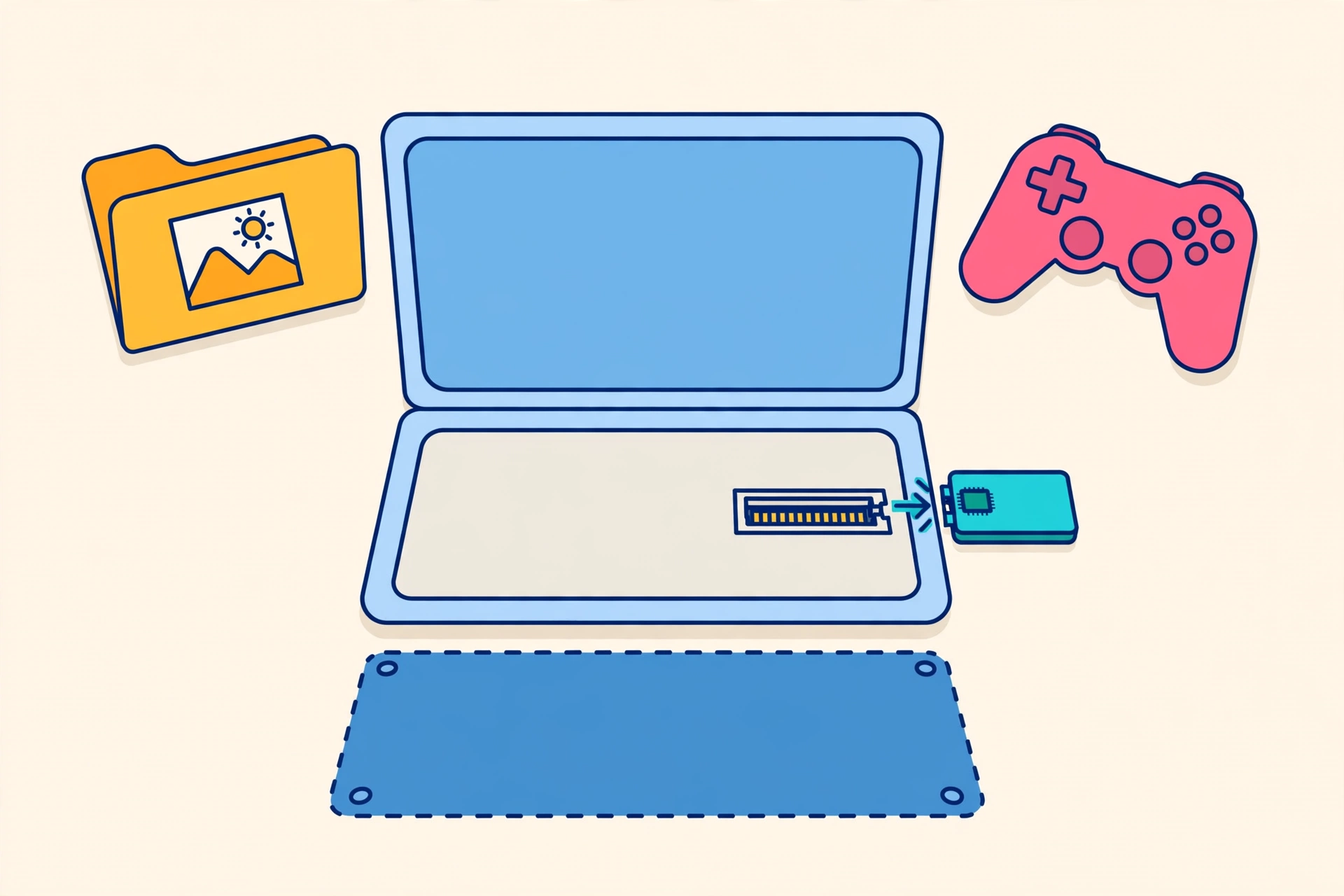
If you are buying a new budget laptop, choose the SSD model even if it means less total storage. A 256 GB or 512 GB SSD will make a cheap laptop feel far faster than a 1 TB HDD model. You can always add external storage later for files. And if you already own a laptop with a hard drive, swapping in an SSD is the most cost-effective upgrade available.

For gaming: SSD for the games you play most
Install your operating system and your most-played games on an SSD to cut loading times. Large game libraries that you dip into occasionally can live on a cheaper HDD without much downside, since load times are the only real penalty. Many gaming PCs use exactly this two-drive setup.
For external storage and backups: HDD for capacity, SSD for portability
A big external HDD is the most economical way to back up a whole computer or archive a media collection that sits on a desk. But if you carry the drive around, work from it directly, or edit video off it, a portable SSD is worth the premium: it is smaller, silent, shock-resistant, and much faster. When formatting a new external drive for Windows, our guiformat FAT32 guide walks through the process step by step.
For a desktop PC: use both
The classic winning combination is an NVMe SSD for Windows and apps plus a large HDD for mass storage. You get snappy everyday performance and cheap terabytes in one machine.
What About Hybrid Drives (SSHD)?
Solid-state hybrid drives combine a small amount of flash cache with a traditional hard drive, promising a middle ground. In practice, they offer only modest speed gains over a plain HDD and have largely been pushed out of the market by falling SSD prices. For most buyers in 2026, a hybrid drive is not worth seeking out: either commit to a full SSD or pair an SSD with an HDD.
How to Check What Drive You Have
On Windows 11, open Settings > System > Storage > Advanced storage settings > Disks & volumes to see your drives and their types. You can also open the Optimize Drives tool by searching for “defragment” in the Start menu: it labels each drive as a solid-state drive or hard disk drive. If you discover you are still on an HDD, that alone may explain a slow computer.
SATA vs NVMe: Not All SSDs Are Equal
When shopping for an SSD, you will meet two main types. SATA SSDs use the same interface as old hard drives and top out around 550 MB/s, which is still roughly five times faster than an HDD. NVMe SSDs plug directly into the motherboard’s PCIe lanes and reach several thousand MB/s. For everyday browsing and office work, both feel fast, and most people cannot tell them apart. NVMe pulls ahead noticeably when you copy huge files, edit 4K video, or load massive game worlds.
Before buying, check which type your computer supports. Older laptops may only accept 2.5-inch SATA drives, while most machines from the last several years include an M.2 slot for NVMe. Your laptop manual or the manufacturer’s support page lists the exact form factor. Buying the wrong physical size is the most common mistake first-time upgraders make.
What to Look for When Buying a Drive
Beyond the SSD vs HDD decision, a few specs matter. For SSDs, check the endurance rating (TBW, or terabytes written), which tells you how much data the drive is rated to handle over its life. Higher is better, though typical home users never come close to the limit. A five-year warranty is a good sign of manufacturer confidence.
For HDDs, look at the rotational speed: 7200 RPM drives are noticeably snappier than 5400 RPM ones, and the cache size (64 MB or more) helps with bursts of activity. For external drives, consider whether you want a desktop model that needs wall power or a portable one powered over USB. And whatever you buy, stick with established brands and read recent reviews, since reliability varies more between manufacturers than between individual models.
Frequently Asked Questions
Is an SSD really worth it over an HDD?
For the drive that holds your operating system and apps, yes, without hesitation. The speed difference in booting, launching apps, and general responsiveness is immediately noticeable. The only reason to choose an HDD today is when you need maximum capacity for minimum money.
Can I replace my laptop’s HDD with an SSD?
In most cases, yes. Many laptops accept a standard 2.5-inch SATA SSD as a direct replacement for the hard drive, and newer models use M.2 NVMe drives. Check your laptop’s manual or the manufacturer’s support page for the exact drive type and whether the bottom panel is user-removable. Clone your old drive first so you keep all your files.
Do SSDs last longer than HDDs?
For typical home use, a quality SSD generally outlasts an HDD, mainly because it is immune to the mechanical wear and shock damage that kill hard drives. Both can fail unexpectedly, though, so regular backups matter regardless of drive type.
Should I defragment an SSD?
No. Defragmentation is designed for hard drives and provides no benefit on an SSD, while the extra writes wear the flash memory unnecessarily. Windows 11 knows the difference and will run the appropriate TRIM optimization on SSDs automatically.
How much SSD storage do I need?
For a main drive, 512 GB is a comfortable minimum for most people in 2026, covering Windows, apps, and a reasonable amount of personal files. Go with 1 TB if you keep lots of photos, videos, or games installed. Pair it with a large HDD or external drive if you need bulk archival space.