The fastest way to find duplicate PNG images on a Windows PC is to use a free duplicate image finder such as dupeGuru in Picture mode. These tools compare images by their actual visual content, not just file names, so they catch exact copies even when the files have different names or sit in different folders. A typical workflow takes a few minutes: install the tool, add the folders to scan, run the scan, review the grouped results, and delete or move the duplicates. If you only have a handful of images, you can also sort by name and size in File Explorer and compare manually. Below is a full comparison of the methods, step-by-step instructions, and safety tips so you do not delete anything important.
| Method | Cost | Finds exact duplicates | Finds similar images | Best for |
|---|---|---|---|---|
| dupeGuru (Picture mode) | Free, open source | Yes | Yes, adjustable threshold | Most users, large libraries |
| AllDup | Free for personal use | Yes | Yes | Power users who want control |
| VisiPics | Free | Yes | Yes | Beginners, visual comparison |
| Awesome Duplicate Photo Finder | Free | Yes | Yes | Quick simple scans |
| File Explorer manual check | Built into Windows | Partially | No | Small folders |
| PowerShell hash comparison | Built into Windows | Yes | No | Technical users |
Why Duplicate PNG Images Pile Up
Duplicate images accumulate for ordinary reasons. You download the same file twice, copy a folder as a backup and forget about it, import photos from a phone more than once, or save multiple versions of an image while editing. Screenshots are a common culprit: many people press Print Screen repeatedly and save each capture to a different location.
The duplicates are easy to miss because the files often have different names. Windows may rename a second download to something like image (1).png, but a copied folder keeps identical names in a different path, so name-based checks miss it. That is why content-based tools, which compare what the image actually looks like, work so much better than eyeballing file names. Clearing out duplicates is also one of the simplest ways to free up disk space on Windows 11 without buying new hardware.
Method 1: Use dupeGuru (Free, Recommended)
dupeGuru is a free and open-source duplicate finder for Windows, macOS, and Linux with a dedicated Picture mode designed for images. It uses fuzzy matching, which means it can find not only exact copies but also near-duplicates that were resized or lightly edited. You can adjust how strict the matching is.
Here is the step-by-step process:
- Download dupeGuru from its official website and install it. Always download utilities from the developer’s official site or the Microsoft Store to avoid bundled extras.
- Open dupeGuru and make sure it is in Picture mode (there is usually a mode selector for Standard, Music, and Picture).
- Add the folders to scan by clicking the plus button. A good starting point is your Pictures folder, Downloads, and Desktop.
- Set the match threshold if you want to control strictness. A higher threshold finds only near-identical images; a lower one catches more loosely similar images.
- Click Scan and wait. Large libraries can take several minutes.
- Review the results. dupeGuru groups duplicates together. Select a group and use the preview to compare the images side by side.
- Mark the copies you want to remove, keeping at least one copy of each image. When in doubt, keep the larger or higher-quality version.
- Delete or move the marked files. Prefer sending them to the Recycle Bin rather than permanently deleting, so you can recover them if you make a mistake.
dupeGuru handles large photo libraries well and its bulk actions make cleanup fast once you trust the results. The interface looks a little dated compared to commercial tools, but the detection quality is excellent for a free program.
Method 2: Use AllDup
AllDup is a free-for-personal-use duplicate finder that can compare files by content, name, size, date, and other criteria, and it supports image similarity matching across dozens of formats including PNG. It offers more granular control than most free tools, which power users appreciate.
- Download and install AllDup from its official website.
- Choose Find similar pictures as the search method.
- Add the source folders you want to scan.
- Adjust the similarity level, higher values mean stricter matching.
- Run the search and review the grouped results with the built-in preview.
- Use the selection assistant to auto-select duplicates, for example keeping the newest or largest file in each group.
- Delete, move, or rename the selected duplicates.
AllDup’s selection assistant is genuinely useful when you have hundreds of duplicate groups and do not want to click through each one manually. As with any bulk deletion, review a sample of groups before applying an action to everything.
Method 3: Use VisiPics
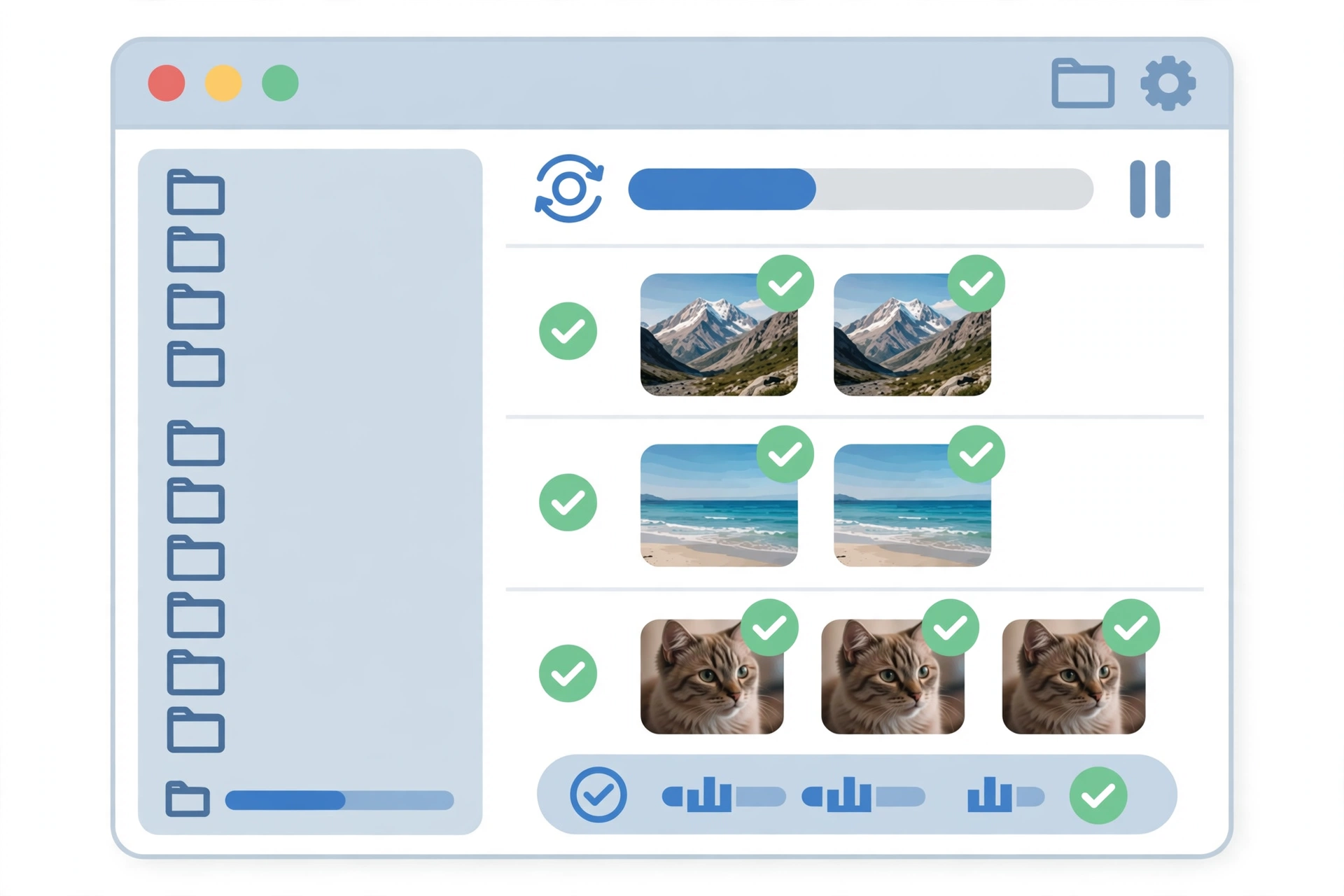
VisiPics is a long-standing free utility that compares images by their visual content rather than file names. It presents results in a simple layout where you can hover over a thumbnail to preview its duplicates, which makes manual review comfortable.
- Download and install VisiPics.
- Select the drives or folders to scan.
- Set the filter slider to Strict, Basic, or Loose. Strict finds near-identical images; Loose catches more similar-looking ones.
- Start the scan. On large collections this can take a while, so let it run in the background.
- Browse the results column, hover to preview each pair, and click duplicates to mark them.
- Move marked duplicates to a separate folder first, rather than deleting immediately, so you can double-check.
VisiPics is a good pick for beginners because the workflow is visual and hard to get wrong. It is an older program without much recent development, but its core detection still works fine on modern Windows.
Method 4: Manual Check With File Explorer
If you only have a small folder of PNGs, the manual approach with built-in File Explorer can work:
- Open File Explorer and navigate to the folder with your PNG images.
- Type *.png in the search box to list every PNG in that folder and its subfolders.
- Switch the view to Details so you can see file names, sizes, and dates.
- Sort by Name to spot files like photo.png and photo (1).png, then sort by Size, since identical images have identical file sizes.
- Open suspected duplicates to compare them visually before deleting.
The limitation is obvious: this only catches duplicates you can spot by name or size, and it is tedious for more than a few dozen files. It also misses images with different names in different folders. For anything larger, use one of the dedicated tools above.
Method 5: PowerShell Hash Comparison (Advanced)
Technical users can find exact duplicates from the command line by comparing file hashes. A hash is a fingerprint of a file’s contents, so two PNGs with the same hash are byte-for-byte identical:
- Open PowerShell and navigate to the folder with cd “C:\Path\To\Your\Images”.
- Run a command that lists PNGs recursively, computes their hashes, and groups identical ones.
- Review the groups with more than one file, these are exact duplicates.
- Delete the extras manually or with a script, carefully.
This method is precise but only finds exact duplicates, not resized or edited near-copies. It also requires comfort with the command line. Most people will get better results faster with dupeGuru or AllDup.
Safety Tips Before You Delete Anything
A cleanup session goes smoothly when you prepare a little. Duplicate finders are powerful, and a few precautions protect you from the rare but painful mistake of deleting the wrong file.
- Back up first. Copy the folders you plan to clean to an external drive or make sure your computer backup is current before bulk-deleting anything.
- Delete to the Recycle Bin, not permanently. All the tools above offer this. It gives you a grace period to notice mistakes.
- Always keep one copy. In each duplicate group, keep the best version, usually the largest file or the highest resolution, and remove the rest.
- Watch out for intentionally duplicated files. Some programs keep working copies of images in cache or project folders. Deleting those can break projects, so exclude application data folders from your scans.
- Review before bulk actions. Auto-select features are convenient, but spot-check a dozen groups first to make sure the tool’s idea of a duplicate matches yours.
Frequently Asked Questions
How do I find duplicate PNG images on Windows 11?
Install a free duplicate image finder like dupeGuru, switch it to Picture mode, add your Pictures and Downloads folders, and run a scan. The tool groups visually identical images so you can review and remove the extras. For small folders, searching *.png in File Explorer and sorting by name and size also works.
Can Windows find duplicate photos automatically?
Windows has no built-in duplicate photo finder. File Explorer can help you spot duplicates manually by sorting files, but automatic content-based detection requires a third-party tool such as dupeGuru, AllDup, or VisiPics.
What is the best free duplicate image finder?
dupeGuru is widely considered the best free option because it is open source, supports exact and similar-image matching with an adjustable threshold, and handles large libraries. AllDup is another strong free choice with more granular controls, and VisiPics is the simplest for beginners.
Will duplicate finders detect resized or edited copies?
Tools with visual similarity matching, like dupeGuru in Picture mode, VisiPics, and AllDup’s similar-pictures search, can detect near-duplicates that were resized, recompressed, or lightly edited. Pure hash-based methods only catch byte-for-byte identical files.
Is it safe to delete duplicate images?
Generally yes, as long as you keep one copy of each image and review results before deleting. Back up your folders first, send deletions to the Recycle Bin instead of deleting permanently, and exclude program folders where duplicates may be intentional working files.
How much space can removing duplicates save?
It varies widely. A tidy library might free only a few hundred megabytes, while a photo collection built up over years of repeated imports can free many gigabytes. If your drive is nearly full, also look at speeding up a slow laptop, since a full disk is one of the most common causes of sluggish performance.
Verdict
For most people, dupeGuru in Picture mode is the best way to find duplicate PNG images: it is free, catches both exact and similar copies, and handles big libraries without fuss. AllDup is the pick if you want finer control, VisiPics if you want the simplest visual workflow, and File Explorer or PowerShell if you prefer built-in tools for small or precise jobs. Whichever method you choose, back up first, keep the best copy of each image, and delete to the Recycle Bin. For more practical computer guides, DigitalGeekSpot publishes step-by-step tutorials every week.