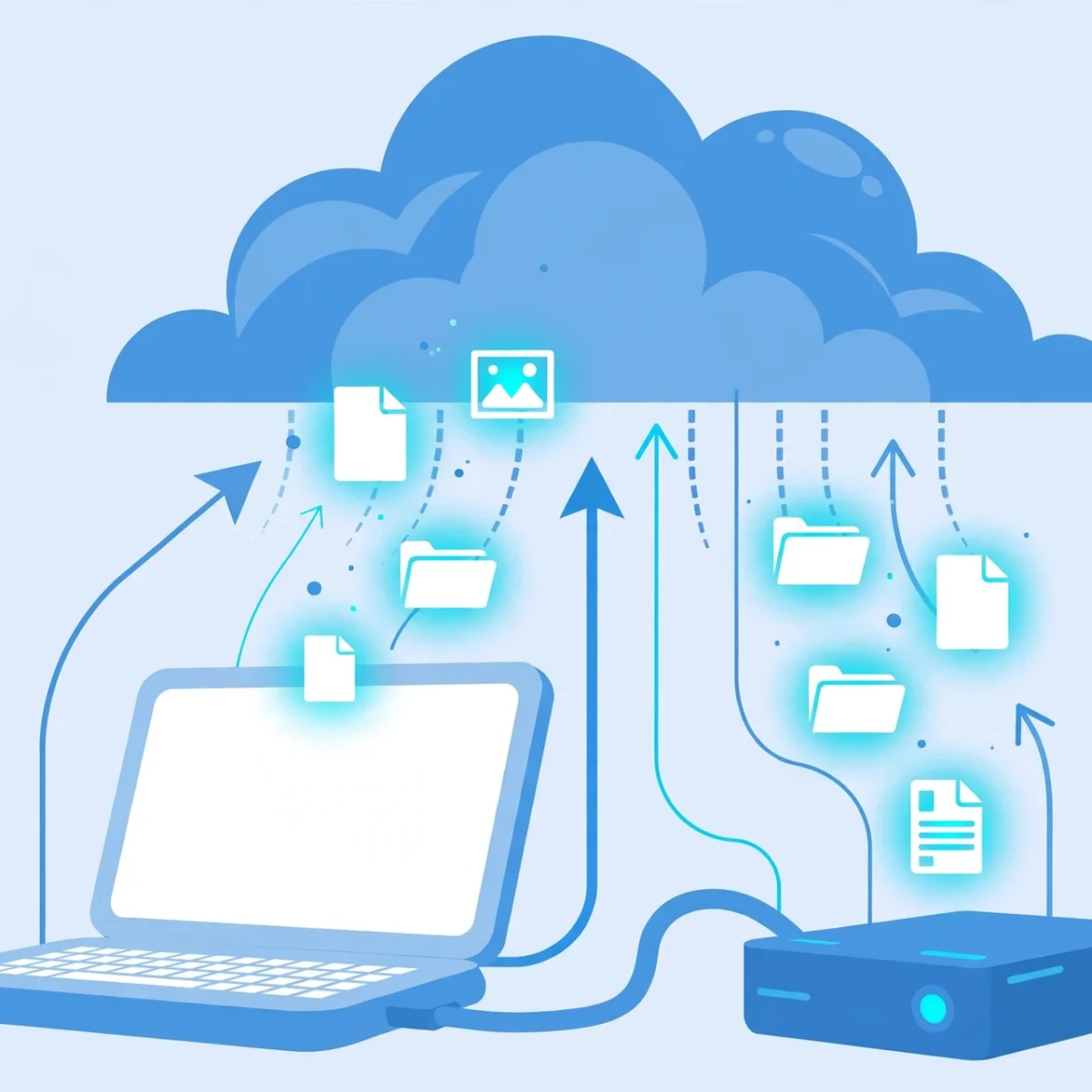
Imagine turning on your computer tomorrow and finding your photos, documents, and work files gone. A failed drive, a stolen laptop, or one wrong click can wipe out years of memories in seconds. Learning how to back up computer files properly is the single most important maintenance habit for any computer owner, and it is far simpler than most people think.
Backing up just means keeping copies of your important files in a second location, so that if the original is lost, you still have the copy. This beginner’s guide explains the simple 3-2-1 backup rule, walks you through the two main backup methods (external drives and cloud storage), and helps you set up an automatic system you never have to think about again. For more computer care guides, visit the DigitalGeekSpot homepage.
Why Backing Up Matters More Than You Think
Every storage drive fails eventually. Hard drives have moving parts that wear out, and even solid-state drives have a limited number of write cycles. Beyond hardware failure, files are lost to theft, house fires, floods, ransomware, and simple human mistakes like deleting the wrong folder or spilling coffee on a laptop.
The cruel pattern is that most people only think about backups after losing something irreplaceable. Family photos, a thesis, financial records, and years of work documents cannot be recreated once they are gone. A backup system costs little and runs automatically, which makes skipping it one of the most expensive mistakes in computing.
The 3-2-1 Backup Rule, Explained Simply
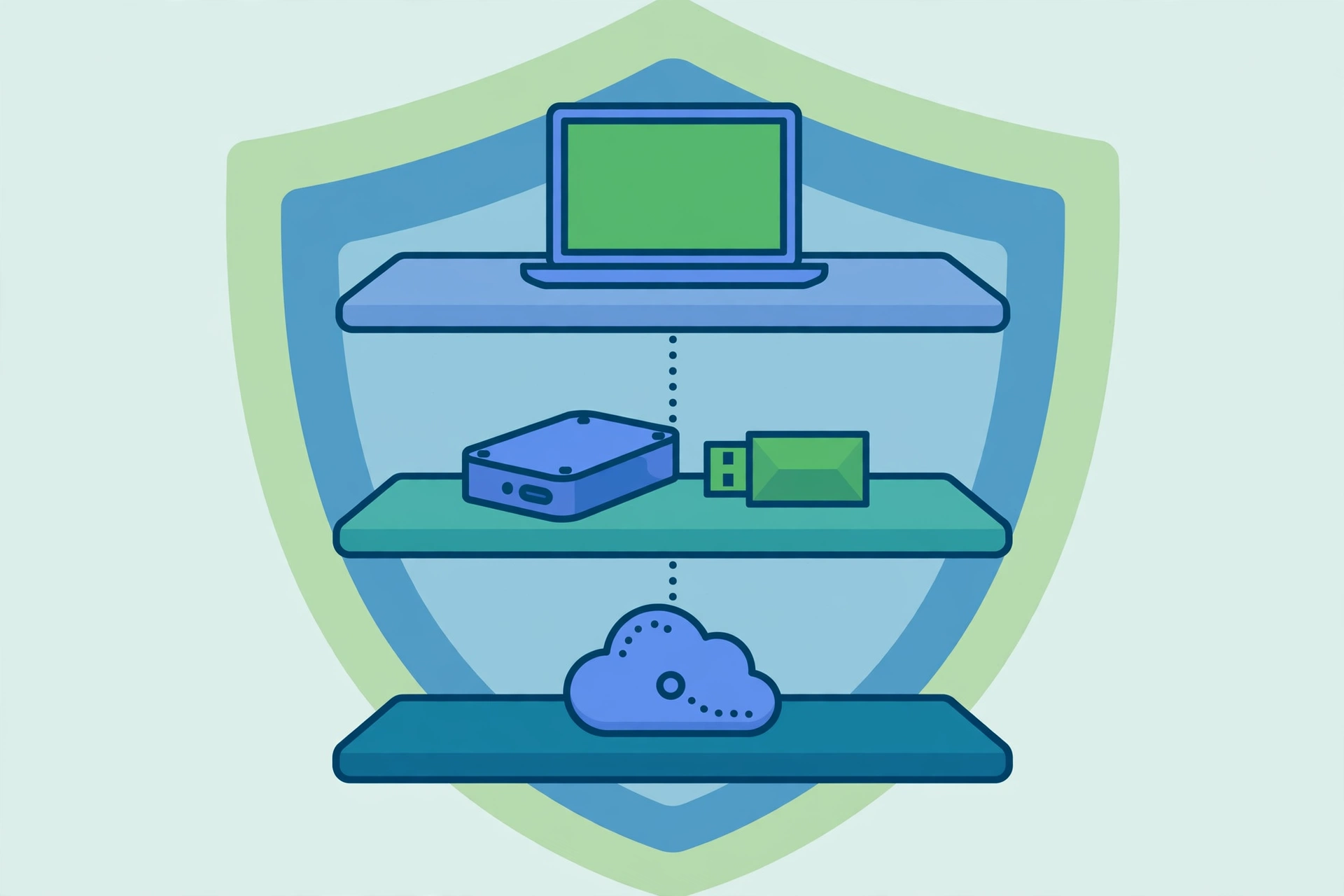
The 3-2-1 rule is the gold standard of backups, recommended by IT professionals worldwide. It sounds technical, but it is easy:
- 3 copies of your data. The original on your computer, plus two backups.
- 2 different storage types. For example, an external hard drive and a cloud service. If one type fails or one company has an outage, the other still works.
- 1 copy offsite. At least one backup lives somewhere other than your home, so a fire, flood, or burglary cannot destroy everything at once. Cloud storage handles this automatically.
For a home user, this usually means: your files on your computer, a copy on an external drive at home, and a copy in the cloud. That is it. You are following the same rule that businesses use, scaled down to your life.
Method 1: Back Up to an External Drive
An external hard drive or SSD that plugs into your computer via USB is the simplest backup method. You buy it once, there are no monthly fees, and restoring files is fast because everything is local.
What to buy: A 1TB or 2TB external drive covers most home users, since that matches or exceeds the storage in a typical laptop. External SSDs are faster, smaller, and more durable (no moving parts), but cost more per gigabyte. Traditional external hard drives are cheaper for large capacities and perfectly fine for backups that run overnight.
How to set it up:
- Windows: Open Settings, then Update and Security (Windows 10) or System, Storage, Advanced storage settings (Windows 11), and turn on File History with your external drive selected. File History automatically saves versions of your files every hour. For a full system image, use the older Backup and Restore tool in the Control Panel.
- Mac: Plug in the drive and open System Settings, General, Time Machine. Select the drive as your backup disk, and Time Machine handles everything automatically, keeping hourly, daily, and weekly snapshots you can browse.
Keep the drive plugged in if your computer stays at your desk, or plug it in at least once a week if you use a laptop on the go. Store a second external drive at a relative’s house or your office for a cheap offsite copy, and rotate them monthly.
Method 2: Back Up to the Cloud
Cloud backup stores an encrypted copy of your files on a company’s servers over the internet. It is the easiest way to satisfy the “one copy offsite” part of the 3-2-1 rule, and it protects you even if your home and all its drives are destroyed.
Your options:
- Built-in sync services: OneDrive (Windows), iCloud (Mac and iPhone), and Google Drive all sync your desktop and documents folders to the cloud automatically. The free tiers offer a few gigabytes, and paid plans add much more for a few dollars a month. These are great for documents and photos, but they sync rather than archive, so a file deleted everywhere disappears everywhere after the retention period.
- Dedicated backup services: Services like Backblaze and Carbonite are built specifically for backups. They continuously back up your entire computer in the background, keep old versions of files, and let you restore everything after a disaster. They cost a small monthly fee per computer and are the closest thing to a set-and-forget solution.
Things to know about cloud backup: The first backup can take days or weeks on a slow connection, since it uploads everything at once. After that, only changed files upload, which is quick. Your files are encrypted in transit and at rest by reputable providers, but if you store sensitive documents, consider enabling any extra private encryption option the service offers.
What Should You Actually Back Up?
You do not need to back up your entire computer. Focus on what cannot be replaced:
- Photos and videos. Usually the most irreplaceable files anyone owns.
- Documents. Work files, schoolwork, tax records, legal documents, and creative projects.
- Financial records. Spreadsheets, receipts, and account statements.
- Contacts, bookmarks, and passwords. Export these periodically, or better yet, use a password manager with cloud sync so they are never only on one device.
- App settings and game saves. Nice to have, and many apps sync these to the cloud automatically.
You generally do not need to back up the operating system or installed programs, since those can be reinstalled. A system image backup is the exception: it captures everything including the OS, which makes full disaster recovery much faster.
How to Automate Your Backups (So You Never Forget)
Manual backups fail because humans forget. The whole point of a good backup system is that it runs without you. Here is how:
- Turn on the built-in tools. File History on Windows or Time Machine on Mac takes five minutes to configure and then runs silently.
- Install your cloud backup app and let it run continuously in the background.
- Schedule it. If your tools allow scheduling, pick a time your computer is on but idle, such as overnight. Many backup tools can wake a sleeping computer, run the backup, and put it back to sleep. If you like automating repetitive tasks in general, our guide to automating tasks with Zapier shows the same set-and-forget mindset applied to your workflow.
- Check occasionally. Once a month, glance at your backup software to confirm the last backup completed successfully. A backup that silently stopped working months ago is barely better than no backup.
How to Test That Your Backup Actually Works
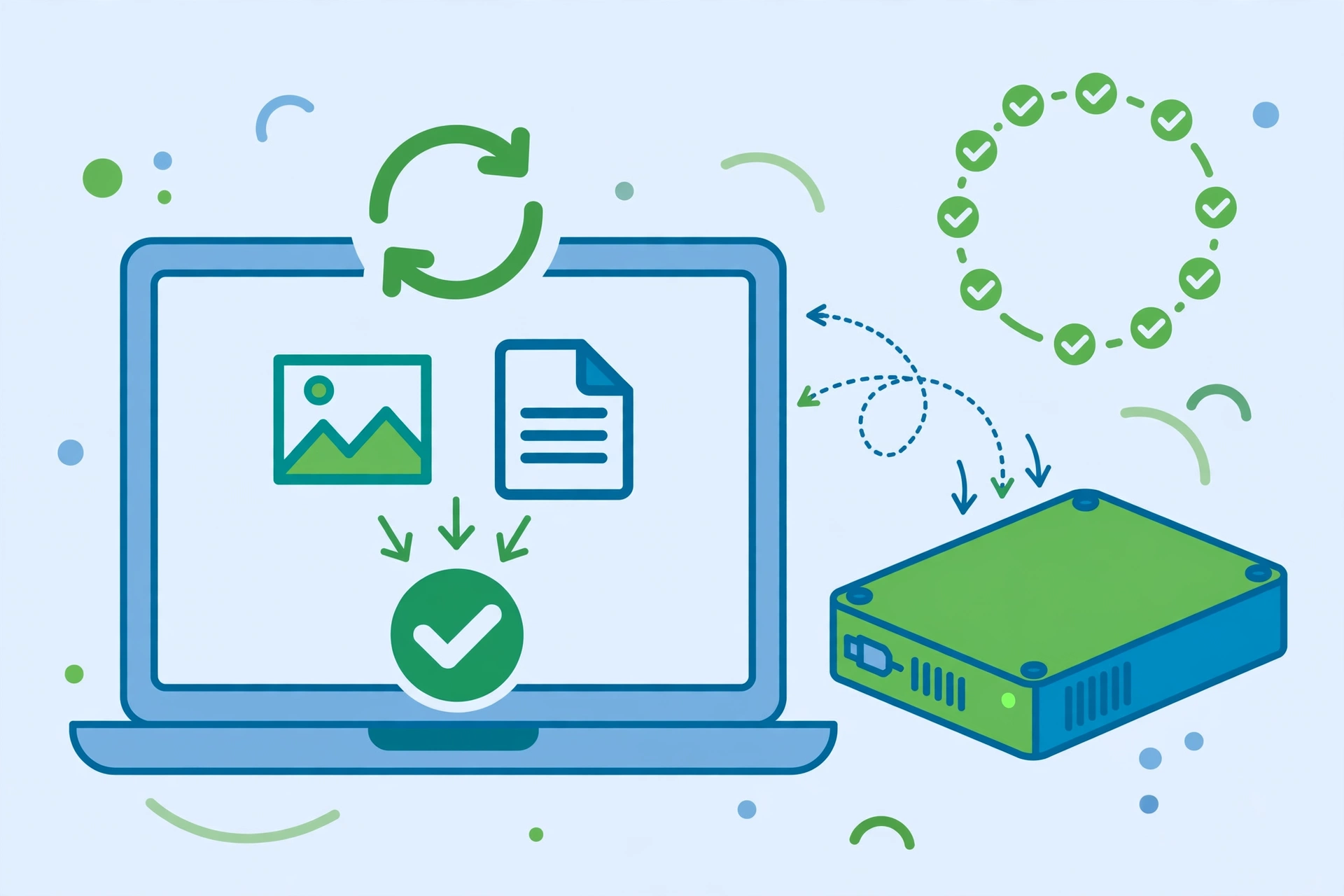
A backup you have never restored from is just a theory. Testing is simple and takes five minutes:
- Restore a single file. Delete a test file (or pick an old one), then restore it from your backup. On Windows use File History’s restore screen; on Mac, enter Time Machine and go back in time. In the cloud, download a file from the service’s website.
- Check version history. Confirm your backup keeps multiple versions, not just the latest copy. Open a document, change it, and verify you can restore yesterday’s version.
- Verify the external drive. Plug it into another computer and confirm you can read the files. Drives can develop errors silently, so do this every few months.
If any test fails, fix the backup now, while nothing is actually lost.
Backing Up Your Phone Too
Your phone holds photos, messages, and contacts that deserve the same protection. The good news is that phones mostly back themselves up: iCloud Backup on iPhone and Google’s backup on Android run automatically when the phone charges on Wi-Fi. Open your phone’s settings once, confirm backup is turned on, and check that your photos are syncing. Your computer backup plan and your phone backup plan together cover nearly everything you own.
Common Backup Mistakes to Avoid
- Keeping the only backup next to the computer. An external drive on the same desk does not survive a fire or burglary. That is why the 3-2-1 rule demands an offsite copy.
- Backing up manually “when I remember.” You will not remember. Automate it.
- Assuming sync equals backup. Dropbox, Google Drive, and OneDrive sync deletions too. If ransomware encrypts your files, the encrypted versions sync to the cloud. Use real backup software with version history alongside sync.
- Never testing a restore. Covered above: test it.
- Encrypting backups and losing the password. Encryption is good, but store the recovery key somewhere safe, like a password manager, or the backup is useless.
Frequently Asked Questions
How often should I back up my computer?
Continuously or daily is ideal, and modern tools make this effortless. File History, Time Machine, and cloud backup services all run automatically in the background. If you back up manually to an external drive, aim for at least once a week, and always back up before major changes like OS upgrades.
Is cloud backup safe for private files?
Reputable cloud backup providers encrypt your files both in transit and on their servers, which protects against most threats. No system is perfectly secure, so for highly sensitive documents, use the provider’s private encryption key option if available, and keep a local encrypted copy as well.
How much cloud storage do I need for backup?
Most home users need between 100GB and 1TB, depending on photo and video libraries. Check how much space your important folders actually use (right-click the folder and check properties), then choose a plan with comfortable headroom. Dedicated backup services usually offer unlimited storage for one computer at a flat monthly price.
Can I back up my computer for free?
Yes, partially. File History and Time Machine are free and built into your OS; you only pay for the external drive. Cloud free tiers (a few gigabytes from Google, Apple, or Microsoft) cover essential documents but not full photo libraries. A complete automated cloud backup typically costs a few dollars a month, which is cheap insurance.
What is the difference between sync and backup?
Sync mirrors your files across devices in real time: change or delete a file on one device, and it changes everywhere. Backup keeps independent historical copies, so you can recover a file as it was last week even if you deleted it today. You want both: sync for convenience, backup for safety.