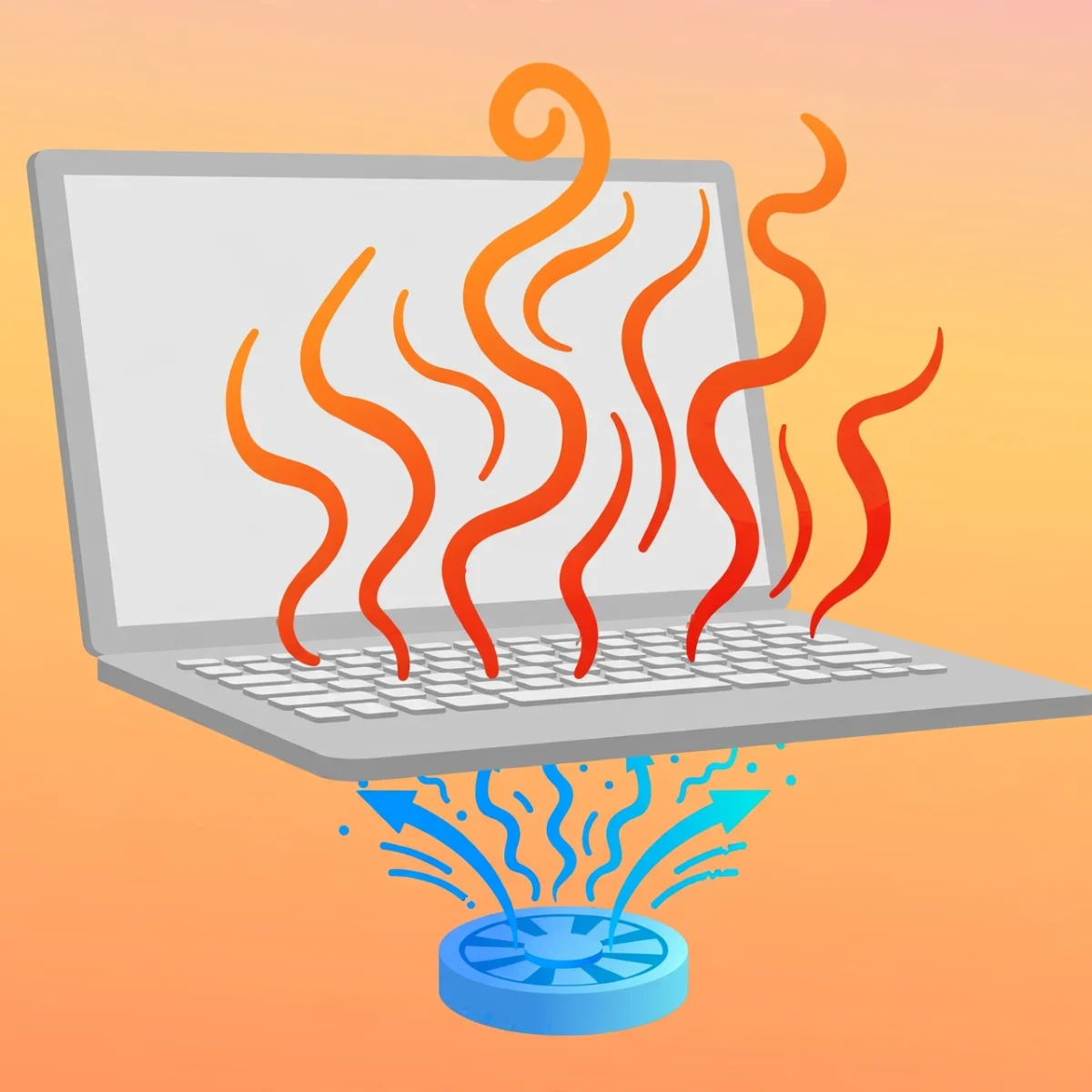
If your laptop feels hot to the touch, roars like a jet engine, or suddenly shuts down, you are probably searching for a clear guide on laptop overheating how to fix it before the heat causes real damage. Laptop overheating is one of the most common problems owners face, and the good news is that most cases are fixable at home with no special tools.
Heat is the enemy of every electronic device. Inside your laptop, the processor (CPU) and graphics chip (GPU) generate a lot of heat, especially during gaming, video editing, or even long video calls. A cooling system of fans, heat pipes, and vents pushes that heat out. When anything in that chain gets clogged, blocked, or worn out, temperatures climb fast.
In this guide, you will learn the most common causes of laptop overheating, a step-by-step checklist to fix it, and how to keep your machine running cool for years. If your laptop is also running slow in general, check out our guide on how to speed up a slow laptop, since heat and sluggishness often go together. For more step-by-step computer guides, visit the DigitalGeekSpot homepage.
How to Tell If Your Laptop Is Actually Overheating
All laptops get warm. That is normal. Overheating is when temperatures rise enough to cause problems. Look for these warning signs:
- The fan runs at full speed constantly, even when you are only browsing the web.
- Performance suddenly drops. Games stutter, videos lag, or apps freeze after the laptop has been on for a while. This is called thermal throttling, where the CPU slows itself down to reduce heat.
- The keyboard or bottom panel feels painfully hot, not just warm.
- The laptop shuts down or restarts on its own during demanding tasks.
- You smell a hot or dusty odor coming from the vents.
If you want hard numbers, free temperature monitoring tools such as HWMonitor or Core Temp show your CPU temperature in real time. Most laptop CPUs run comfortably between 40 and 70 degrees Celsius under load. Sustained readings above 90 degrees are a clear sign something is wrong.
Cause 1: Dust Buildup in Fans and Vents
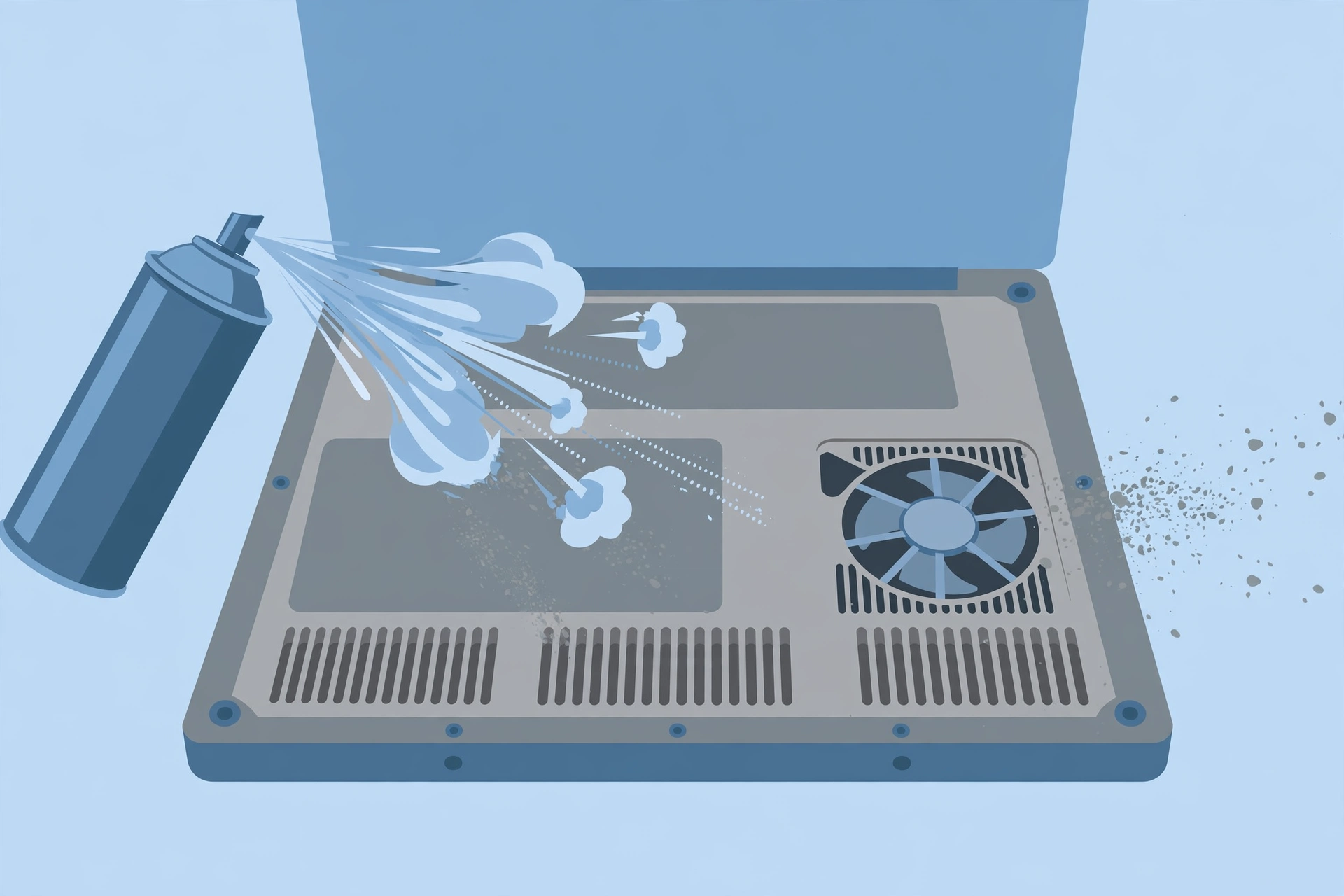
Dust is the number one cause of laptop overheating. Over months of use, dust coats the fan blades and clogs the narrow vents that carry hot air out of the case. A layer of dust acts like insulation, trapping heat inside.
The fix: Start with compressed air, which costs just a few dollars. Shut the laptop down, unplug it, and use short bursts of air to blow dust out of the intake and exhaust vents. Keep the can upright so no liquid sprays out, and hold the fan still with a finger or toothpick if you can see it, since spinning the fan too fast with air can damage its bearings.
For a deeper clean, open the bottom panel (most laptops need only a small Phillips screwdriver) and gently clean the fan and heat sink fins with a soft brush or cotton swabs. If your laptop is under warranty, check the warranty terms first, since opening it could void coverage on some brands. Do this cleaning every 6 to 12 months if you use the laptop in a dusty environment or have pets.
Cause 2: Blocked Air Vents
Many laptops draw cool air in from vents on the bottom and push hot air out the back or sides. Using your laptop on a bed, couch cushion, or your lap can smother those intake vents completely. Soft surfaces also trap the warm air the laptop is trying to expel.
The fix: Always use your laptop on a hard, flat surface like a desk or table. If you love working from the couch, put a laptop tray, a large book, or even a cutting board underneath it. Keep the rear exhaust vents clear by leaving a few inches of space behind the laptop, and never stack papers or objects against them.
Cause 3: High Room Temperature
Your laptop cools itself using the air around it. If you work in a hot room, a sunlit spot, or outdoors in summer, the cooling system has to work much harder. A room at 32 degrees Celsius gives the fans far less thermal headroom than a room at 20 degrees.
The fix: Move the laptop out of direct sunlight and away from heat sources like radiators. If possible, work in an air-conditioned room during heavy tasks. Even a small desk fan pointed at the laptop can help carry heat away from the case.
Cause 4: Too Many Demanding Programs Running
Modern laptops have more power than ever, but running a game, video editor, a dozen browser tabs, and a video call at once pushes the CPU and GPU hard. Background processes you forgot about, such as cloud sync tools or update installers, can also spike temperatures.
The fix: Open Task Manager (Ctrl + Shift + Esc on Windows) or Activity Monitor (on a Mac) and sort by CPU usage. Close apps you do not need right now. In your browser, close tabs you are not reading, since each tab uses memory and processor time. If you regularly run demanding software, check whether your laptop meets its recommended specs. Our guide to the best local AI models for laptops explains why heavy workloads like AI push laptop hardware, and the same cooling principles apply.
Cause 5: An Old or Misbehaving Battery
A failing battery can generate excess heat as it charges and discharges, and a swollen battery can physically press against internal components and block airflow. If the bottom of your laptop is bulging or the trackpad feels raised, stop using it and get the battery replaced, since a swollen battery is a safety hazard.
The fix: Check your battery health in your operating system settings. On Windows, generate a battery report from the command line; on a Mac, check battery condition under System Information. If the battery is heavily degraded, replace it with a genuine or high-quality third-party part. As a short-term measure, removing the battery (on models where it is removable) and running on AC power alone can reduce heat.
Cause 6: Dried-Out Thermal Paste
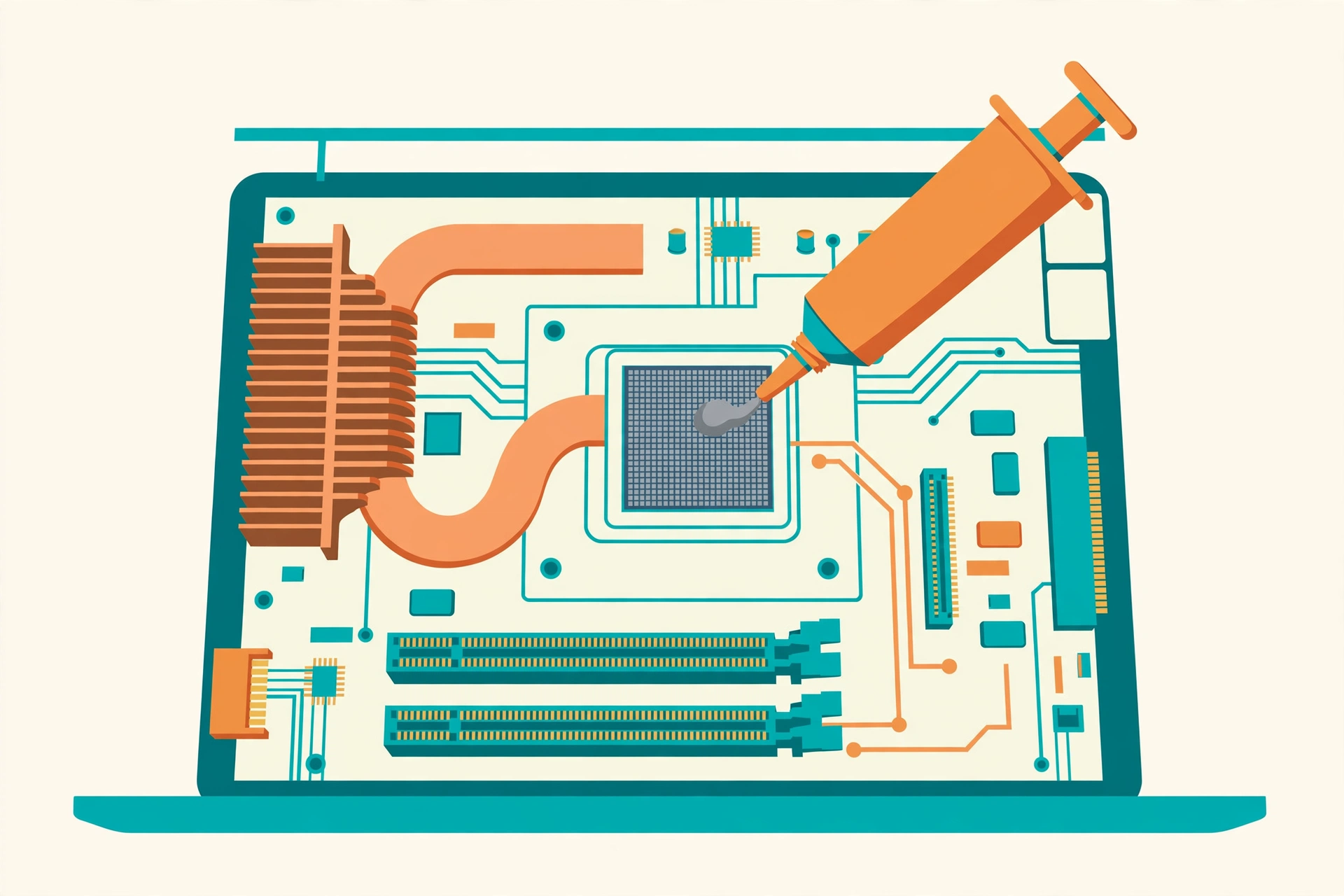
Thermal paste is the gray compound between the CPU/GPU and the heat sink that transfers heat away from the chips. After a few years it dries out and cracks, and heat transfer drops sharply. This is a common reason older laptops overheat even after the vents are cleaned.
The fix: Replacing thermal paste means removing the heat sink, cleaning off the old paste with isopropyl alcohol, and applying a small pea-sized dot of new paste. It is a moderate-difficulty job: easy for anyone comfortable opening a laptop, risky for total beginners. Quality thermal paste costs under ten dollars. If your laptop is more than three or four years old and still runs hot after cleaning, this fix often drops temperatures by 10 to 20 degrees. Watch a model-specific disassembly video first, and skip this step if you are not confident, a repair shop can do it for a modest fee.
Cause 7: Outdated Drivers and Firmware
Graphics drivers and BIOS/UEFI firmware control how your fans respond to heat. Buggy or ancient drivers can leave fans running too slow or put the CPU into an inefficient high-power state.
The fix: Update your graphics drivers from the manufacturer’s site (NVIDIA, AMD, or Intel), not just Windows Update, since the manufacturer versions are newer. Check your laptop maker’s support page for BIOS updates, which often include improved fan curves and thermal management. Also install pending Windows or macOS updates, which frequently include power management improvements.
Quick Wins: Settings That Lower Temperature Right Now
Beyond the hardware causes, a few software tweaks reduce heat immediately:
- Switch to a balanced or power-saver plan. On Windows, open Settings, System, Power and battery, and choose Balanced or Best power efficiency instead of Best performance for everyday tasks. The CPU runs cooler at slightly lower clocks.
- Lower the maximum processor state. In advanced power settings, setting the maximum processor state to 90 or 95 percent can noticeably cut heat with almost no visible performance loss in daily use.
- Reduce screen brightness. The display generates heat too, and full brightness adds warmth right under the keyboard on many models.
- Close heavy startup programs. Fewer programs launching at boot means less background heat from the moment you log in.
- Scan for malware. Cryptominers and other malware secretly max out your CPU. If your laptop runs hot while idle, run a full antivirus scan.
Cooling Pads and Stands: Are They Worth It?
A cooling pad is a stand with built-in fans that blows air at the bottom of your laptop. They typically reduce temperatures by 3 to 8 degrees Celsius, which is enough to stop thermal throttling in borderline cases. They also raise the laptop to a more ergonomic typing angle and guarantee the intake vents stay unblocked.
Cooling pads work best as a complement to cleaning, not a replacement. If your vents are packed with dust, a pad cannot fix that. But paired with a clean machine and a hard desk surface, a pad is the simplest plug-and-play cooling upgrade you can buy. Even a simple passive aluminum stand that lifts the laptop an inch improves airflow noticeably, with no fans or USB power needed.
When Overheating Means a Hardware Problem
Sometimes heat points to a failing component rather than dust or settings. Take the laptop to a repair shop if:
- The fan makes grinding, clicking, or rattling noises, which means its bearings are failing.
- The fan never spins at all, even under heavy load.
- Temperatures stay high after cleaning, new thermal paste, and a fresh OS install.
- The laptop shuts down within minutes of starting a demanding task.
A dead fan is a cheap part, but a failing GPU or a damaged heat pipe can cost more than the laptop is worth on older machines. A technician can diagnose which it is in minutes.
How to Prevent Laptop Overheating Long-Term
Once your laptop is running cool again, keep it that way with a simple routine:
- Clean the vents every 6 to 12 months with compressed air, more often if you have pets or live somewhere dusty.
- Always use hard, flat surfaces, or a stand that keeps the bottom clear.
- Keep software updated, including drivers and the operating system.
- Do not block the exhaust. Give the back of the laptop a few inches of breathing room.
- Replace thermal paste every 3 to 4 years if you are comfortable opening the machine.
- Store the laptop in a cool place. Never leave it in a hot car, where interior temperatures can destroy a battery in a single afternoon.
Frequently Asked Questions
Is it normal for a laptop to get hot while gaming?
Yes, gaming pushes the CPU and GPU to their limits, so high temperatures are expected. Fans spinning loudly during a game is normal. It becomes a problem when the game stutters from thermal throttling, the laptop shuts down, or the chassis is too hot to touch comfortably. Cleaning vents and using a cooling pad usually solve gaming heat issues.
Can laptop overheating cause permanent damage?
Yes, over time. Sustained extreme heat can shorten the life of the battery, warp solder joints, and degrade the CPU and storage. Modern laptops shut down automatically before reaching truly dangerous temperatures, which protects the chips but causes data loss in unsaved work. Fixing overheating early protects both your hardware and your files.
Should I use a cooling pad or just raise the laptop?
Raising the laptop on any stand improves airflow and helps on its own. A cooling pad with fans adds a few extra degrees of cooling and is worth it if your laptop regularly runs hot during work or gaming. Start with a free fix first: clean the vents and use a hard surface, then add a pad if temperatures are still high.
How hot is too hot for a laptop CPU?
As a rule of thumb, idle temperatures of 40 to 55 degrees Celsius and load temperatures of 70 to 85 degrees are normal for most laptops. Sustained temperatures above 90 degrees under load, or high temperatures while doing nothing, indicate a cooling problem worth fixing.
Does undervolting help with laptop overheating?
Undervolting reduces the voltage supplied to the CPU, which lowers heat with little or no performance loss. It is an advanced tweak that requires care, since too little voltage causes crashes. For most users, cleaning, better airflow, and power plan tweaks solve the problem with less risk.