Shopping for a new laptop or upgrading your current one always leads to the same question: how much RAM do I need? Buy too little and your computer stutters every time you open a few tabs. Buy too much and you waste money on memory you will never use. This guide explains what RAM actually does, in plain language, and gives clear recommendations for students, office workers, gamers, and creators.
RAM (Random Access Memory) is your computer’s short-term memory. It holds the programs and files you are actively using so the processor can reach them instantly. Think of it like a desk: a bigger desk lets you spread out more papers at once, while a tiny desk forces you to constantly file things away and pull them back out. That constant shuffling is what makes a computer with too little RAM feel slow. If your machine feels sluggish in general, also read our guide on how to speed up a slow laptop. For more beginner-friendly computer explainers, visit the DigitalGeekSpot homepage.
What Is RAM, Exactly?
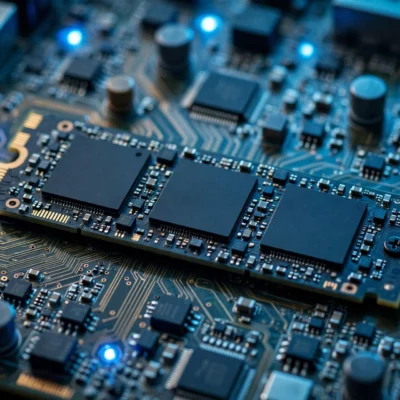
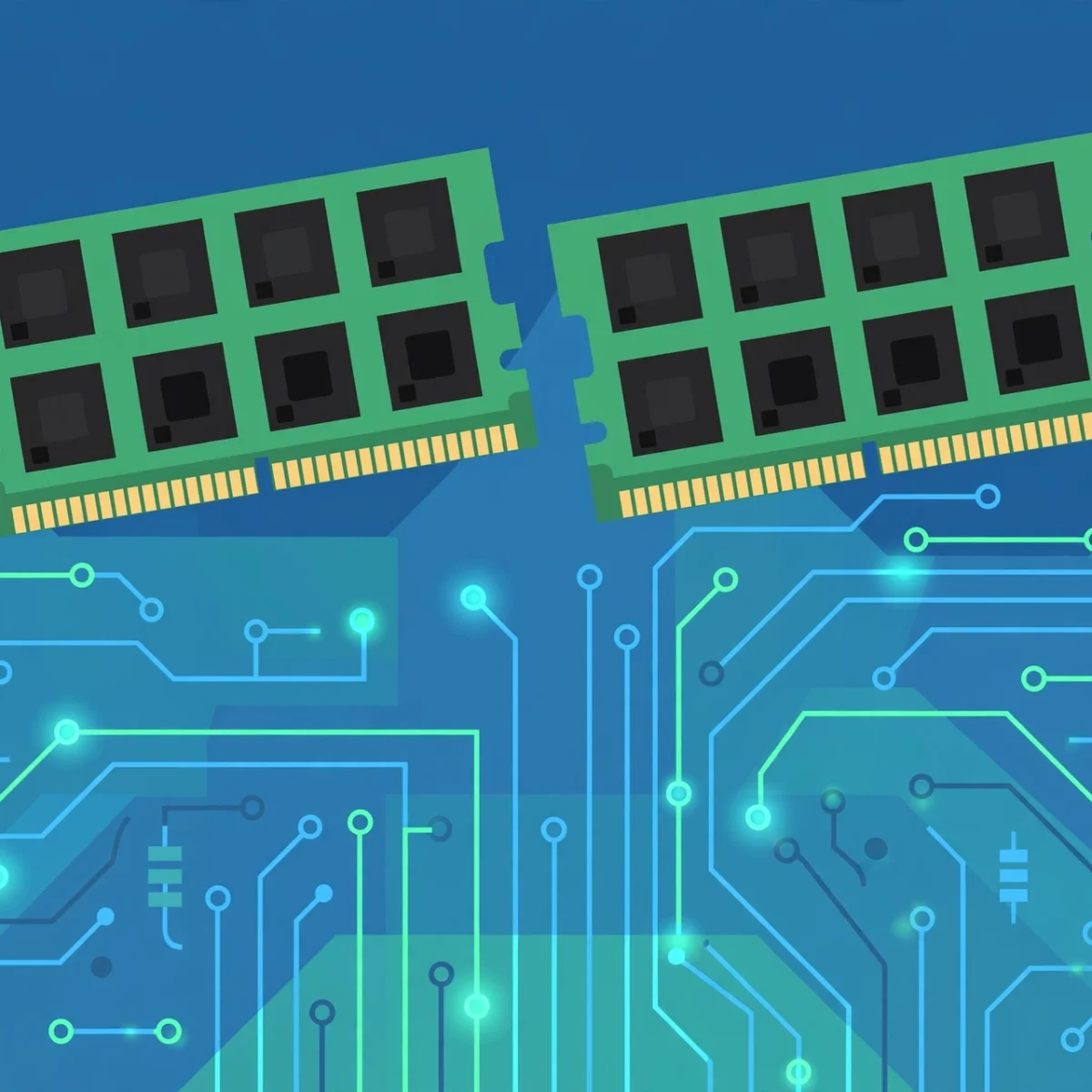
RAM is a type of super-fast, temporary storage. When you open an app, the computer copies it from your drive into RAM, because reading from RAM is far faster than reading from even the quickest SSD. The more RAM you have, the more apps, browser tabs, and files can stay “open” at once without slowing down.
RAM is different from storage. Storage (your SSD or hard drive) is like a filing cabinet: it keeps everything permanently, but accessing it is slower. RAM is the desk surface: fast and convenient, but everything on it disappears when you turn the computer off. Upgrading RAM helps with multitasking and responsiveness, while upgrading storage gives you room for more files. If you are confused about storage types, our SSD vs HDD comparison breaks it down.
Modern RAM comes in generations: DDR4 is the older standard still found in many machines, and DDR5 is the newer, faster standard in recent laptops and desktops. The generation matters less than the total amount for most buyers, but a new machine in 2026 should ideally have DDR5.
How Much RAM Do You Need? Quick Answer
Here is the short version before we dive into details:
- 4GB: Bare minimum. Only acceptable for very light use on a Chromebook or a secondary machine. Not recommended for a main Windows or Mac computer.
- 8GB: The sweet spot for everyday use. Web browsing, email, office documents, streaming, and light photo editing all run fine.
- 16GB: The comfortable choice for most people. Great for heavy multitasking, gaming, programming, and moderate creative work.
- 32GB: For professionals. Video editing, 3D rendering, large datasets, and running virtual machines need this much.
- 64GB and up: Only for specialized workstations, such as high-end video production, scientific computing, or running many virtual machines at once.

Students: 8GB Is Usually Enough, 16GB Is Ideal
For schoolwork, the workload is web research, writing papers, video lectures, and video calls. 8GB of RAM handles all of this comfortably, even with twenty browser tabs open during a research session. Students on a budget can confidently buy an 8GB machine and spend the savings elsewhere.
Step up to 16GB if you are studying computer science, engineering, or design, where you might run programming tools, CAD software, or Adobe apps alongside everything else. Also consider 16GB if you plan to keep the laptop for four or more years through college, since software gets heavier over time. Our roundup of the best AI tools for students is worth a look too, since some AI-powered study tools benefit from extra memory headroom.
Office Work and Everyday Use: 8GB Minimum, 16GB for Comfort
Email, spreadsheets, documents, Slack or Teams, and a browser full of tabs define office work. 8GB covers this well on both Windows and Mac. If your workday means dozens of Chrome tabs plus Excel plus a video call, all at the same time, 16GB removes any stutter and makes the machine feel effortlessly smooth.
One important note: on modern Macs with Apple Silicon, 8GB goes further than 8GB on a typical Windows machine, thanks to unified memory and efficient memory compression. Even so, Mac buyers who keep many apps open should still consider 16GB, since Mac RAM cannot be upgraded later.
Gaming: 16GB Is the Sweet Spot
Most current games run well with 16GB of RAM, especially when paired with a decent graphics card. 8GB is now the bare minimum for gaming and will cause stuttering in newer titles, particularly if you also run Discord, a browser, or streaming software in the background.
Choose 32GB if you stream your gameplay, play heavily modded games, or run simulation and strategy titles that load enormous maps. Beyond 32GB, extra RAM gives no gaming benefit today. Money is better spent on a stronger GPU or a faster SSD at that point.
Video Editing and Creative Work: 16GB Minimum, 32GB Recommended
Creative apps are memory hungry. Editing 1080p video works with 16GB, but 4K timelines, complex Photoshop files with many layers, and 3D scenes in Blender all benefit enormously from 32GB. Professionals working with 8K footage or large visual effects projects may need 64GB.
For creators, RAM speed and dual-channel configuration matter too. Two 16GB sticks running in dual-channel mode perform noticeably better than a single 32GB stick, because the memory controller can access both at once. When buying a prebuilt machine or laptop, check whether the RAM runs in dual channel.
Programming and Development: 16GB Is the Practical Minimum
Code editors themselves are light, but developers rarely run just an editor. Add a local server, Docker containers, a database, a browser with documentation tabs, and maybe an Android emulator, and memory disappears fast. 16GB is the realistic starting point for professional development, and 32GB is worth it if you work with containers or virtual machines daily.
Running local AI models is the newest memory-hungry developer workload. Large language models load entirely into RAM (or VRAM), and bigger models need tens of gigabytes. If that interests you, see our guide to the best local AI models for laptops to understand the memory requirements.
How to Check Your Current RAM Usage
Before buying more RAM, check whether you actually need it:
- Windows: Press Ctrl + Shift + Esc to open Task Manager, then go to the Performance tab and click Memory. If usage regularly sits above 80 percent during your normal work, an upgrade will help.
- Mac: Open Activity Monitor from Applications, Utilities, and check the Memory tab. Look at “Memory Pressure”: green means you are fine, yellow means you are pushing the limit, and red means you need more RAM.
- Chromebook: Press Shift + Esc inside Chrome to open its task manager and see which tabs and extensions eat the most memory.
Can You Upgrade Your RAM Later?
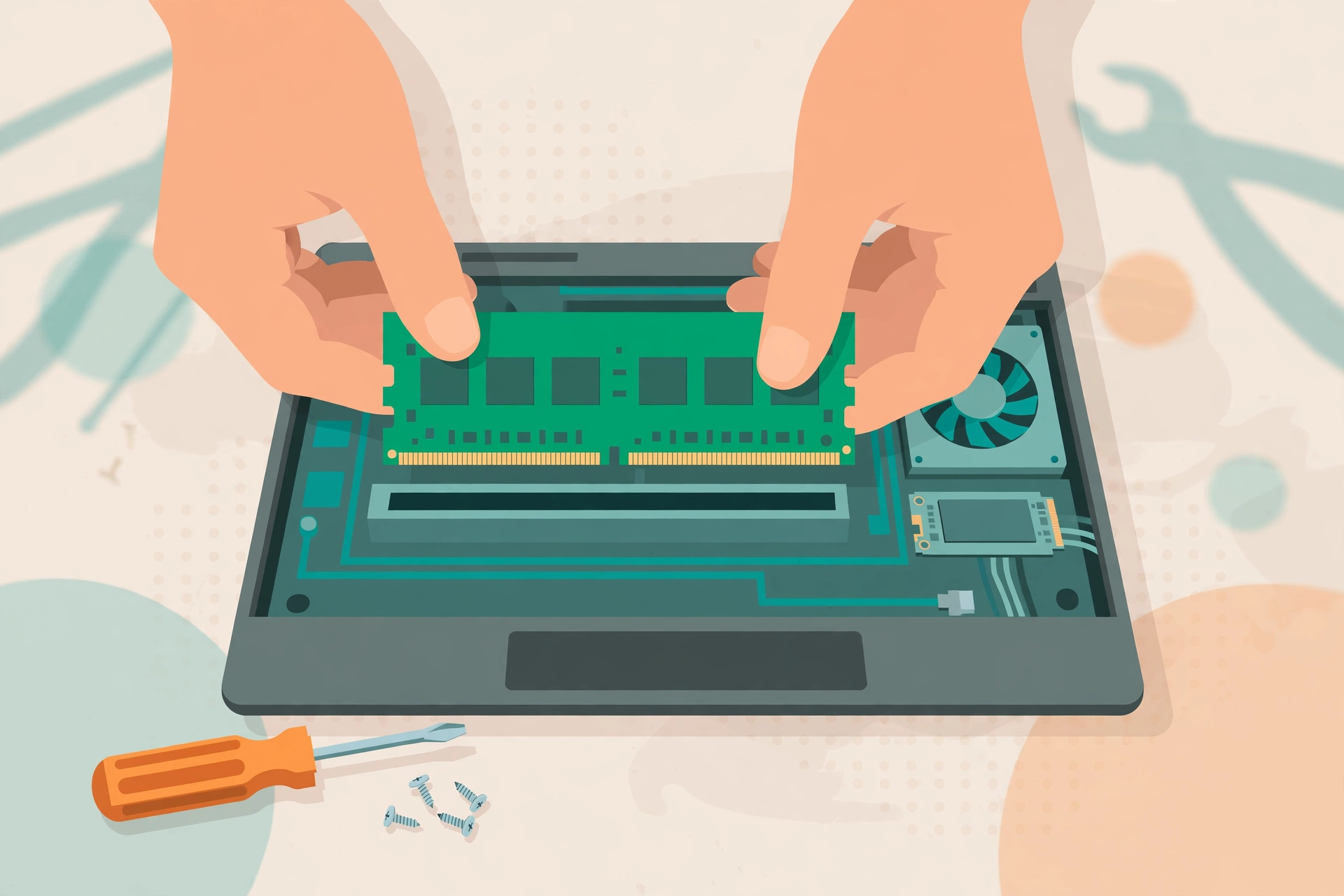
It depends on the machine. Many desktop PCs and some larger laptops have accessible RAM slots you can upgrade in minutes with a screwdriver. But most thin-and-light laptops, ultrabooks, and all current Macs have RAM soldered directly to the motherboard, which means the amount you buy is the amount you keep forever.
The fix: Before buying, look up your exact model’s service manual or a teardown guide to see whether the RAM is replaceable. If it is soldered, buy more than you think you need today, since you cannot add more later. If it has free slots, you can start with 8GB and add another stick when your workload grows, which is often the cheapest path.
When upgrading, match the new stick’s generation (DDR4 or DDR5) and speed to the existing one, and buy from a reputable brand. Mismatched RAM usually still works, but matched pairs in dual-channel mode perform best.
Common RAM Myths, Debunked
- “More RAM always makes a computer faster.” Only up to the point where you stop running out. Going from 8GB to 16GB transforms a machine that was constantly maxed out, but going from 32GB to 64GB changes nothing if you never use more than 20GB.
- “You need to empty your RAM regularly.” Modern operating systems manage memory well on their own. So-called RAM cleaner apps provide no real benefit and can actually slow things down.
- “RAM speed matters more than RAM size.” For almost everyone, having enough RAM matters far more than having slightly faster RAM. Size first, speed second.
- “Unused RAM is wasted RAM.” Operating systems deliberately use spare RAM to cache frequently accessed files, which speeds things up. High RAM usage at idle is usually a good sign, not a problem.
What About RAM for an Older Computer?
If you have an older machine with 4GB of RAM, a memory upgrade is one of the cheapest ways to extend its life. Going from 4GB to 8GB on an older Windows laptop can make it feel like a new machine for basic tasks. Pair it with an SSD upgrade and a cleanup, and a five-year-old laptop can serve well for several more years.
Check the maximum RAM your motherboard supports before buying, since older machines sometimes cap out at 8GB or 16GB. The manufacturer’s specifications page or a memory vendor’s compatibility tool will tell you the exact type and maximum.
Frequently Asked Questions
How much RAM do I need for Windows 11?
Windows 11 itself needs 4GB minimum, but 8GB is the realistic minimum for smooth everyday use. With 8GB you can browse, work in Office, and stream without constant slowdowns. For a machine you plan to keep for years, 16GB is the safer buy.
Is 8GB RAM enough in 2026?
For everyday tasks like browsing, email, office work, and streaming, yes, 8GB is still enough. It becomes tight if you edit video, play modern games, run virtual machines, or keep 50 browser tabs open. If your budget allows, 16GB gives you comfortable headroom for the next few years.
Is 16GB RAM overkill for a student?
Not anymore. 16GB is the comfortable choice that handles research, writing, video calls, and light creative work with room to spare. It also future-proofs the laptop through several years of school. Budget-focused students will still be fine with 8GB for basic coursework.
Does more RAM help gaming FPS?
Only if you currently do not have enough. Upgrading from 8GB to 16GB can smooth out stuttering in modern games. But once you have enough RAM, adding more does not raise frame rates. The graphics card and CPU determine FPS beyond that point.
Can I mix different RAM brands or sizes?
Usually yes, as long as the generation (DDR4 or DDR5) matches. The system will run all sticks at the speed of the slowest one. For best performance, use identical sticks in pairs to enable dual-channel mode, but a mismatched upgrade is still far better than not enough RAM.
Is RAM or SSD more important for speed?
Both matter, but in different ways. An SSD makes booting and loading dramatically faster, while enough RAM keeps everything smooth once programs are running. On an old machine with a hard drive and 4GB of RAM, the SSD upgrade usually makes the biggest noticeable difference first.