The quickest ways to speed up Windows 11 are to disable unnecessary startup apps, switch the power mode to Best Performance, turn off transparency and animation effects, run Storage Sense to clear junk files, and keep Windows and your drivers updated. These five fixes take under 15 minutes combined and solve the most common causes of sluggishness: too many programs launching at boot, power settings that prioritise battery over speed, and visual effects eating resources. Windows 11 idles at a higher RAM baseline than Windows 10 and ships with more background services enabled, so a new PC can feel slow out of the box. Below is the full optimisation checklist, from instant wins to hardware upgrades.
| Fix | Time needed | Difficulty | Impact |
|---|---|---|---|
| Disable startup apps | 5 minutes | Easy | High, faster boot |
| Power mode to Best Performance | 1 minute | Easy | Medium to high |
| Turn off visual effects | 3 minutes | Easy | Medium |
| Storage Sense and disk cleanup | 10 minutes | Easy | Medium |
| Update Windows and drivers | 15+ minutes | Easy | Medium |
| Uninstall bloatware | 15 minutes | Easy | Medium |
| Limit search indexing | 5 minutes | Easy | Low to medium |
| Upgrade to SSD / add RAM | 1+ hour | Moderate | Very high |
Why Windows 11 Feels Slow
Before fixing anything, it helps to know the usual suspects. Windows 11 keeps more background services running than older versions and idles at around 2 to 3 GB of RAM, compared with roughly 1 to 2 GB on Windows 10. Add a dozen apps that helpfully add themselves to startup, a hard drive instead of an SSD, and default settings tuned for looks rather than speed, and even decent hardware can feel sluggish.
The good news is that most of this is configuration, not broken hardware. Work through the fixes below in order, testing as you go. Stop when the machine feels fast enough, since every change has a small trade-off. If you are dealing with an older laptop rather than Windows 11 specifically, our guide on how to speed up a slow laptop covers the hardware side in more detail.
1. Disable Unnecessary Startup Apps
This is the single highest-impact software fix. Many programs add themselves to startup during installation, so your PC spends the first minutes after boot loading apps you did not ask for. Each one also keeps consuming RAM in the background all day.
- Press Ctrl + Shift + Esc to open Task Manager.
- Go to the Startup apps section.
- Look at the Startup impact column and disable everything marked High that you do not need immediately at boot, such as chat apps, game launchers, and updaters.
- Right-click an app and choose Disable. This does not uninstall it, it just stops it launching automatically.
- Restart and notice the difference.
Keep essentials like your antivirus enabled. Everything else can be launched manually when you need it.
2. Switch Power Mode to Best Performance
Windows 11 defaults to a Balanced power plan that trades speed for battery life and heat. On a desktop, or a laptop that is usually plugged in, switching to Best Performance lets the CPU run at full speed.
- Open Settings, then System, then Power and battery.
- Under Power mode, select Best performance.
On battery, Best Performance drains the charge faster, so consider switching back to Balanced when unplugged. Gamers should also check Settings, System, Display, Graphics and enable Hardware-accelerated GPU scheduling, which can smooth out frame pacing on supported hardware.
3. Turn Off Visual Effects
Transparency, animations, and shadows look nice but cost CPU and GPU cycles on every window operation. Reducing them is one of the oldest and still most effective speed tweaks.
- Search for Adjust the appearance and performance of Windows and open it.
- Select Adjust for best performance to disable everything, or choose Custom and keep the two or three effects you actually like, such as smooth fonts.
- Separately, go to Settings, Personalization, Colors and turn off Transparency effects.
On modern hardware the difference is subtle but real; on older integrated graphics it can be dramatic, especially when multitasking.
4. Free Up Disk Space With Storage Sense
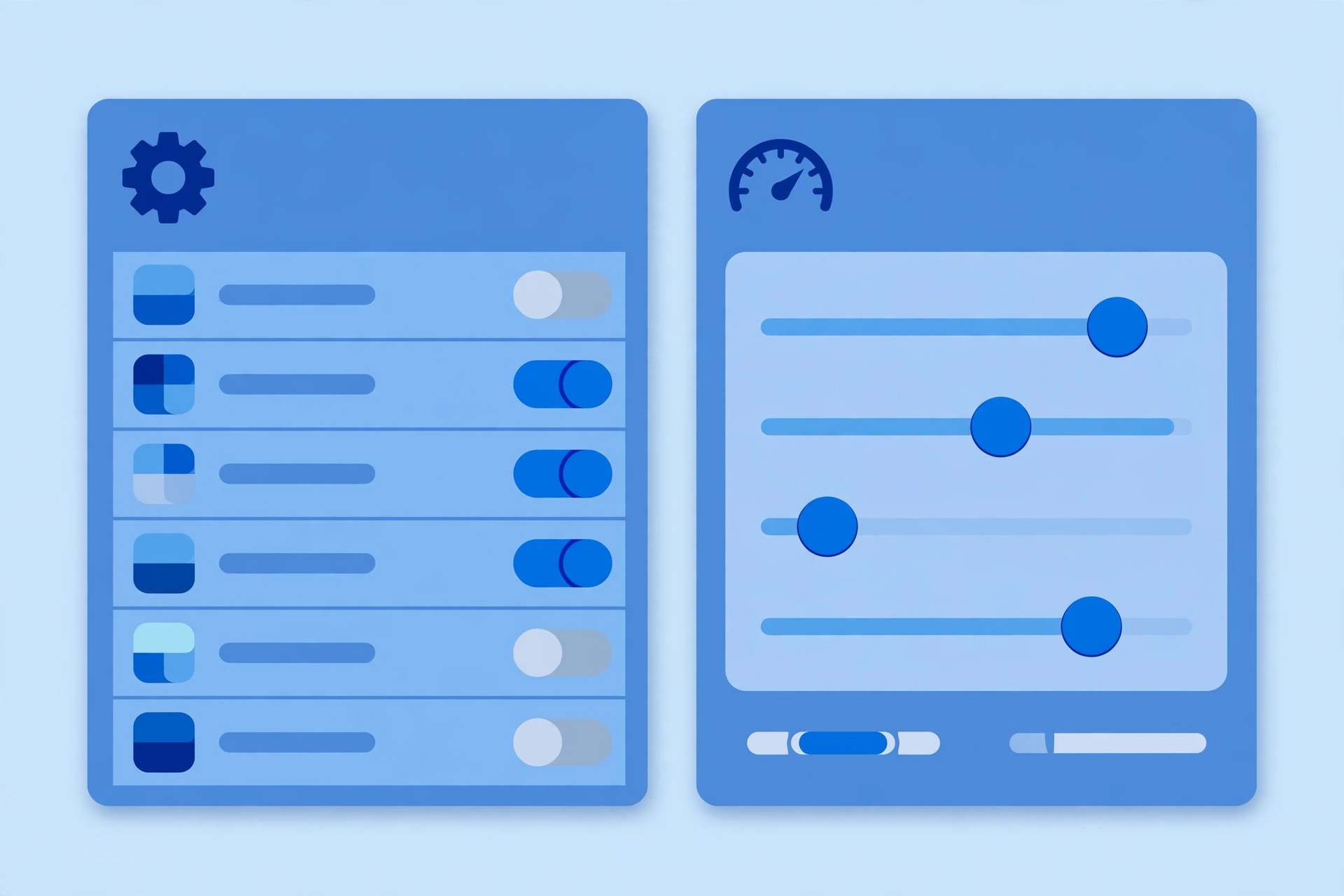
A nearly full drive slows everything down: Windows needs free space for virtual memory, updates, and temporary files. Aim to keep at least 15 to 20 percent of your system drive free.
- Go to Settings, System, Storage and turn on Storage Sense so Windows automatically clears temporary files and empties the Recycle Bin on a schedule.
- Click Cleanup recommendations to see large unused files, old downloads, and previous Windows installations you can safely remove.
- For a deeper clean, search for Disk Cleanup, select your system drive, and remove system files like old update caches.
If storage is a constant battle, read our full guide to freeing up disk space on Windows 11, which walks through finding space hogs and moving libraries off the system drive.
5. Update Windows and Drivers
Performance regressions get fixed in updates, and Microsoft has shipped several speed-focused improvements for Windows 11, including better app launch behaviour in recent feature updates. Running old builds means missing those fixes.
- Go to Settings, Windows Update and install all pending updates, then restart.
- Update your graphics, network, and chipset drivers from the manufacturer’s website (NVIDIA, AMD, Intel, or your laptop maker) rather than relying solely on Windows Update, which can lag behind.
- After major feature updates, give the system a day to finish background indexing before judging speed.
6. Uninstall Bloatware and Unused Programs
New PCs ship with pre-installed apps you will never open, and old PCs accumulate programs you forgot about. Both waste disk space and some run background services.
- Go to Settings, Apps, Installed apps.
- Sort by Size to find the biggest offenders, or by install date to spot pre-installed apps.
- Uninstall anything you do not recognise or no longer use. When unsure, search the program name first, some entries are drivers or system components.
Also check your browser extensions while you are at it. A dozen Chrome extensions can slow browsing more than any Windows setting, so remove the ones you do not use weekly.
7. Tame Search Indexing
Windows Search indexing keeps a database of your files so searches are instant, but on slower machines the indexer itself causes constant disk activity. You do not need to disable it entirely, just scope it sensibly.
- Go to Settings, Privacy and security, Searching Windows.
- Under Find my files, Classic indexes only common folders and is lighter than Enhanced, which covers the whole drive.
- Use Exclude folders from enhanced search to skip huge folders you never search, like game libraries or video archives.
Only disable the Windows Search service entirely as a last resort on very slow PCs, since it breaks Start menu search.
8. Restart Regularly and Manage Background Apps
Many people never restart, they just close the lid. Sleep does not clear memory leaks, stuck processes, or pending updates. A proper restart once a week is the simplest maintenance habit there is: Start menu, Power, Restart, not Shut down.
While you are in Settings, also review Settings, Apps, Installed apps, pick apps that do not need to run in the background, open their Advanced options, and set Background apps permissions to Never. Fewer background apps means more RAM and CPU for what you are actually doing.
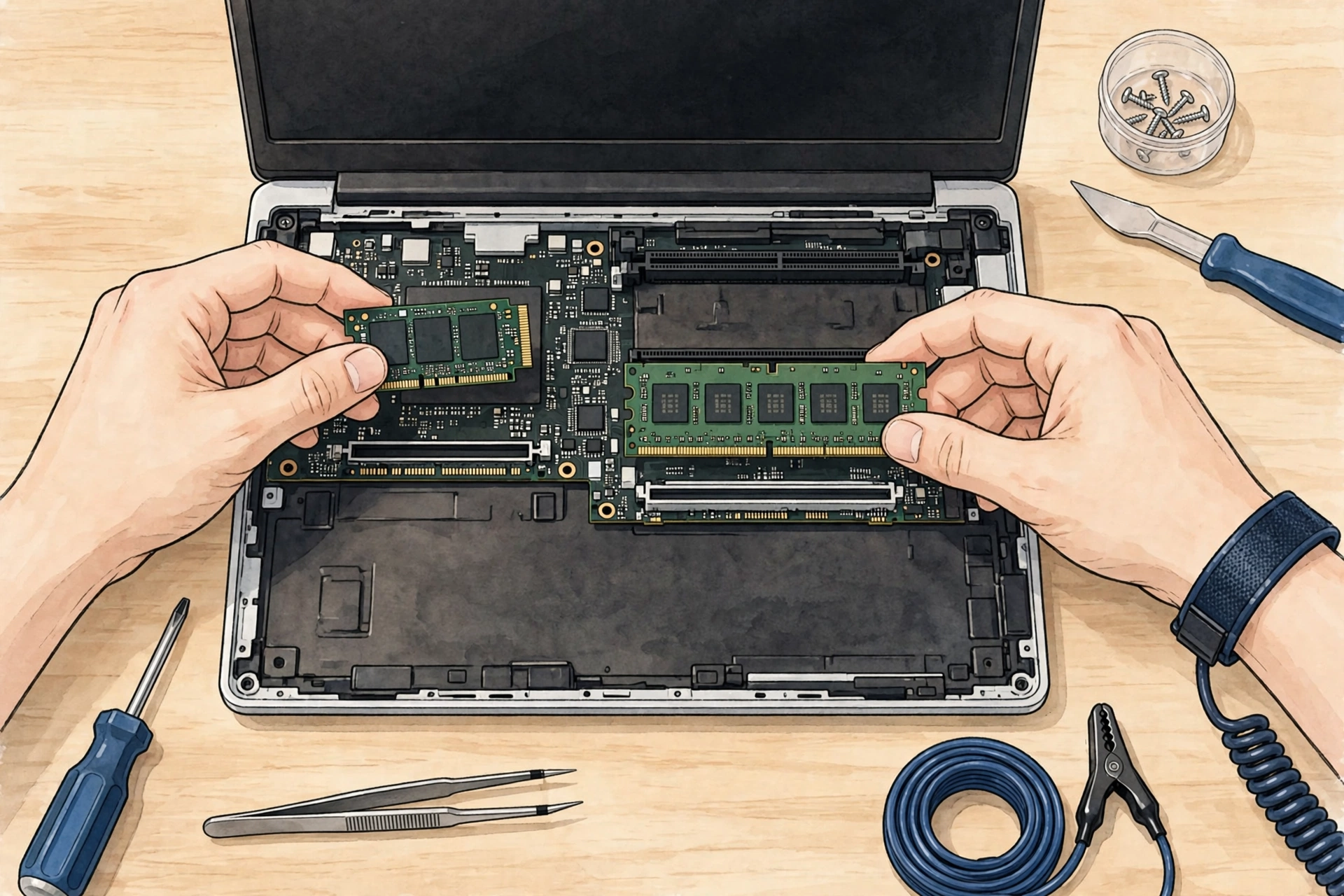
9. Consider Hardware Upgrades
If software tweaks are not enough, two upgrades transform old machines:
- Switch from HDD to SSD. This is the biggest single upgrade for any PC still running on a mechanical hard drive. Boot times commonly drop from minutes to seconds, and everything feels instantly more responsive. See our SSD vs HDD comparison before buying.
- Add more RAM. 8 GB is the realistic minimum for Windows 11 in 2026; 16 GB is the comfortable spot for multitasking, and heavy users benefit from 32 GB. Check how much RAM you need for your workload first.
Both upgrades are inexpensive compared with a new PC and are straightforward on most desktops and many laptops. If the machine is very old, compare the upgrade cost against a replacement before spending.
10. Reset Windows as a Last Resort
When nothing else works, a fresh start fixes years of accumulated cruft. Windows 11 has a built-in reset: Settings, System, Recovery, Reset this PC. Choose Keep my files to reinstall Windows while preserving personal data, or Remove everything for a completely clean slate. Back up important files first either way, and reinstall only the programs you actually use. Most people are surprised how fast the machine feels afterwards, which tells you how much of the slowness was software buildup.
Frequently Asked Questions
How can I speed up Windows 11 without installing anything?
Disable startup apps in Task Manager, set power mode to Best Performance, turn off visual effects and transparency, enable Storage Sense, and install pending Windows updates. These built-in fixes take about 15 minutes and address the most common causes of slowness with no third-party software.
Why is Windows 11 slower than Windows 10 was?
Windows 11 runs more background services and idles at higher RAM usage, around 2 to 3 GB versus 1 to 2 GB on Windows 10. Default settings also favour visual polish over speed, and older PCs may still be on hard drives. Most of the gap closes once you trim startup apps, effects, and background services as described above.
Does disabling visual effects really help?
Yes, especially on lower-end hardware with integrated graphics. Animations and transparency consume GPU and CPU resources on every window operation. The difference is modest on powerful machines but clearly noticeable on older ones, and it costs nothing to try.
Will more RAM speed up Windows 11?
It helps if you are running out. With 8 GB, heavy multitasking forces Windows to use the much slower page file on disk. Moving to 16 GB removes that bottleneck for most people. Beyond that, extra RAM only helps if your workload actually uses it, so check Task Manager’s memory usage under load before buying.
Is it safe to disable all startup apps?
Disabling a startup entry does not uninstall the program, it just stops it launching at boot, so it is safe to experiment. Keep security software and anything you genuinely need at login, like a VPN or backup tool, enabled. If something misbehaves, re-enable it in Task Manager.
Should I use a third-party PC optimizer?
Usually not. Windows 11 includes every meaningful optimisation built in, and many third-party optimizers, registry cleaners especially, provide minimal gains while risking system problems. Stick to the built-in tools and the steps in this guide, and spend the money on an SSD instead.
Verdict
Start with the five quick wins: trim startup apps, set Best Performance power mode, disable visual effects, run Storage Sense, and update everything. For most Windows 11 PCs that is enough to restore a snappy feel in under 15 minutes. If the machine is still slow, uninstall bloatware, tame search indexing, and restart weekly. And if it is still slow after all that, an SSD upgrade, or more RAM, will do what no setting can. For more practical PC guides, DigitalGeekSpot publishes step-by-step computer tutorials regularly.