

Quick Answer
Yes, you can upgrade RAM on a laptop, provided your model has removable memory slots. Laptop RAM comes in small modules called SO-DIMM sticks, and most traditional laptops let you add a stick to a free slot or swap out the existing ones for larger ones. The big exception is ultra-thin laptops, where the memory is soldered directly to the motherboard and cannot be upgraded at all. So the upgrade itself is simple, but checking compatibility first is the part that matters most.
In this complete guide from DigitalGeekSpot, we will show you exactly how to upgrade RAM on a laptop, from checking which memory your machine supports, to the tools you need, to the step-by-step installation and what to do if something goes wrong. Before you start, it helps to know how much RAM you actually need so you buy the right amount the first time.
Your Upgrade Options at a Glance
Your options depend on what is already inside your laptop. Here is a quick summary before we get into the details:
| Scenario | What it means | What to buy |
|---|---|---|
| A free slot is available | Your laptop has two slots but only one is filled | One matching SO-DIMM module |
| No free slot | Both slots are already filled, for example two 4GB sticks | Two larger modules to replace them, for example two 8GB sticks |
| Soldered memory | The RAM chips are fixed to the motherboard | Nothing, the memory cannot be upgraded |
Signs You Need More RAM
Adding memory is a smart move when your laptop constantly runs out of it. These are the classic warning signs that a RAM upgrade, not a new computer, might be the fix:
- Everything slows down with multiple apps open: your browser crawls when you have more than a few tabs open, and switching between programs feels delayed.
- Programs freeze or crash under load: video editors, spreadsheets, design tools, or games shut down or stutter when the workload grows.
- Your disk is constantly busy: when RAM fills up, Windows or macOS starts using your drive as overflow memory, which makes an older machine feel painfully slow.
- Long loading and boot times: apps take ages to start, and simple tasks like opening a folder feel sluggish.
- High memory usage in Task Manager: open Task Manager, go to the Performance tab, and look at Memory. If usage regularly sits above 80 to 90 percent during normal work, you need more RAM.
If you are dealing with an older machine that feels slow in general, a RAM upgrade is only one part of the picture. Our guide on how to speed up a slow laptop covers the other common causes, from background programs to a dying hard drive, and heat is another frequent culprit worth ruling out before you spend money on parts.
Check Compatibility Before You Buy Anything
This is the step most people skip, and it is the step that causes most failures. RAM is not universal. Buy the wrong type and it will not fit or will not be recognized. Here is exactly what to check, with the sources to check it against.
Find your RAM type: DDR3, DDR4, or DDR5
Laptop memory comes in generations, currently DDR3, DDR4, and DDR5. Each generation has a different notch position on the module, so a DDR4 stick physically will not seat in a DDR5 slot. Check your laptop manual or the manufacturer’s support page for your exact model to find which generation your machine uses. A handy shortcut is the free Crucial System Scanner, which detects your installed memory and lists compatible upgrades.
| Type | Common speeds | Where you find it |
|---|---|---|
| DDR3 | 800 to 1600 MT/s | Older laptops, roughly pre-2015 |
| DDR4 | 2133 to 3200 MT/s | Most laptops from the mid-2010s onward |
| DDR5 | 4800 MT/s and up | Newer models, not interchangeable with DDR4 |
Find the maximum supported RAM and the slot count
Every laptop has a ceiling on how much memory it accepts, set by the chipset and the manufacturer. A machine that supports 16GB maximum will not recognize 32GB no matter what you install. The manual or manufacturer website will tell you the maximum capacity and how many slots the board has, which decides whether you are adding one stick or replacing a pair.
Confirm the form factor: SO-DIMM
Laptops use SO-DIMM modules, which are much shorter than the DIMM sticks used in desktop PCs. Desktop RAM will not fit a laptop, so always buy modules labeled SO-DIMM in the correct DDR generation for your machine.
The Soldered RAM Caveat
Many modern ultra-thin laptops and 2-in-1 convertibles have their memory soldered directly to the motherboard to save space and thickness. If your machine is built this way, there are no slots, no clips, and no upgrade path at all. This is especially common on premium thin-and-light models from major brands. Check your manual or look up a teardown of your exact model before buying anything, because a RAM kit you cannot install is money wasted. If your laptop does have soldered memory and you need more, your realistic options are a lighter operating system setup, more aggressive memory management, or a new machine.
Tools You Need
A laptop RAM upgrade needs very little gear, but having the right tools keeps you from damaging anything:
- A small Phillips screwdriver: most laptop back panels use tiny Phillips screws. Some models use Torx, so check before you start.
- A plastic pry tool or old credit card: for gently lifting the back panel without scratching the chassis or breaking clips.
- An anti-static wrist strap: static electricity can silently damage memory. If you do not have a strap, touch a grounded metal object regularly and avoid working on carpet.
- A clean, non-static work surface: a wooden or glass table works well. Keep screws in a small bowl so none go missing.
- The new RAM modules: the correct DDR generation, SO-DIMM form factor, and capacity for your model.
One note on safety: if your laptop runs hot or the fan screams during basic tasks, address that separately with our guide to fix an overheating laptop, because heat stress makes every component, including new RAM, age faster.
How to Upgrade RAM on Laptop: Step-by-Step Installation
With the right module in hand, the physical installation takes about 15 minutes. Follow these steps in order, and do not rush the clip and notch alignment.
- Power down completely and unplug everything. Shut the laptop down fully, do not just put it to sleep. Unplug the charger and every peripheral. If the battery is removable, take it out. For internal batteries, a full shutdown is still the safe baseline.
- Ground yourself. Put on the anti-static wrist strap, or touch a grounded metal object such as a radiator pipe. Work on your non-static surface and avoid touching the circuitry on any component.
- Remove the back panel. Flip the laptop over and remove the screws holding the bottom panel, keeping them organized. Some laptops have a small dedicated RAM hatch, which is even easier: you only open that. Otherwise, gently pry the full bottom panel off with your plastic tool.
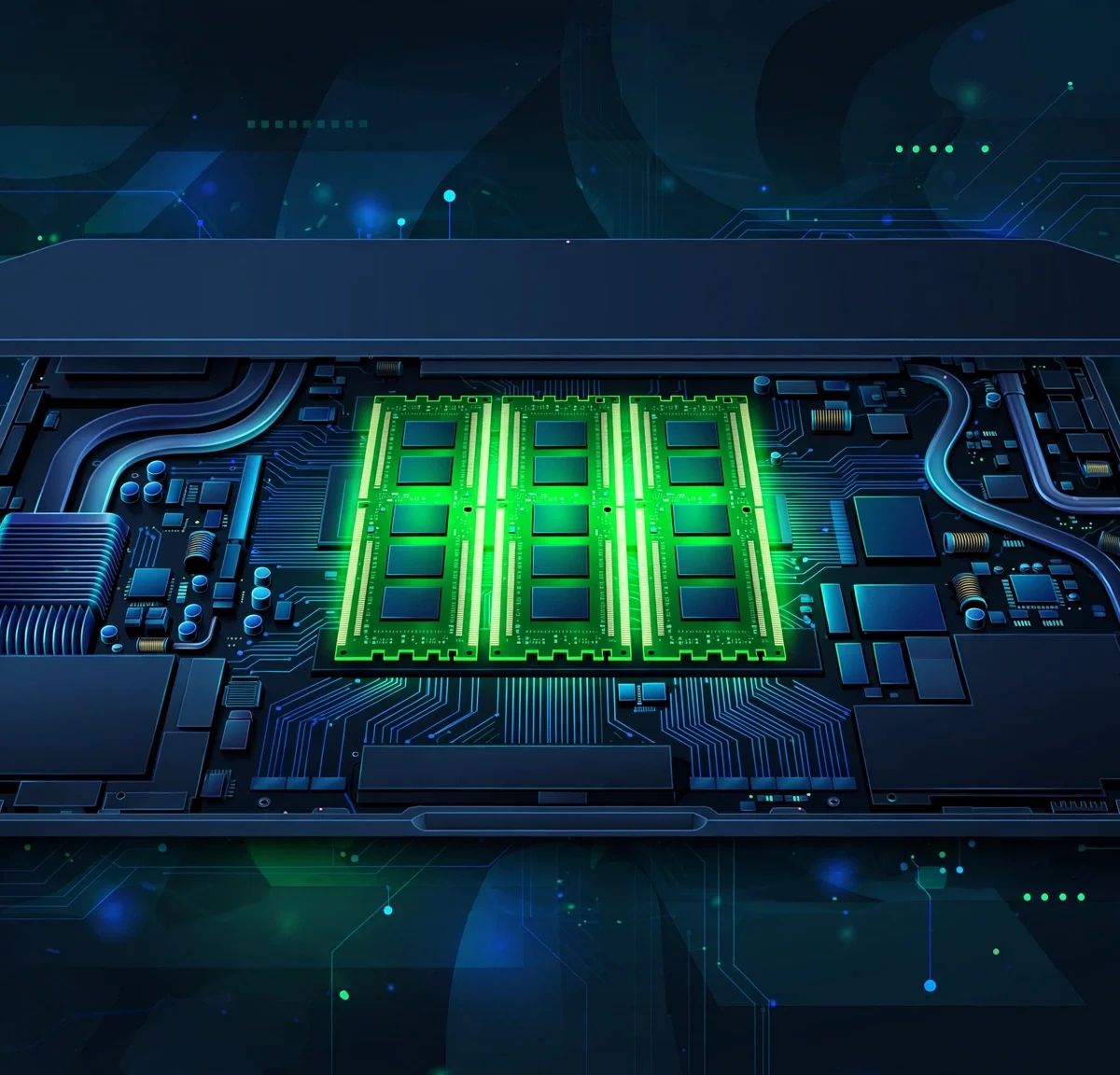
- Locate the RAM slots. The slots are easy to spot: thin green circuit boards held in place by small metal clips on each side. If you are replacing existing modules, push both clips outward at the same time and the old stick will pop up at an angle. Lift it out carefully.
- Insert the new module. Hold the new stick by its edges only, never touch the gold connectors, because skin oils can interfere with the contacts. Align the notch on the module with the ridge in the slot; it only fits one way. Slide it in at roughly a 30 to 45 degree angle, then press down firmly on both ends until the side clips snap into place with a click. Repeat for the second slot if you are installing a pair.
- Reassemble the laptop. Replace the back panel or hatch and tighten the screws. Do not overtighten; snug is enough on a plastic chassis.
- Verify the upgrade. Plug the charger back in and power on. On Windows, open Task Manager, go to the Performance tab, and click Memory to confirm the new total is shown. You can also check Settings, then System, then About for the installed RAM figure. On macOS models with removable RAM, check Apple menu, About This Mac, then More Info.
If you had no free slot and replaced both modules, remember the pairing rule: use two matching sticks for the best dual-channel performance. You can mix sizes, but mismatched modules may lose the dual-channel speed benefit, and a faster stick will downclock to the speed the laptop supports.
What to Do If the New RAM Is Not Recognized
It happens even to careful installers. If the laptop boots but the memory total has not changed, or the machine will not boot at all, work through this checklist before assuming the module is faulty:
- Reseat the module: power down, open the panel, remove the stick, and reinstall it. The most common cause is a module that is not pushed down far enough for both clips to lock.
- Check the notch alignment: if the module went in with force, you may have the wrong DDR generation. Remove it and confirm the notch matches the slot.
- Test one stick at a time: if you installed a pair, try each module alone in the primary slot to isolate a bad stick or a bad slot.
- Try the old RAM again: reinstalling the original modules tells you whether the laptop itself is fine, which narrows the problem to the new parts.
- Update the BIOS: some laptops need a BIOS update to recognize larger modules. Check the manufacturer support page for your model.
- Confirm the capacity limit: if you exceeded the maximum supported RAM, the board will ignore the extra memory or refuse to boot. Recheck the manual.
One more caution from the sources: avoid cheap no-name modules with unclear specifications. Memory that fails a month later costs more than the small saving upfront. Buy from a reputable brand with a warranty, and keep the receipt in case a stick arrives dead.
Frequently Asked Questions
Can I upgrade RAM on any laptop?
No. You can upgrade RAM on any laptop that has removable SO-DIMM slots. Many ultra-thin laptops, 2-in-1 convertibles, and some budget models have soldered memory that cannot be changed. Always confirm your model has accessible slots before buying.
How much RAM should I add?
It depends on your workload. According to HP’s guidance, 8GB is fine for basic use like browsing, office work, and streaming. For demanding apps, heavy multitasking, gaming, or future-proofing, 16GB or more is the better target. Our detailed breakdown of how much RAM you actually need walks through the common scenarios so you can pick the right capacity.
Can I mix different RAM sizes or speeds?
You can, but it is not ideal. Mismatched sizes usually lose the dual-channel performance benefit, and a faster module will downclock to match the slower stick or the maximum speed the laptop supports. For the best results, install two identical modules, same brand, size, and speed.
Will upgrading RAM void my laptop warranty?
It depends on the manufacturer and your region. Many brands allow user-replaceable memory and provide official instructions for it, especially on business models. Others may treat opening the chassis as a warranty issue. Check your warranty terms and the manufacturer support page for your model before you start.
Do I need to reinstall anything after upgrading RAM?
No. RAM is recognized automatically by the operating system. After installation, just verify the new total in Task Manager on Windows or About This Mac, and you are done. No drivers, no software setup, and no data is touched during the upgrade.
How do I know which RAM my laptop uses?
Check the laptop manual, the manufacturer’s support page for your exact model, or run the free Crucial System Scanner. All three tell you the DDR generation, the form factor, and the maximum supported capacity. Buy only modules that match all three.
Related Articles
- How Much RAM Do I Need? A Simple Guide for Every User
- How to Speed Up a Slow Laptop: Proven Fixes That Work
- Fix Laptop Overheating: Causes and Step-by-Step Solutions
- SSD vs HDD: Which One Should You Buy?
The Verdict
Upgrading laptop RAM is one of the best value improvements you can make to an aging machine. It is cheap, it takes minutes, and the performance difference in daily multitasking is often dramatic. The skill is not in the installation, which is just screws and clips. The skill is in the preparation: confirming your laptop has removable slots, buying the right DDR generation and SO-DIMM form factor, and staying within the maximum supported capacity. Do that homework, ground yourself against static, and the actual upgrade is the easy part. If your machine turns out to have soldered memory, you have still learned something useful: put your budget toward a machine with upgradeable parts next time.




1 Comment