Slow Wi-Fi can turn a simple video call or movie night into a frustrating experience. If you want to learn how to improve WiFi speed at home, the good news is that you usually do not need to buy expensive new equipment or pay for a faster plan right away. In most homes, a few simple changes to router placement, settings, and connected devices can make a noticeable difference. This guide walks you through practical steps, from finding the best spot for your router to choosing the right Wi-Fi channel, plus a device checklist to help you track down the real cause of slow speeds.
Measure Your Current Speed First
Before changing anything, find out what you are actually getting. Run a free online speed test from a browser on a computer or phone connected to your Wi-Fi. Stand close to the router for the first test, then run the same test in the rooms where you usually notice slowdowns. Write down the download and upload speeds from each spot. This gives you a baseline, so you can tell whether each change you make actually helps.
Compare your results to the speed your internet plan promises. You can find the advertised speed on your provider’s bill or account page. Keep in mind that Wi-Fi speeds are almost always lower than the wired speed, and speeds naturally drop the farther you move from the router. If the speed right next to the router is close to your plan’s advertised speed but far rooms are much slower, the problem is your home Wi-Fi coverage, not your internet plan. If even the next-to-the-router test is far below what you pay for, your provider or modem may be the issue, and we will cover what to do about that later.
Run the test at different times of day too. Speeds often dip in the evening when many people in your neighborhood are online. A single test can be misleading, so take two or three readings before drawing conclusions.
Put Your Router in the Best Possible Spot
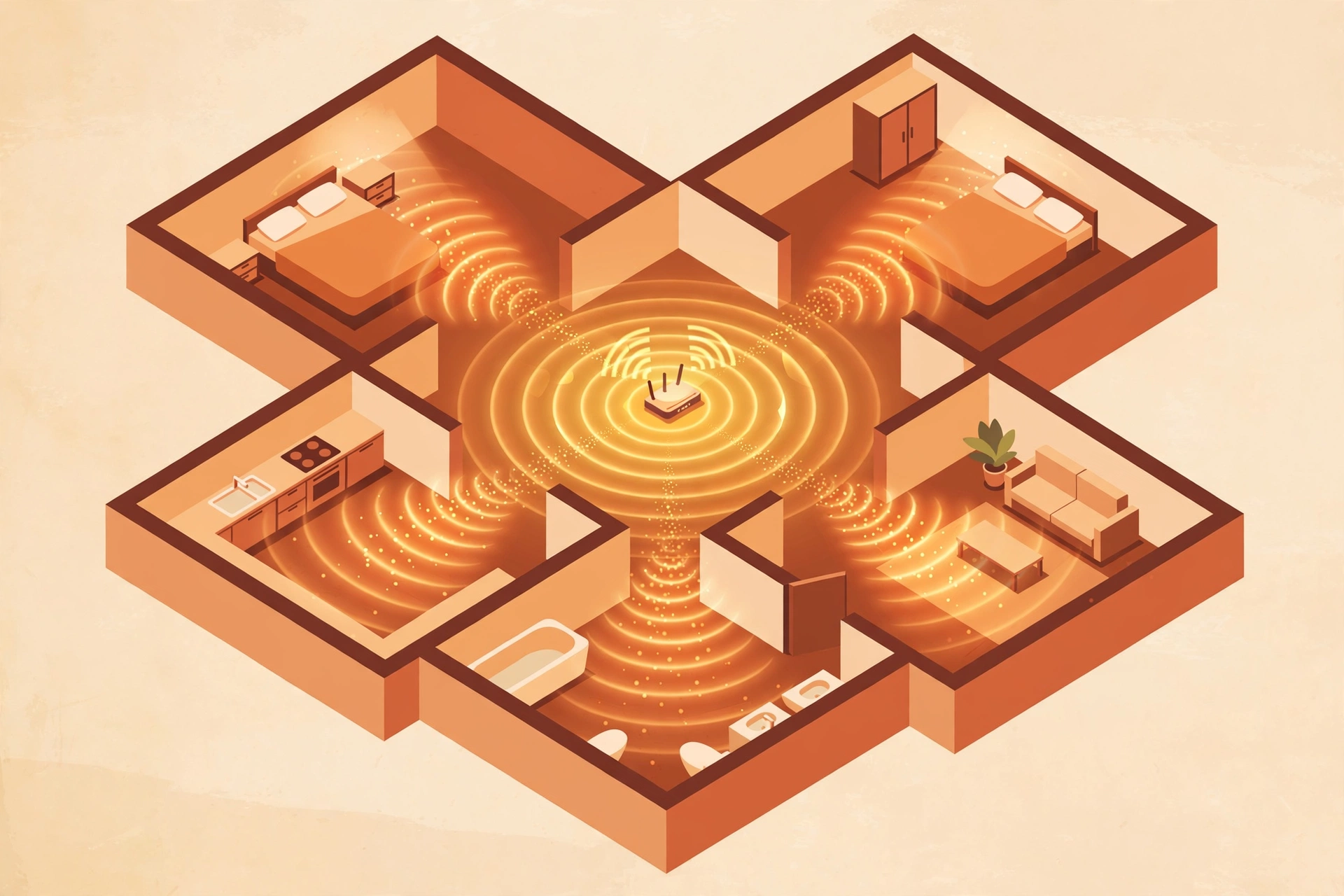
Router placement has the biggest effect on home Wi-Fi performance, and it costs nothing to fix. Wi-Fi signals spread out from the router in all directions, roughly like ripples from a stone dropped in water. The more central the router, the more evenly the signal reaches every room.
Follow these placement rules:
- Center it. Place the router as close to the middle of your home as possible, both horizontally and vertically. A router tucked in a far corner forces the signal to travel through the whole house to reach the other side.
- Keep it elevated. Put the router on a shelf or table, around waist to chest height. Wi-Fi signals spread downward more easily than upward, so a router sitting on the floor sends much of its signal into the ground.
- Leave it out in the open. Avoid hiding the router inside cabinets, drawers, or behind the TV. Each obstacle between the router and your devices weakens the signal. An open shelf is far better than an enclosed one.
- Point the antennas up. If your router has adjustable antennas, position them vertically. This spreads the signal horizontally across your home, which is usually what you want.
Thick walls, metal objects, and large mirrors are the worst offenders for blocking Wi-Fi. If your router currently sits next to a metal filing cabinet, inside a media console, or behind a large mirror, moving it even a few feet can help.
Reduce Wi-Fi Interference Around the Router
Other electronic devices can interfere with your Wi-Fi signal, especially those that use the 2.4 GHz frequency. Common culprits include microwave ovens, baby monitors, cordless phones, and Bluetooth speakers. When a microwave runs, for example, it can temporarily disrupt a 2.4 GHz network nearby.
Move your router away from these devices by at least a few feet. Kitchen placement is rarely ideal, since microwaves and other appliances create constant interference. Also, keep the router away from thick concrete or brick walls, aquariums, and metal shelving units, all of which absorb or reflect wireless signals.
In apartment buildings and dense neighborhoods, neighboring Wi-Fi networks are another major source of interference. If you can see dozens of network names when you scan for Wi-Fi, your router is likely competing with theirs for the same airspace. That is where channel selection, covered next, makes a real difference.
Choose the Right Wi-Fi Band and Channel
Most modern routers broadcast on two frequency bands: 2.4 GHz and 5 GHz. Each has strengths. The 2.4 GHz band travels farther and passes through walls better, but it is slower and more crowded. The 5 GHz band is much faster but has a shorter range. Many newer routers add a 6 GHz band with Wi-Fi 6E or Wi-Fi 7, which is even faster but covers the smallest area.
For the best experience, connect devices that are close to the router to the 5 GHz band and let farther devices use 2.4 GHz. Streaming a 4K movie or joining a video call from the same room as the router? Use 5 GHz. Checking email from the backyard? 2.4 GHz will hold the connection better. Many routers let you give each band a separate network name so you can choose manually, or you can leave band steering enabled and let the router decide.
Channel selection matters most on the crowded 2.4 GHz band. On this band, only channels 1, 6, and 11 do not overlap with each other, so these are the safest choices in most regions. A free Wi-Fi analyzer app can show you which channels your neighbors are using, and you can then pick the least crowded of the three in your router’s admin settings. On the 5 GHz band there are many more non-overlapping channels, so congestion is rarely a problem there.
To change the channel, log in to your router’s settings page (usually by typing an address like 192.168.1.1 into your browser), open the wireless settings section, and look for the channel dropdown. Switch from Auto to a specific channel, save, and retest your speeds. This one change often clears up mysterious slowdowns in apartment buildings.
Keep Your Router Updated and Restart It Regularly
Router manufacturers release firmware updates that fix bugs, patch security holes, and sometimes improve performance. Check for updates in your router’s admin panel every few months, or enable automatic updates if your router offers them. An outdated router can run slower simply because its software has known issues that were fixed long ago.
Restarting your router every week or two is also worth doing. Like any small computer, a router’s memory can get cluttered over time, and a fresh reboot clears temporary glitches. Unplug it for about 30 seconds, plug it back in, and wait a couple of minutes for it to fully reconnect. If you find yourself rebooting daily to keep speeds up, that is a sign the router itself may need replacing.
If your router is more than five years old, consider that hardware has moved on. Modern standards like Wi-Fi 6 handle many connected devices much more efficiently than older Wi-Fi 5 or Wi-Fi 4 routers. You do not always need the newest model, but a router that old can be a genuine bottleneck for a busy household.
Run a Quick Device Checklist
Sometimes the Wi-Fi is fine and the device is the problem. A phone with dozens of apps syncing in the background, or a laptop choked with startup programs, can feel slow even on a fast connection. Work through this checklist:

- Count your connected devices. Every phone, tablet, TV, smart speaker, and smart bulb shares your Wi-Fi. A household with 20 or more connected devices can overwhelm an older router. Disconnect gadgets you are not using.
- Pause background downloads. Cloud backups, game updates, and large app downloads quietly eat bandwidth. Check which devices are syncing or updating and pause them during video calls or streaming.
- Check the device itself. If only one device is slow while others are fine, the issue is with that device, not your Wi-Fi. Our guide on how to speed up a slow laptop can help when an old computer is the bottleneck.
- Test with an ethernet cable. Plug a laptop directly into the router with a cable and run a speed test. If wired speeds are much faster than Wi-Fi speeds, you know the wireless part of your setup needs attention.
- Scan for malware. A device infected with malware can use your connection for background activity. Keep antivirus software current on your computers.
Also note that a VPN can reduce your speeds, since your traffic takes a longer route through the VPN server. If you use one, try disconnecting briefly to see how much speed returns. Our explainer on what a VPN is and whether you need one covers when the trade-off is worth it.
Consider a Mesh Wi-Fi System or Range Extender
If you have tried the steps above and still have dead zones, your home may simply be too large or too solidly built for a single router. Two hardware options can help.
A mesh Wi-Fi system uses two or more units placed around your home that work together as one seamless network. Your devices automatically connect to the nearest unit as you move around. Mesh systems are the best solution for larger homes and multi-story houses, though they cost more than a single router.
A range extender (also called a repeater) picks up your router’s signal and rebroadcasts it farther. Extenders are cheaper and can fix a single dead zone, but they typically cut your speed in half on the extended network and create a separate network name you must switch to manually. They work best as a targeted fix for one far room, not as a whole-home solution.
Powerline adapters are a third option: they send internet through your home’s electrical wiring to a second access point in a far room. They work well in homes where Wi-Fi cannot pass through thick walls, though performance varies with the quality of your wiring.
When to Call Your Internet Provider
If your wired speed test, taken with a computer plugged directly into the modem, is consistently well below your plan’s advertised speed, the problem is on your provider’s side. Before calling, restart your modem, check that all cables are firmly connected, and confirm there is no announced outage in your area.
When you call, have your speed test results ready and mention the times you tested. Ask whether your modem is still supported and whether your plan’s speed matches your household’s needs. A family that streams 4K video on multiple TVs while someone works from home will feel cramped on a basic plan, and no amount of router tweaking fixes an undersized plan. But upgrade only after you have confirmed the plan is the actual bottleneck, not your Wi-Fi setup.
For more practical tech guides like this one, you can find more guides on the DigitalGeekSpot homepage.
Frequently Asked Questions
How can I improve Wi-Fi speed at home for free?
Start with free fixes: move the router to a central, elevated, open spot; switch to a less crowded Wi-Fi channel; restart the router; and disconnect devices you are not using. These steps cost nothing and solve the problem for many households.
Does moving my router really make a difference?
Yes. Because Wi-Fi radiates outward in all directions, a router hidden in a corner cabinet can lose a large part of its range to walls and furniture. Moving it to a central, open, elevated position is often the single most effective free improvement.
Should I use the 2.4 GHz or 5 GHz band?
Use 5 GHz for speed when you are relatively close to the router, such as streaming video or video calling in the same room. Use 2.4 GHz for range, such as devices in far rooms or outdoors, since it passes through walls more easily.
How often should I restart my router?
Restarting every one to two weeks is a good routine. Unplug it for about 30 seconds, plug it back in, and give it a few minutes to reconnect. If you need daily restarts to keep speeds up, the router is likely failing and should be replaced.
Will a Wi-Fi extender slow down my internet?
A basic range extender rebroadcasts the signal, which usually halves the speed on the extended network compared to connecting directly to the router. It can still be useful for a single dead zone, but a mesh Wi-Fi system gives better performance across a whole home.