Key Takeaways: “Startup booted” means a computer has completed its boot sequence and is ready to use. The system boot process moves through power-on self test, firmware (BIOS or UEFI), the bootloader, the operating system kernel, and finally the login screen. Solid-state drives boot noticeably faster than traditional hard drives, and unnecessary startup apps are the most common cause of a slow boot. Most boot failures trace back to storage, memory, or a corrupted bootloader, and many can be fixed without replacing any hardware.
You press the power button, lights flicker, a logo flashes on the screen, and a few seconds later your desktop appears. That short journey from a dead machine to a working computer is called the boot process, and when it completes successfully, your system is startup booted. It looks effortless, but underneath, your computer runs a carefully ordered chain of checks and handovers that decide whether the machine starts at all.
Understanding the startup boot helps you diagnose a machine that refuses to turn on, shave seconds off a sluggish start, and make smarter upgrade decisions. This guide explains the full computer boot sequence in plain language, from the first electrical pulse to the login screen, plus how to troubleshoot the problems that most often break it.
The phrase “what is startup booted” comes up most often during repairs or when a machine behaves oddly. In both cases the answer is the same: a startup booted system has completed every stage of the boot sequence and can run programs.
A machine that stops anywhere short of that is not startup booted: it might be stuck at the firmware logo, trapped in a repair loop, or blinking a cursor on a black screen. Each symptom points to a different stage, which is why knowing the stages matters when something goes wrong.
How does a computer start up, step by step? The sections below walk through the boot process stages in order, explain the role of BIOS and UEFI firmware, describe what bootloaders do, and finish with practical fixes for slow boots and failed boots.

What Does “Startup Booted” Mean?
A computer is startup booted when it has finished the entire startup sequence and the operating system is running normally. The term describes a completed state, not an action: only when the last stage succeeds is the startup truly booted.
Related phrases include “cold boot,” starting from a fully powered-off state, and “warm boot,” restarting a running machine. A cold boot runs the full hardware checks; a warm boot often skips some.
What Happens During the System Boot Process?
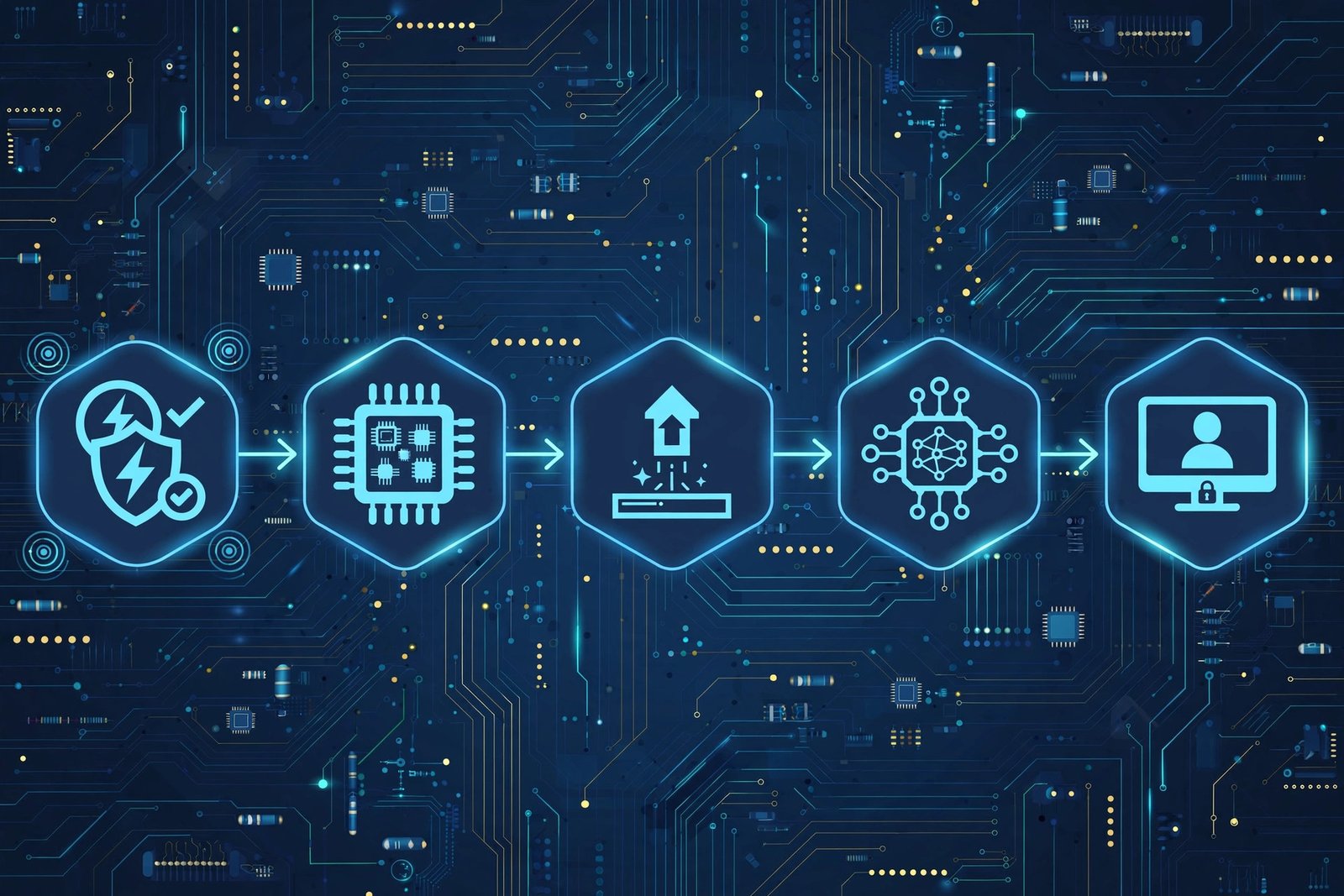
The system boot process is the ordered series of operations a computer performs between the power button and the desktop. Firmware wakes up first, checks the hardware, finds a bootable drive, and hands control to the bootloader. The bootloader loads the operating system kernel into memory, and the operating system starts its services, drivers, and user interface.
Here are the main boot process stages in order:
- Power supply and reset: Pressing the power button sends electricity to the motherboard, and the processor resets to a known starting state.
- POST (Power-On Self Test): Firmware checks that essential hardware like the CPU, memory, and graphics are present and working. A failure here usually produces beeps or a diagnostic light code.
- Firmware initialization: BIOS or UEFI configures hardware, detects storage drives, and builds a list of bootable devices.
- Bootloader execution: Firmware loads the bootloader from the chosen boot drive, and the bootloader finds and loads the operating system.
- Kernel loading: The core of the operating system loads into memory and takes hardware control from the firmware.
- Services and drivers: The operating system starts background services, loads device drivers, and mounts storage.
- User session: The login screen or desktop appears, startup applications launch, and the system is startup booted.
Stage 1: Power-On Self Test (POST)
POST is the first diagnostic your computer runs: firmware verifies that the processor, RAM, and basic graphics respond correctly. If something critical is missing, such as memory that is not seated properly, the machine halts and signals the problem with beeps or blinking lights. When POST passes, the manufacturer logo usually appears before the next stage.
Stage 2: Firmware, BIOS vs UEFI
BIOS and UEFI are two generations of motherboard firmware with the same core job: initialize hardware and start the boot. Legacy BIOS is the older system, limited to smaller drives and text-based setup screens. UEFI is the modern replacement, supporting larger drives, faster startup, graphical setup menus, and Secure Boot, which blocks unauthorized bootloaders.
| Feature | BIOS (Legacy) | UEFI (Modern) |
|---|---|---|
| Drive size support | Limited to smaller partitions | Supports very large drives |
| Boot speed | Slower initialization | Faster, parallel device setup |
| Setup interface | Text-only menus | Graphical, mouse-friendly menus |
| Security | Minimal built-in protection | Secure Boot verifies the bootloader |
| Common today | Rare on new machines | Standard on nearly all new computers |
Stage 3: The Bootloader
The bootloader bridges firmware and the operating system. Windows uses its own boot manager, Linux systems commonly use GRUB, and macOS uses its proprietary loader. Its job is small but critical: locate the operating system files, load the kernel into memory, and transfer control to it. If it is damaged, you see “no bootable device” or repair screens even though the hardware is fine.
Stage 4: Kernel and Operating System Startup
Once the kernel is in memory, the operating system takes full control: it sets up memory management, loads drivers for storage, networking, and graphics, and starts system services. The sign-in screen and Task Manager startup entries on Windows, or launch agents on macOS and Linux, belong to this phase. When the desktop or login screen is responsive, the startup is booted.
What Is a Bootloader and How Does It Work?
A bootloader is a small program stored in a special area of the boot drive whose only job is to start the operating system. It works in phases: firmware loads the first tiny stage, which loads a larger second stage, which finally loads the operating system kernel. Each stage pulls in the next because firmware can only load a small amount of code directly.
You interact with the bootloader more often than you realize. Dual-boot menus that let you choose between Windows and Linux are bootloader menus, and the blue “Automatic Repair” screen in Windows appears when repeated startup failures are reported. If you ever need to install Windows 11 on an NVMe SSD, the installation media itself is a temporary bootloader that starts the setup program.
How Does an Operating System Load After Booting?
After the kernel loads, the operating system finishes starting in a fixed order: it mounts the system drive and starts core services such as networking and security, loads device drivers for graphics, Wi-Fi, and peripherals, starts the user session manager that presents the login screen, and finally launches your startup programs after you sign in.
That last step is where most slow boots originate. Every app set to launch at startup adds time. Learning to disable unnecessary startup programs is the single most effective free fix for a slow Windows startup, because it attacks the last and longest phase of the sequence.
Why Is My Computer Slow to Boot?
A slow boot almost always comes from too many startup programs, a struggling drive, or heavy background load. The delay sits in the final phase, where the operating system starts everything you asked it to start.
Work through these fixes in order, starting with the cheapest:
- Trim startup programs: Open Task Manager on Windows or Login Items on macOS and turn off anything you do not need at sign-in. This alone often cuts boot time dramatically.
- Check disk usage: A drive pinned at full activity during startup drags everything down. See the fixes for 100 percent disk usage on Windows 11.
- Free up space and update: A nearly full system drive and outdated drivers both slow startup; guides to speed up Windows 11 cover these steps.
- Consider an SSD upgrade: If the machine still boots from a mechanical hard drive, no software tweak matches solid-state storage.
What Should You Do When a Computer Fails to Boot?
A failed boot usually reveals which stage broke: no power points to the power supply, beeps point to POST hardware, a “no bootable device” message points to the drive or bootloader, and a repair loop points to a damaged operating system.
| Symptom | Likely Stage | First Thing to Try |
|---|---|---|
| No lights, no fans | Power delivery | Check cables, outlet, and power supply or charger |
| Beeps or blinking lights | POST | Reseat memory and check the manual for the code meaning |
| Stuck on manufacturer logo | Firmware or drive | Disconnect external drives and try entering the BIOS or UEFI setup |
| “No bootable device” message | Bootloader or drive | Check that the drive is detected in firmware settings |
| Repair loop or blue screen | Operating system | Use startup repair, then system restore if available |
Before attempting system repairs, protect your files: if you can reach another computer, back up your computer first so a failed repair never costs you data. Random shutdowns during boot can indicate overheating, in which case checking your CPU temperature is a sensible early step. If the firmware does not list your drive at all, the walkthrough for an SSD not showing up in Windows covers the detection fixes in order.
How Do Boot Drives Affect the Startup Process?
An SSD versus hard drive comparison shows why the boot drive matters so much: mechanical drives read data with a moving head, which makes the thousands of small reads during boot slow. SATA SSDs remove the moving parts, and NVMe SSDs add a faster interface on top, so each step up shortens boot time.
Drive health matters too. A failing drive can turn a normal boot into a crawl as the system retries bad reads. Clicking sounds, frequent freezes, and steadily worsening boot times are warning signs to replace the drive before it dies.
Frequently Asked Questions About Startup Booted
What does it mean when a device says startup booted?
It means the device has completed its full boot sequence and the operating system is running. The message is a status confirmation, usually seen during diagnostics, that the machine reached a working state.
How does a computer start up from a powered-off state?
Pressing the power button energizes the motherboard, firmware runs a power-on self test, initializes hardware, finds the boot drive, loads the bootloader, and the bootloader loads the operating system kernel. The operating system then starts services, drivers, and your user session.
What is the difference between a cold boot and a warm boot?
A cold boot starts from a fully powered-off state and runs the complete hardware checks. A warm boot restarts a running system and may skip some of them.
Why does my computer take so long to boot?
The most common causes are too many startup programs, a mechanical hard drive instead of an SSD, a nearly full system drive, or heavy background disk activity.
What should I do if my computer will not boot at all?
Match the symptom to the stage: no power means checking cables and the power supply, beeps mean a hardware problem at POST, and a “no bootable device” message means the drive or bootloader needs attention. Back up your data before attempting repairs.
Does an SSD make booting faster?
Yes. The boot sequence performs many small file reads, which is exactly where solid-state drives outperform mechanical hard drives. Moving the operating system to an SSD is usually the biggest single improvement to boot speed.
A startup booted machine is the quiet end of a surprisingly busy process. Power, firmware, bootloader, kernel, and user session each hand off to the next in an unbroken chain. Understand that chain, and slow boots become fixable, failed boots become diagnosable, and upgrades pay off exactly where they should.