

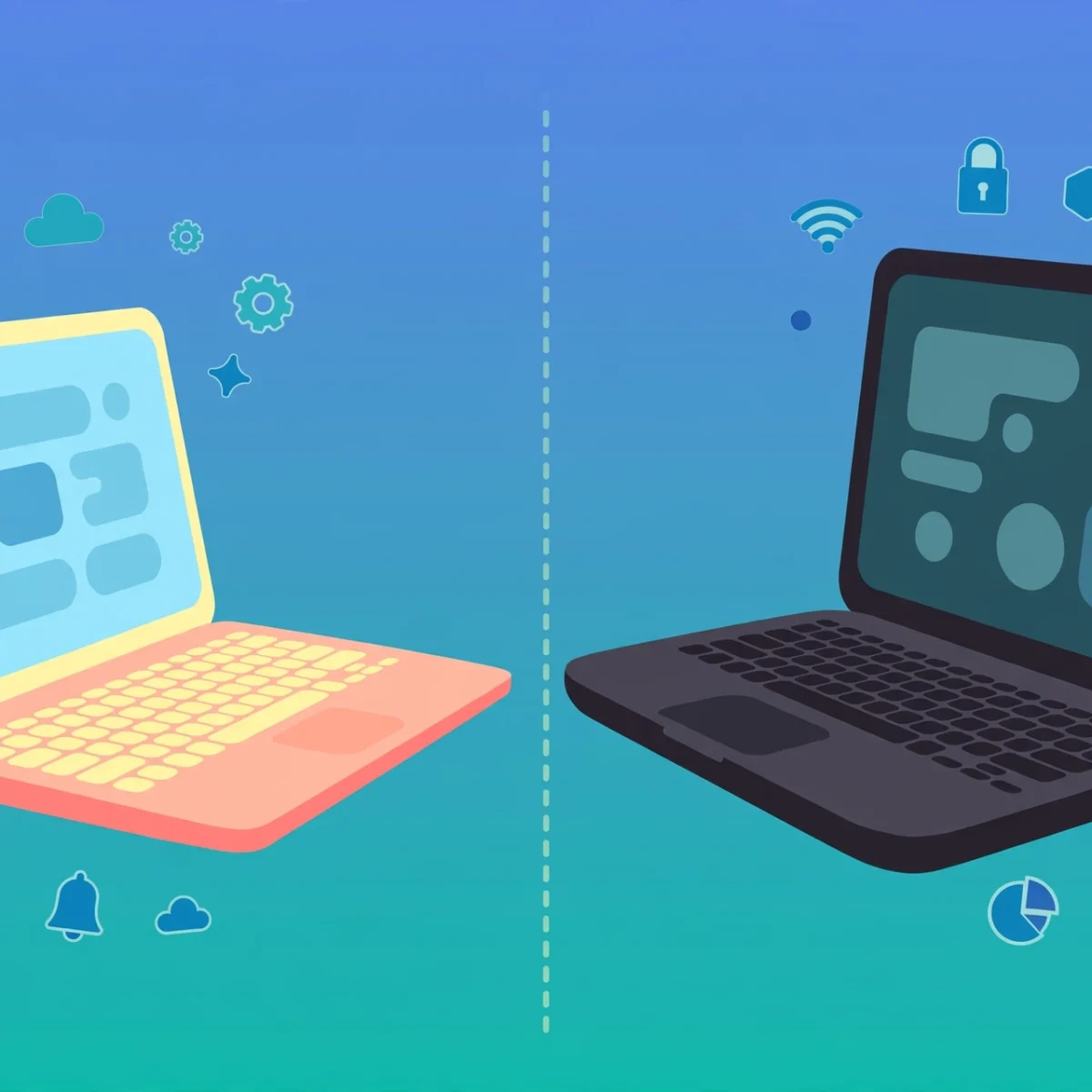
Choosing between a Chromebook and a traditional laptop is one of the most common buying questions for students and casual computer users. The chromebook vs laptop debate comes down to a simple trade-off: Chromebooks are affordable, simple, and fast for everyday tasks, while Windows and Mac laptops cost more but run a far wider range of software. This guide compares the two side by side, covering price, apps, storage, battery life, and who each type of machine is really best for, so you can buy with confidence.
What Is a Chromebook, Really?
A Chromebook is a laptop that runs ChromeOS, an operating system built by Google around the Chrome browser and cloud services. Instead of installing traditional desktop programs, you mostly use web apps and Android apps, and your files live in Google Drive rather than on the machine itself. Most Chromebooks boot in seconds, update themselves automatically in the background, and are largely immune to the viruses that target Windows.
A traditional laptop, by contrast, runs Windows or macOS. These are full desktop operating systems that install and run powerful local software: the complete Microsoft Office suite, Adobe Photoshop and Premiere, programming tools, PC games, and thousands of specialized programs. They store files locally on large hard drives or SSDs and work fully offline.
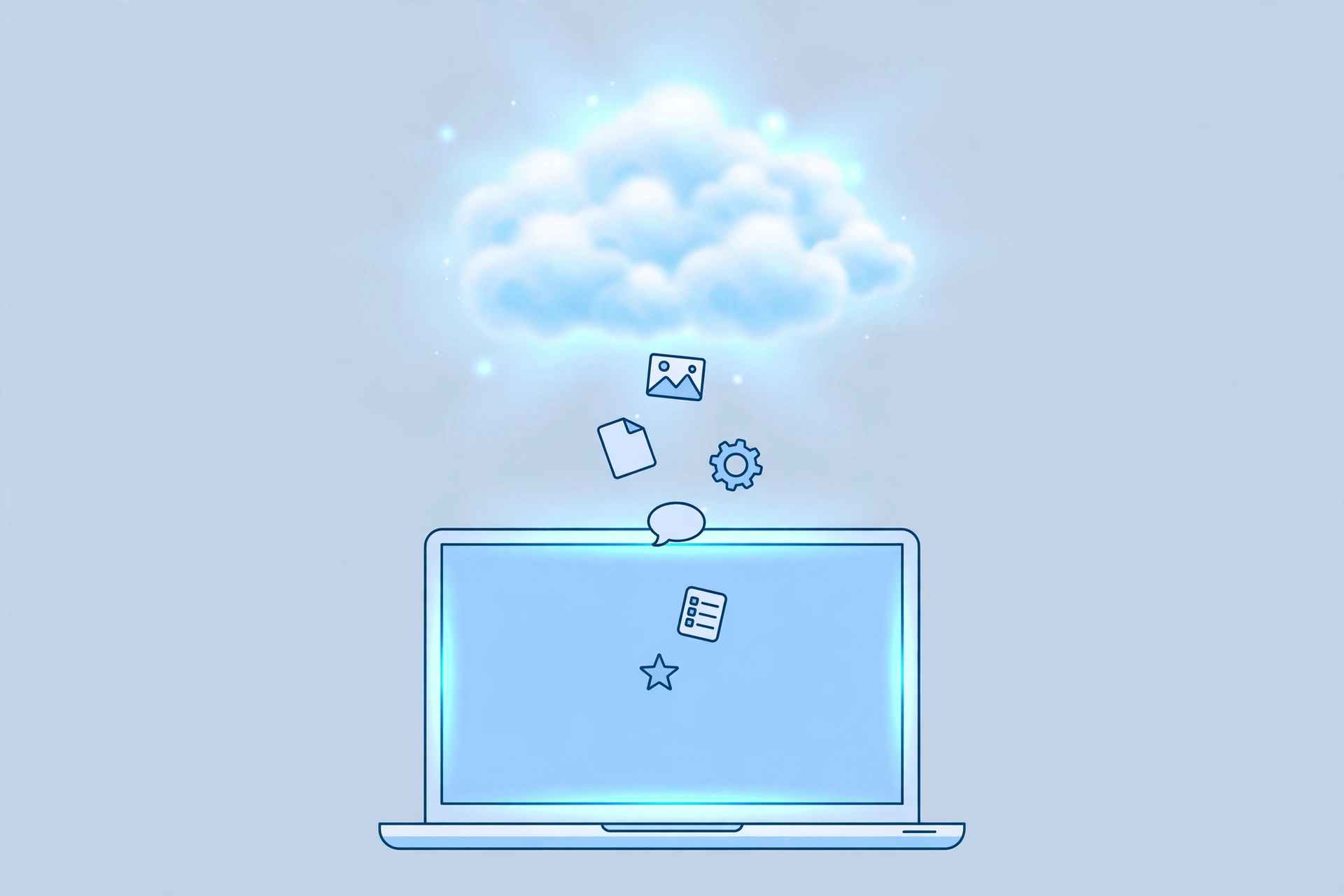
The key idea is this: a Chromebook assumes you live in the browser and the cloud, while a traditional laptop assumes you need a general-purpose computer that can run anything. Neither is better in every case. The right choice depends on what you actually do with a computer each day.
Chromebook vs Laptop: Key Differences at a Glance
| Feature | Chromebook | Windows / Mac Laptop |
|---|---|---|
| Operating system | ChromeOS (browser and cloud based) | Windows or macOS (full desktop OS) |
| Typical price | Budget friendly, often the cheapest new laptops | Higher, especially for Mac models |
| Software | Web apps, Android apps, some Linux apps | Full desktop programs, professional tools, games |
| Storage | Small built-in storage, relies on cloud | Large SSDs or hard drives for local files |
| Offline use | Limited, needs internet for most tasks | Full functionality without internet |
| Battery life | Often very long thanks to light hardware | Varies widely by model |
| Security and upkeep | Automatic updates, very low maintenance | Needs more active management and antivirus care |
| Gaming | Cloud gaming and casual Android games only | Full PC gaming on capable models |
Price and Hardware: Where Chromebooks Win
Price is the Chromebook’s biggest advantage. Usable Chromebooks start far below the price of a decent Windows laptop, which makes them popular with schools, families buying a second computer, and anyone on a tight budget. Because ChromeOS is lightweight, even modest processors and small amounts of RAM feel snappy for browsing, documents, and video.
Traditional laptops cover a much wider price range, from budget Windows machines to premium ultrabooks and MacBooks. You pay more, but you also get more powerful processors, more RAM, larger screens, and better build quality at the higher end. If you are comparing specifications, our guide on how much RAM you need can help you judge whether a laptop’s memory is enough for your workload.
One caution: the very cheapest Windows laptops can be frustratingly slow, while a cheap Chromebook usually still feels responsive. If your budget is tight and your needs are simple, a Chromebook often delivers a better day-to-day experience than a rock-bottom Windows machine. Also keep storage in mind: Chromebooks typically ship with small drives because they expect you to use Google Drive, while traditional laptops give you room for large local files. If local storage matters to you, read our SSD vs HDD comparison before choosing.
Software and Apps: Where Traditional Laptops Win
Software compatibility is the main reason people choose a traditional laptop. Windows and macOS run the full versions of professional and creative tools: Microsoft Office with every feature, Adobe Creative Cloud, AutoCAD, video editors, music production software, and development environments. PC gaming is also a Windows stronghold, with the largest game library of any platform.
Chromebooks take a different path. For everyday productivity, the web versions of Google Docs, Microsoft 365 online, and similar tools cover writing, spreadsheets, and presentations well. Many Android apps also run on Chromebooks, which adds mobile games and utilities. Some models even support Linux apps for lighter development work. But demanding desktop software, from full Photoshop to engineering tools to most PC games, simply does not run on ChromeOS.
Students should check their course requirements before deciding. If your classes need only a browser, Google Docs, and video calls, a Chromebook is plenty. Students also get a lot of value from free online tools, so take a look at our roundup of the best AI tools for students for study helpers that run entirely in the browser. But if your program requires specialized software for design, programming, data science, or media production, a Windows or Mac laptop is the safer choice.

Battery Life, Portability, and Simplicity
Chromebooks tend to sip power. The combination of efficient processors and a lightweight operating system means many models comfortably last a full school or work day on one charge. They are also typically thin and light, which students carrying a bag all day appreciate.
Traditional laptops vary much more. A premium ultrabook can match or beat a Chromebook on battery life, while a powerful gaming laptop might need its charger by mid-afternoon. Portability depends entirely on the model you pick, so check the weight and rated battery life rather than assuming.
Simplicity is another Chromebook strength. There is almost nothing to maintain: updates install automatically, there is no registry to clog or dozens of background services to manage, and resetting a Chromebook to a clean state takes minutes. If the person using the computer is not technically inclined, perhaps a younger student or an older relative, that simplicity is genuinely valuable. Windows and macOS offer more control, but they also ask more of the user in upkeep. For general upkeep tips that apply to any laptop, see our guide on how to speed up a slow laptop.
Who Should Buy a Chromebook?
A Chromebook is an excellent fit if most of your computer time is spent in a browser. Consider one if you:
- Are a student whose schoolwork is web based: research, essays, slideshows, and video classes.
- Mainly browse the web, watch streaming video, check email, and use social media.
- Want a secondary computer for travel, the couch, or the kitchen.
- Are buying for a child or a less technical family member who needs something simple and safe.
- Work in Google Workspace or Microsoft 365 online all day and store files in the cloud.
- Want the most computer for the least money, with long battery life.
Chromebooks also make good first computers for kids. Parental controls through a Google family account are straightforward, and the limited ability to install software means fewer chances to break something or pick up malware.
Who Should Buy a Traditional Laptop Instead?
Choose a Windows or Mac laptop if you need software a Chromebook cannot run. That includes:
- Creative professionals and hobbyists using Photoshop, Premiere Pro, Illustrator, or similar desktop tools.
- Programmers and computer science students who need full development environments, virtual machines, or specialized compilers.
- Gamers who want to play PC titles beyond casual and cloud games.
- Anyone who regularly works offline with large local files, such as video editors or photographers.
- Professionals whose workplace requires specific Windows-only business software.
Also consider a traditional laptop if you simply prefer owning your files locally rather than depending on cloud storage and a constant internet connection. And if you are deciding between the two Apple and Windows ecosystems specifically, remember that macOS laptops excel at creative work and build quality but carry premium prices, while Windows gives you the widest choice of models at every price point.
You can find more buying guides and practical tech explainers on the DigitalGeekSpot homepage.
Frequently Asked Questions
Can a Chromebook replace a laptop for college?
For many majors, yes. If your coursework involves writing papers, research, spreadsheets, presentations, and video lectures, a Chromebook handles it all through web apps. Check with your department first, though: programs in engineering, design, film, or computer science often require Windows or Mac software.
Can you use Microsoft Office on a Chromebook?
Yes, through the web. Microsoft 365 runs in the browser on Chromebooks with Word, Excel, and PowerPoint online, and your files save to OneDrive. The web versions cover most everyday needs, though some advanced desktop-only features are missing. You can also use Google Docs, Sheets, and Slides as free alternatives.
Do Chromebooks work without Wi-Fi?
Partially. Many Google apps offer offline modes for Docs, Sheets, and Gmail once enabled, and downloaded media plays fine offline. But a Chromebook is designed around the internet, so tasks like installing new apps or accessing cloud files need a connection. If you often work without Wi-Fi, a traditional laptop is more capable offline. Our guide on how to improve Wi-Fi speed at home can help if a weak connection is your main frustration.
Are Chromebooks good for kids?
They are one of the best options for kids. Chromebooks are affordable, boot quickly, resist viruses well, and support straightforward parental controls through Google’s family tools. The simplicity also means children are less likely to accidentally break the system.
How long do Chromebooks last?
Google guarantees automatic updates for each Chromebook model for a set number of years from its release, which defines its practical lifespan. After updates end, the device still works but no longer receives security patches. Check the model’s update expiration date before buying, especially for older or refurbished units.


1 Comment