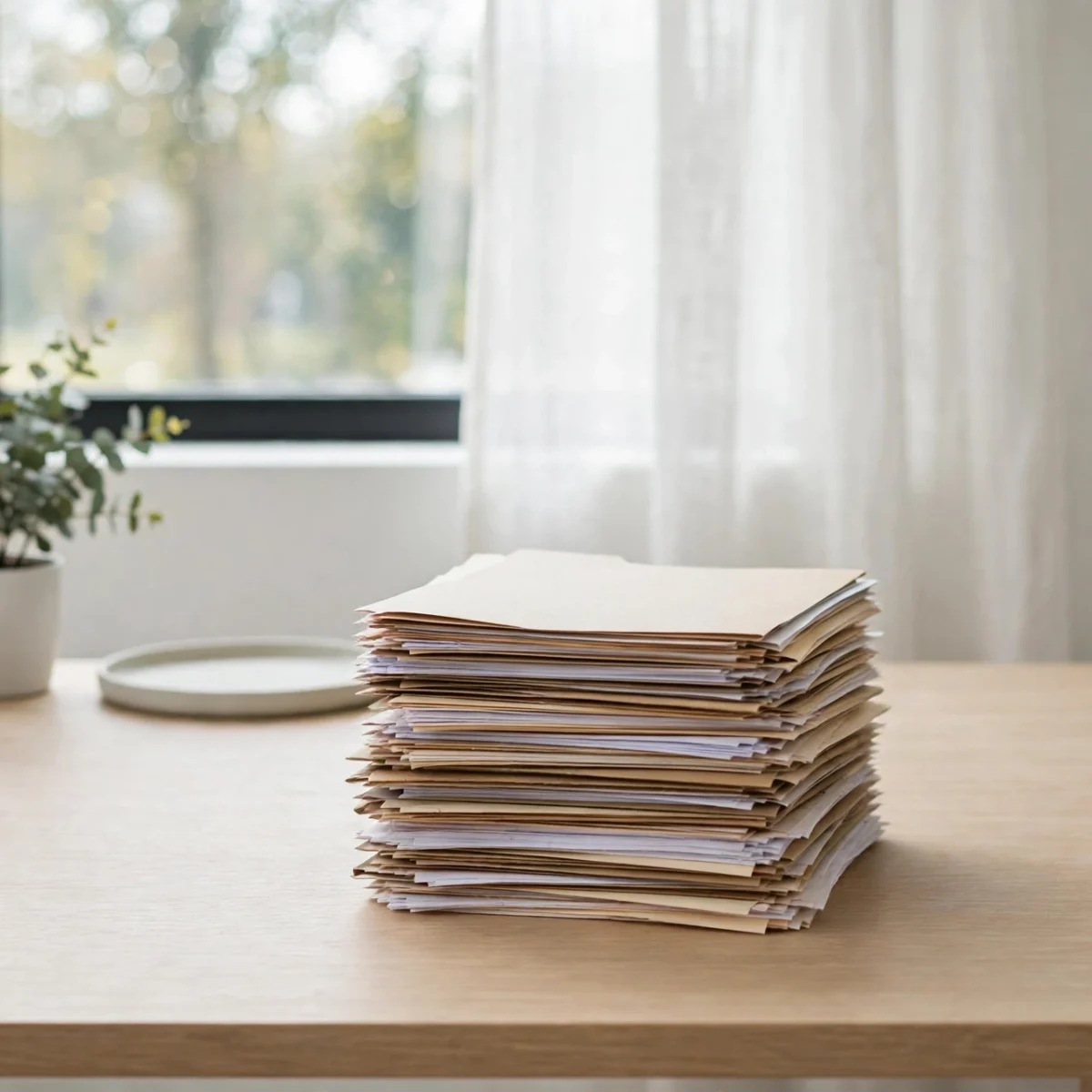
Merging PDF files used to mean buying expensive software or wrestling with clunky desktop programs. That is no longer true. In 2026, you can combine multiple PDFs into a single document in under a minute, without installing anything and without paying a cent, using free online tools or built-in features on your computer.
Direct answer: To merge PDF files free, use a free online tool like iLovePDF, Smallpdf, or PDF24 Tools: upload your PDFs, drag them into the order you want, click merge, and download the combined file. For offline or sensitive documents, use the free open-source desktop app PDFsam Basic, or the built-in Preview app on Mac. The whole process takes about 60 seconds.
Key Takeaways
- The fastest free method is an online merger: iLovePDF, Smallpdf, PDF24 Tools, and Sejda all merge PDFs free in your browser with no signup.
- For sensitive documents, use offline tools instead: PDFsam Basic (free, open-source, Windows/Mac/Linux) or Preview on Mac keep your files on your device.
- Always arrange page order before merging, keep a backup of the originals, and check the merged file for formatting issues.
- Free online tools usually have file-size or task limits; desktop tools generally do not.
- Merging is different from converting: merging combines PDFs into one PDF, while converting changes file formats.
Best Free PDF Merger Tools Compared
| Tool | Type | Signup Needed | Standout Feature |
|---|---|---|---|
| iLovePDF | Online | No | Clean interface, batch processing, 25+ PDF tools in one suite |
| Smallpdf | Online | No | Polished workflow, integrates with Google Drive and Dropbox |
| PDF24 Tools | Online + desktop | No | Truly free with generous limits, desktop Creator app for Windows |
| Sejda | Online + desktop | No | Simple editor plus merger, 3 free tasks per hour online |
| PDFsam Basic | Desktop (open-source) | No | Merge, split, and rotate offline with no file-size caps |
| Mac Preview | Built-in (Mac) | No | Drag-and-drop page merging with zero third-party software |
How Do You Merge PDF Files Free Online?
Short answer: Open a free merger like iLovePDF in your browser, upload the PDFs, drag them into order, click the merge button, and download the result. No account or installation is required.
Online mergers are the path of least resistance, and for everyday documents they are all most people need. The workflow is nearly identical across every major tool, which is convenient once you learn it once. Here is the exact process using iLovePDF, one of the most popular free options:
- Go to the merge tool page and click the upload button (or drag your PDF files straight into the browser window).
- Wait for each file to finish uploading. Thumbnails appear so you can confirm every document loaded correctly.
- Drag the file thumbnails left or right to set the final order. The first file becomes the first pages of the merged PDF.
- Click the merge button. Processing usually takes a few seconds for normal-sized documents.
- Download the combined PDF to your computer, then open it and skim through to verify the order and formatting.
Smallpdf and PDF24 Tools follow the same pattern with slightly different button labels. If one site is slow or throws an error on a large file, simply try another; your files are not locked to any single service. Many people who regularly work with documents also keep a couple of free AI tools bookmarked alongside their PDF utilities, since modern AI assistants can summarize the merged document afterward.
What Is the Best Free PDF Merger With No Signup?
Short answer: PDF24 Tools and iLovePDF are the best no-signup options: both merge PDFs free in the browser without requiring an account, and PDF24 also offers a free desktop app.
The no-signup detail matters more than it sounds. Plenty of sites advertise free merging but then demand an email address before letting you download the result, or watermark your file until you register. The tools in the comparison table above genuinely let you merge and download without creating an account.
PDF24 Tools deserves special mention because its free tier is unusually generous. Unlike competitors that limit you to a couple of merges per day or cap file sizes aggressively, PDF24 processes files with minimal restrictions and also ships PDF24 Creator, a free Windows desktop application for people who prefer working offline. Sejda is similarly honest about its limits: three free tasks per hour, clearly stated, with no surprise paywalls.
How Do You Merge PDFs on Windows for Free?
Short answer: On Windows, install the free PDF24 Creator or PDFsam Basic, add your PDFs, arrange them, and merge; both work fully offline at no cost.
Windows has no built-in PDF merger, so you need a third-party tool. You have two excellent free choices:
PDF24 Creator is the friendliest option. After installing, open the app, choose the merge tool, drag in your files, reorder them, and export. It also includes compression, conversion, and page extraction, so it doubles as a general PDF toolkit.
PDFsam Basic is the power user’s choice. It is open-source, runs on Windows, Mac, and Linux, and handles merge, split, rotate, and page extraction. Because it is open-source, there are no upsells, no accounts, and no telemetry nagging you. The interface is plainer than PDF24’s, but it is rock solid and imposes no file-size limits.
One caution: when downloading free Windows software, always get it from the developer’s official site. Third-party download portals sometimes bundle adware with otherwise legitimate free programs.
How Do You Combine PDFs on a Mac Without Extra Apps?
Short answer: Open one PDF in Preview, show thumbnails, drag pages from the second PDF into the thumbnail sidebar, then save; the result is a single merged PDF.
Mac owners have the easiest deal of all, because Preview can merge PDFs natively:
- Open the first PDF in Preview.
- Choose View, then Thumbnails, to show the page sidebar.
- Open the second PDF in a separate Preview window and show its thumbnails too.
- Drag pages (or the whole thumbnail selection) from the second PDF into the sidebar of the first, dropping them where you want them in the order.
- Press Command+S to save. Preview merges the pages into the first file, so consider using File, then Duplicate first to preserve your originals.
This method works at the page level rather than the file level, which is actually more flexible: you can interleave pages from different documents, drop unwanted pages, and reorder everything visually before saving.
Is It Safe to Merge PDFs With Free Online Tools?
Short answer: It is safe for ordinary documents on reputable sites, but never upload sensitive files (contracts, medical records, financial statements) to a free online merger; use an offline tool for those.
Free online tools have to process your file on their servers, which means your document leaves your device. Reputable services use encrypted connections and state that they delete uploaded files after a short period, typically one to two hours. For resumes, school assignments, portfolios, and marketing materials, that risk profile is perfectly acceptable.
For anything confidential, the calculus changes. Offline tools like PDFsam Basic and PDF24 Creator process everything locally, so your files never touch a server. As a rule of thumb: if you would hesitate to email the document to a stranger, do not upload it to a free web tool either. This is the same judgment call you make with any free online tool that handles your files.
Can You Merge Password-Protected PDFs for Free?
Short answer: Yes, if you know the password: enter it when the tool prompts you, and most free mergers (including Sejda and PDFsam) will process the file normally.
Password-protected PDFs are not a dead end, provided the password is yours to use. Online tools will ask for the password at upload time; desktop tools do the same when you add the file. The merged output is typically unprotected unless you explicitly add a password afterward, so re-secure it if the contents require it.
What free tools generally cannot do is strip a password you do not know. That is by design, and any tool claiming otherwise should be treated with suspicion.
Why Is My Merged PDF So Large, and How Do I Fix It?
Short answer: Merged PDFs get large when the source files contain high-resolution images; compress the result with a free PDF compressor afterward.
Merging does not magically optimize anything; it concatenates. If you combine five 20 MB scanned documents, you get a 100 MB file. Most of the tools in the comparison table, including iLovePDF, Smallpdf, and PDF24, also offer a free compress tool on the same site. Run your merged file through it once and you will often cut the size by half or more with no visible quality loss.
If you scan documents yourself, lowering the scan resolution to 150-200 DPI for text documents prevents the bloat in the first place. And if you ever need to pull pages back out of a merged file later, the same free tools offer a split function that reverses the process.
Frequently Asked Questions
How do I merge PDF files for free without Adobe?
You do not need Adobe at all. Free options include iLovePDF, Smallpdf, PDF24 Tools, and Sejda online, or PDFsam Basic and PDF24 Creator as free desktop apps. Mac users can merge in the built-in Preview app with no extra software.
Can I merge PDFs on my phone for free?
Yes. The online tools listed above work in mobile browsers, and both iLovePDF and Smallpdf offer free mobile apps for Android and iOS that include merging alongside their other PDF features.
Will merging PDFs reduce their quality?
No. Merging itself is lossless; pages are combined exactly as they are. Quality problems only appear if a tool re-compresses images during processing, which reputable free mergers do not do by default.
How many PDFs can I merge at once for free?
It depends on the tool. Online tools may cap the number of files per task or the total size; desktop tools like PDFsam Basic have no practical limit. For very large batches, a desktop app is the smoother choice.
Can I reorder pages before merging?
Yes. Every major free merger lets you drag files or page thumbnails into your preferred order before combining. On Mac Preview you can even interleave individual pages from different documents.
Do free PDF mergers add watermarks?
The reputable ones do not. iLovePDF, Smallpdf, PDF24, Sejda, and PDFsam produce clean, watermark-free output on their free tiers. If a tool watermarks your merged file, switch to one of these instead.
What is the difference between merging and combining PDFs?
There is none; the terms are used interchangeably. Both mean joining multiple PDF files (or selected pages) into one PDF document.
Can I merge a PDF with a Word document?
Not directly; both files must be PDFs first. Convert the Word file to PDF (free tools for that are on the same sites), then merge the resulting PDFs together.
The Verdict
Merging PDFs for free in 2026 is a solved problem. For everyday documents, open iLovePDF or PDF24 Tools in your browser and you will be done in a minute. For sensitive files, keep it offline with PDFsam Basic or Mac Preview. Arrange your pages before you merge, keep backups of the originals, and compress afterward if the file balloons. DigitalGeekSpot covers practical free software like this regularly, so the workflow above will stay useful no matter which specific tool you pick.